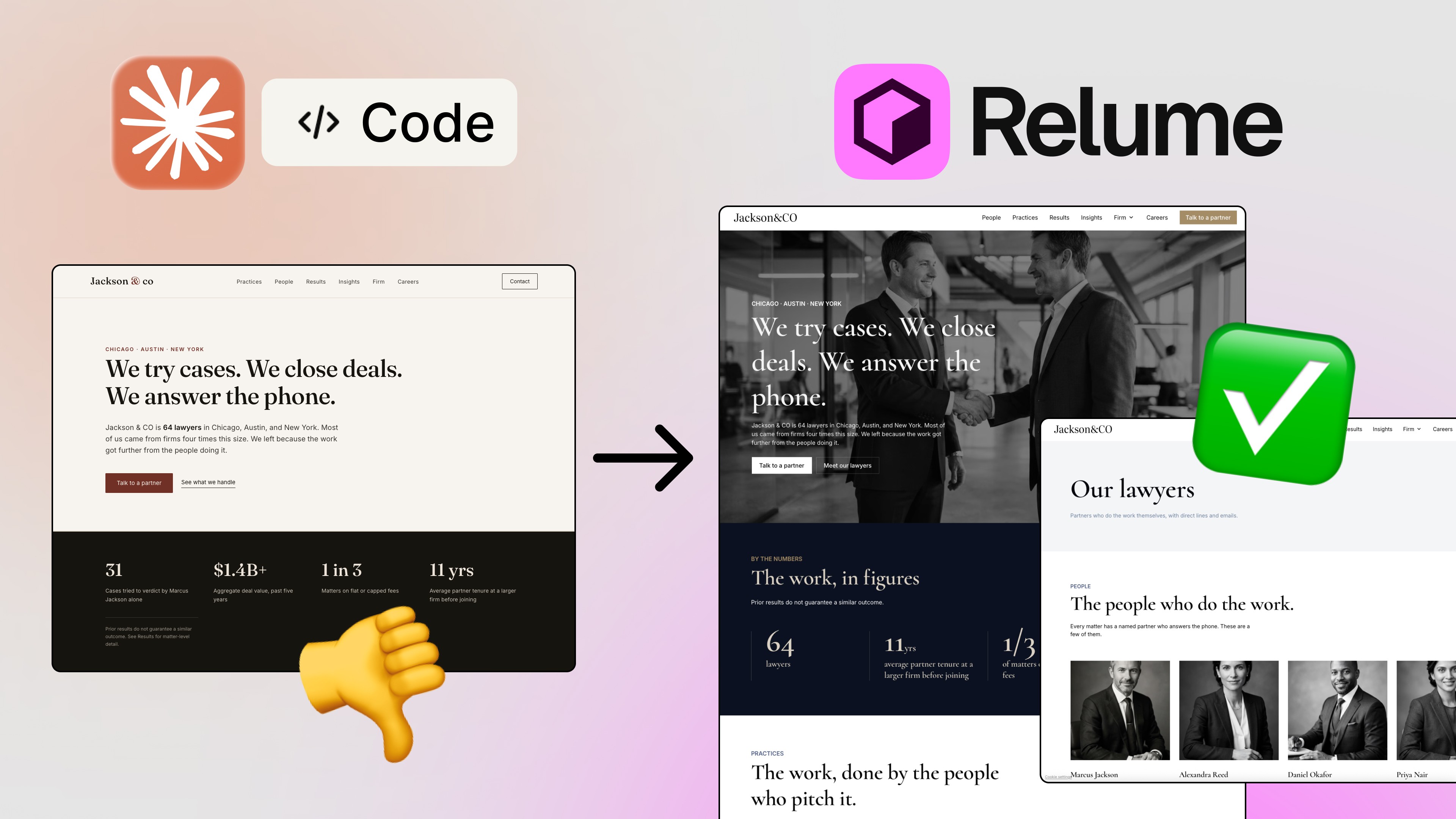
I’ve been waiting for this for over a year. Genuinely. Every time I opened Framer, some small part of my brain was hoping today would be the day AI agents finally showed up inside the canvas — not as a side panel gimmick, but as something that could actually build, edit, and ship a real website. With Framer 3.0, that day has arrived, and honestly, it’s a lot more powerful than I expected. 🤯
If you design or build websites in 2026, Framer 3.0 AI agents are something you need to understand right now, not “eventually.” In this article, I’m walking through exactly what’s new, how the agent mode works in practice, and why this update might save you days — not hours — on your next project.

What’s New in Framer 3.0
The interface itself got a quiet but meaningful refresh first. Settings, analytics, and CMS now live in a single dropdown, and the right-hand panel has been split into two modes: Styles and Agents. Styles is the familiar toolkit you already know — typography, color, spacing. Agents is the new addition, and it’s where all the magic happens.
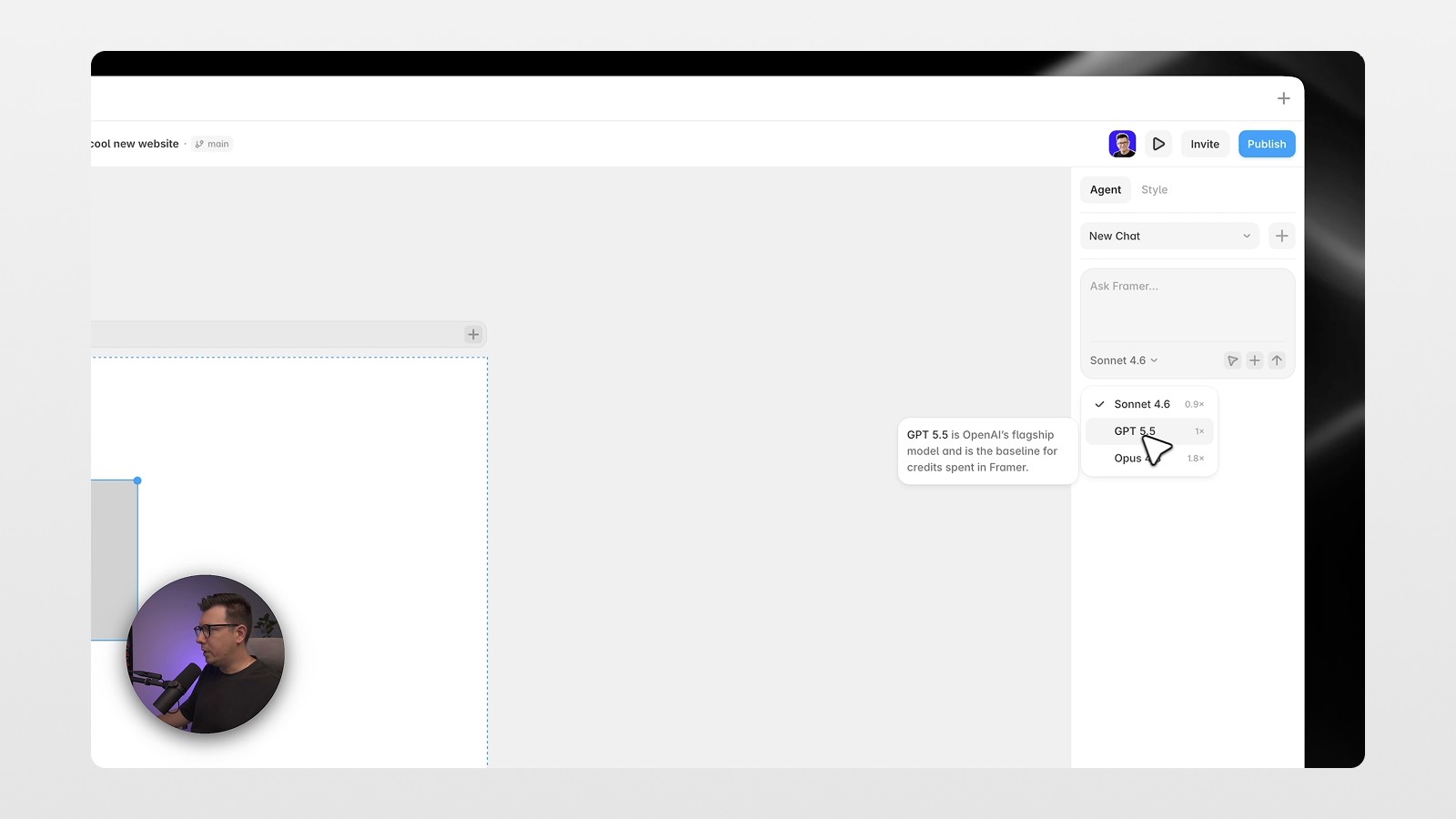
Inside Agents mode, you get a chat interface where you can start new conversations or revisit old ones, and you can choose between multiple models — Claude (Sonnet and Opus) and ChatGPT are both available. That choice matters more than it might seem, since different models handle layout reasoning and content generation a little differently.
Generating a Full Website From a Single Prompt
Here’s where it gets interesting. I opened a blank project and typed one prompt describing a yoga studio website: static pages for home, about, and contact, plus CMS-driven pages for programs, trainers, and a blog. I specified the style — soft, light, earthy tones with olive as the call-to-action color — and described the target audience.
What happened next is the part that genuinely surprised me. Instead of just generating something blindly, the agent asked clarifying questions first — specifically, whether it should build a shared navigation, footer, and reusable card system. That single question tells you a lot about how this update was designed: it’s not trying to one-shot a guess, it’s trying to build something structurally sound.
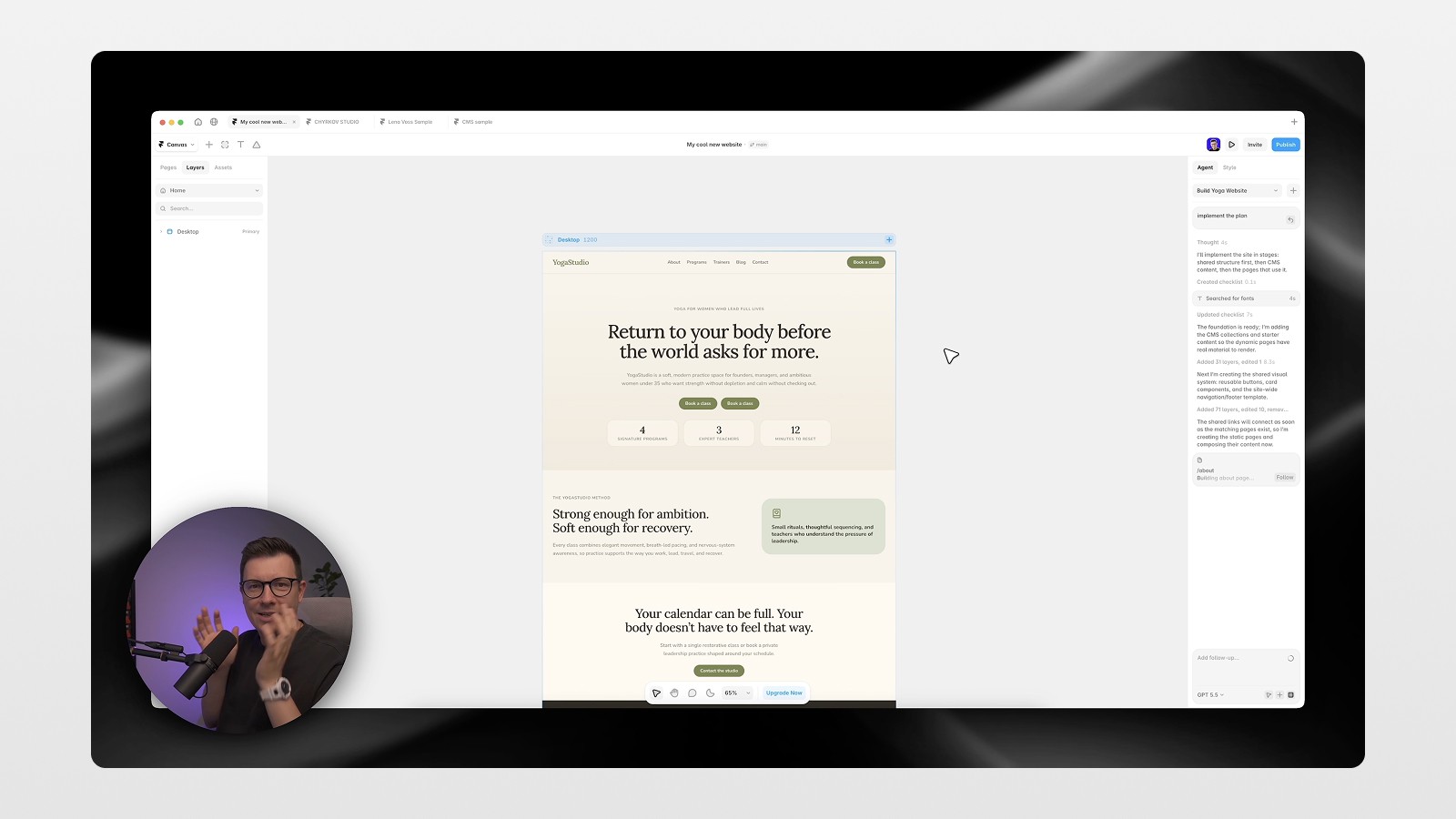
After confirming, the agent created a design plan, then started implementing it. And this is the part that felt almost unreal — I could navigate into the CMS while the agent was still working and see collections being populated in real time. Programs, trainers, and blog posts were already showing up with correct slugs, summaries, and metadata. Not placeholder lorem-ipsum content with stock flower images — actual structured content relevant to the prompt.
Within about ten minutes, from one prompt, I had:
Four reusable components
A full color style system (including the exact olive CTA color I asked for)
Multiple CMS collections with real content
A complete page structure across static and dynamic pages
When the agent flagged that the site only had a desktop breakpoint, I just asked it to “make it responsive,” and it adjusted every page automatically.
Why This Beats the Old Figma-to-Framer Workflow
If you’ve worked in this space for a while, you know the old routine: design in Figma, hand it off or export it with a plugin, then rebuild and patch things up inside Framer. It works, but it’s slow, and something always gets lost in translation.
With Framer agent mode, that entire detour disappears. The agent builds directly inside your live Framer project — not in some external tool you then have to import. You can watch components assemble themselves on the canvas in real time. And once you’re happy with it, you click Publish, and the site is live. No exporting, no re-uploading assets, no fixing broken layers.
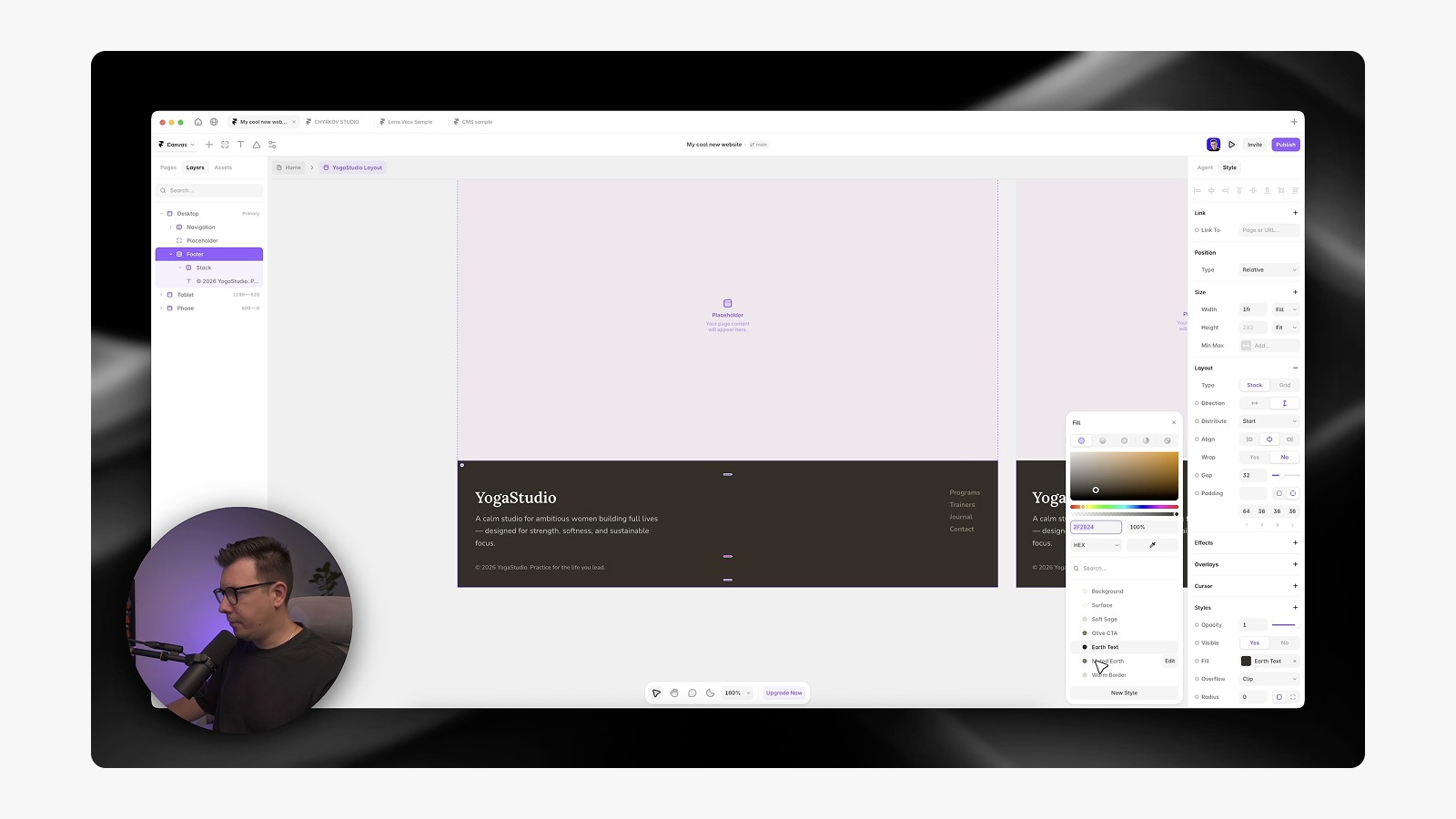
One detail I really appreciated: you’re never locked into prompting for every tiny change. If you want to update a footer color, you just click and change it manually — no tokens spent, no waiting on a generation cycle. That’s a meaningful difference compared to fully prompt-based design tools, where even small visual tweaks have to go through the AI.
Updating an Existing Project With Agents
The single-prompt website generation is impressive, but the more practical use case for most of us is updating an existing site. I tested this on my own studio’s live website.
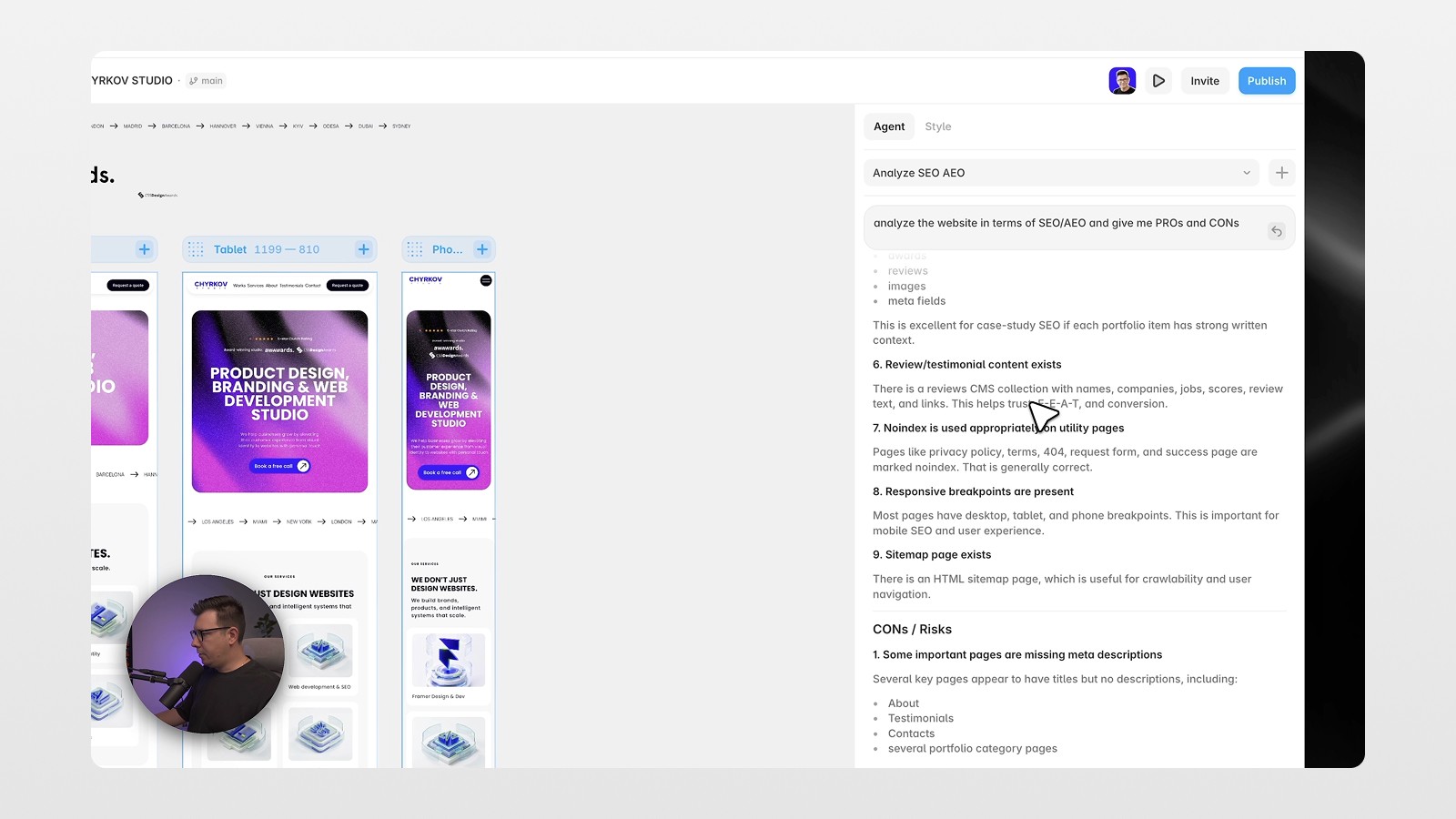
First, I asked the agent to analyze the site for SEO and AEO (answer engine optimization) and give me pros and cons. It returned a structured breakdown — strong points like solid service page coverage and keyword structure, plus specific improvement suggestions, including strengthening FAQ answers on service pages and expanding blog content around high-intent search queries.
I acted on one of those suggestions directly: I asked the agent to create a new blog post on a specific topic, gave it a reference URL, and let it run. It generated a complete CMS entry — title, meta title, meta description, slug, featured image, and body copy — matching the existing site’s structure and styling. No new buttons, no random design elements, no hallucinated layout choices. It respected the existing design system completely.
Branches: A Git-Style Safety Net
This might be my favorite addition in the whole update. Framer 3.0 introduces branches, working almost exactly like Git branching for developers. Every new agent chat that modifies your live site creates a separate branch instead of overwriting your main project. You can review the changes, compare before and after, and only merge to main when you’re satisfied.
I used this to generate four completely different homepage layout concepts — all using my existing style system, all in a separate design page, none of them touching my live site until I chose one. That kind of non-destructive experimentation used to require duplicating files manually or working in a separate tool entirely.

External Agents: Connecting Cursor and Claude Code
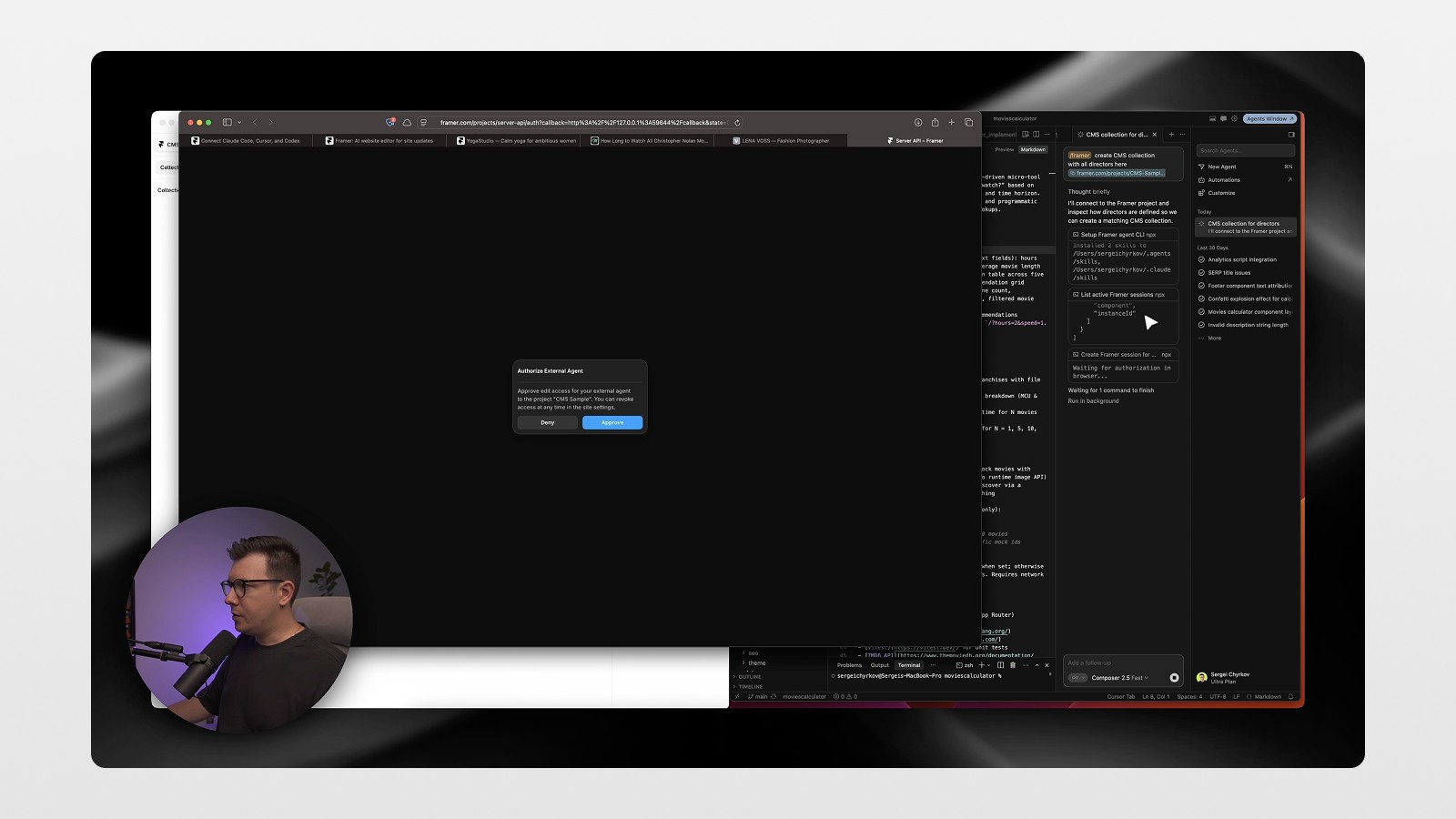
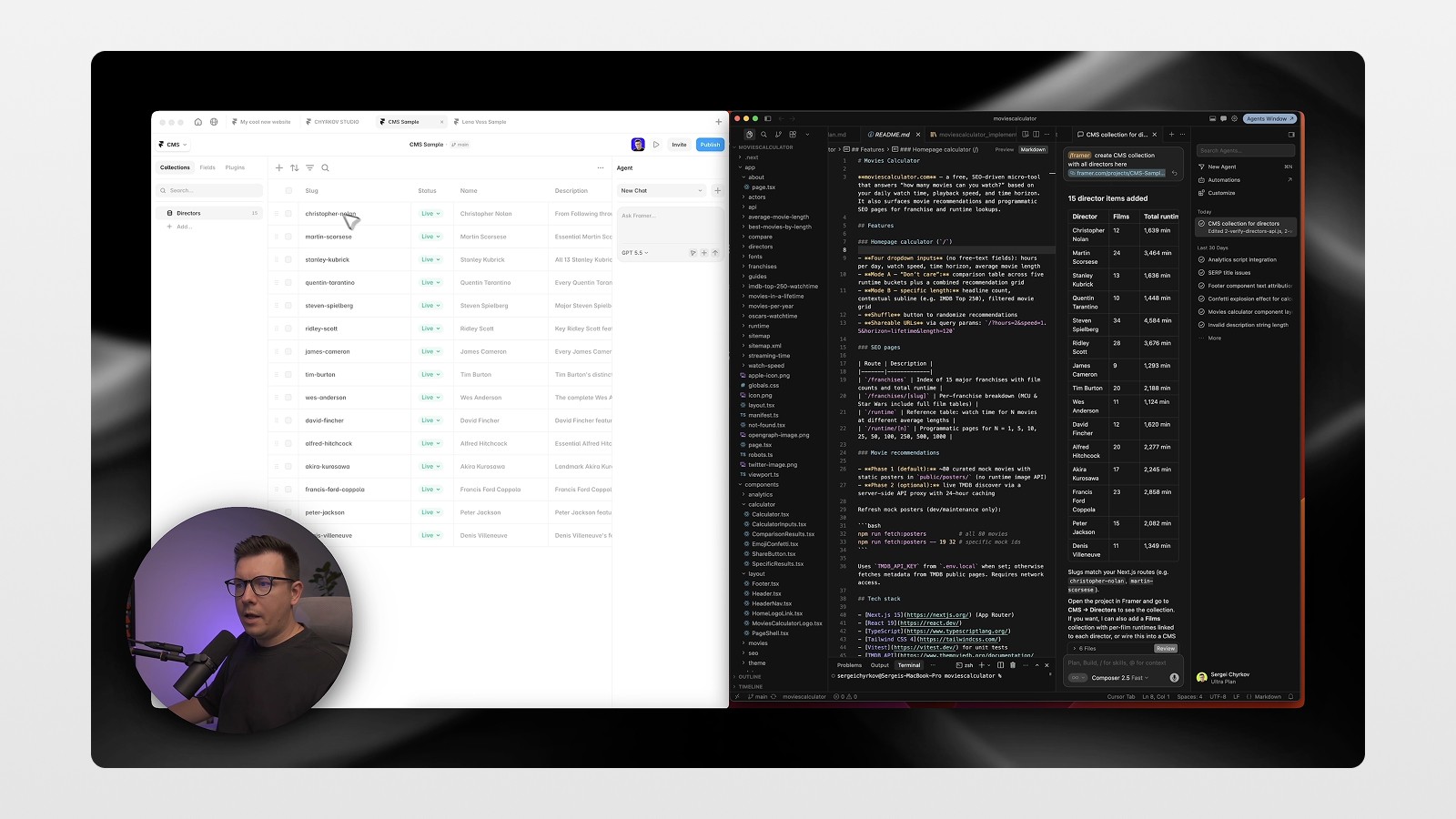
The last piece, and arguably the most ambitious, is Framer’s external agent connection — the ability to link tools like Cursor and Claude Code directly to your Framer project. This means code-based AI agents can interact with your actual Framer site, including importing existing codebases (pages, components, and CMS content) from frameworks like Next.js straight into Framer.
For teams that live partly in code and partly in no-code tools, this bridges a gap that’s existed for years. You’re no longer choosing between “designer-friendly” and “developer-friendly” workflows — you can move between them.
Actionable Tips for Using Framer AI Agents
Be specific in your first prompt. Include page types, content sections (static vs. CMS), color palette, brand tone, and target audience. The more context you give, the less back-and-forth you’ll need.
Let the agent ask questions. If it offers to build reusable systems (navigation, cards, footers), say yes — it sets you up for faster edits later.
Start a new chat per task. Don’t keep stacking unrelated requests into one long conversation. Separate chats keep context clean, save tokens, and speed up generation.
Use branches for any major redesign. Never experiment directly on your main branch when working on a live site.
Fix small things manually. Don’t waste prompts (or tokens) on tiny visual tweaks like color changes — just edit them directly in the canvas.
Run an SEO/AEO audit early. Ask the agent to analyze your existing site before making changes — it often surfaces quick wins you’d otherwise miss.
Final Thoughts
Framer AI agents aren’t just a feature update — they change the actual workflow of building and maintaining websites. Whether you’re generating a brand-new site from scratch, updating CMS content on a live project, exploring design variations safely with branches, or bridging code and design through external agent connections, this update removes a lot of the friction that used to eat up days of work.
If you’re a designer, freelancer, or solopreneur building sites in 2026, this is worth testing on a real project, not just a demo. Watch the full video walkthrough to see every step in action, and if you want more breakdowns like this on Figma, Framer, and AI design tools, subscribe to the newsletter — I share these workflows as soon as I test them myself.
FAQs
What are Framer 3.0 AI agents?
Can Framer's AI agent build a website from a single prompt?
What is the branches feature in Framer 3.0?
Can Framer 3.0 connect to Cursor or Claude Code?
Does using Framer's AI agent cost tokens for every small edit?
See more from me in Google Search
Add sergeichyrkov.com as a preferred source to get my tutorials and articles highlighted in Top Stories and AI Overviews.