I've been using a lot of AI design tools lately. Like, a lot. And most of them follow the same pattern: you type a prompt, wait a few seconds, and something gets generated. Cool, but not exactly revolutionary.
MagicPath 2.0 is different. And I don't say that lightly.
The new version introduces something I genuinely haven't seen anywhere else on the market: a collaborative canvas where AI agents and humans work together in real time — multiple agents running simultaneously, each handling different parts of your design, all on the same live canvas. And yes, you can invite real human designers into that same canvas too.
If you're a web designer, UI/UX designer, or someone exploring how AI fits into your design workflow, this update is worth paying attention to. Let me walk you through everything that's new in MagicPath 2.0.
A Proper Standalone Mac App — Finally
First things first: MagicPath now has a fully working standalone macOS app. If you've been using it in the browser, you'll immediately notice the difference. It feels more solid, more responsive, and honestly just more like a real design tool.
You can grab it from magicpath.ai — there's a download button right on the homepage. Open it up, create a new project, and you'll notice the interface has been rethought quite a bit. The left panel is wider, better organized, and now includes threads — similar to how Cursor or Claude Code let you run multiple prompts in parallel. This is a small thing on paper but a big deal in practice.
You also get components and libraries accessible from other projects, which works a lot like Figma's shared libraries. And yes, you can create and manage your own design systems directly in MagicPath — set your colors, typography, tokens — and reuse them across everything. Super useful if you're building multiple apps or maintaining a consistent brand.
AI Agents Designing Your UI in Real Time (This Part Is Wild)
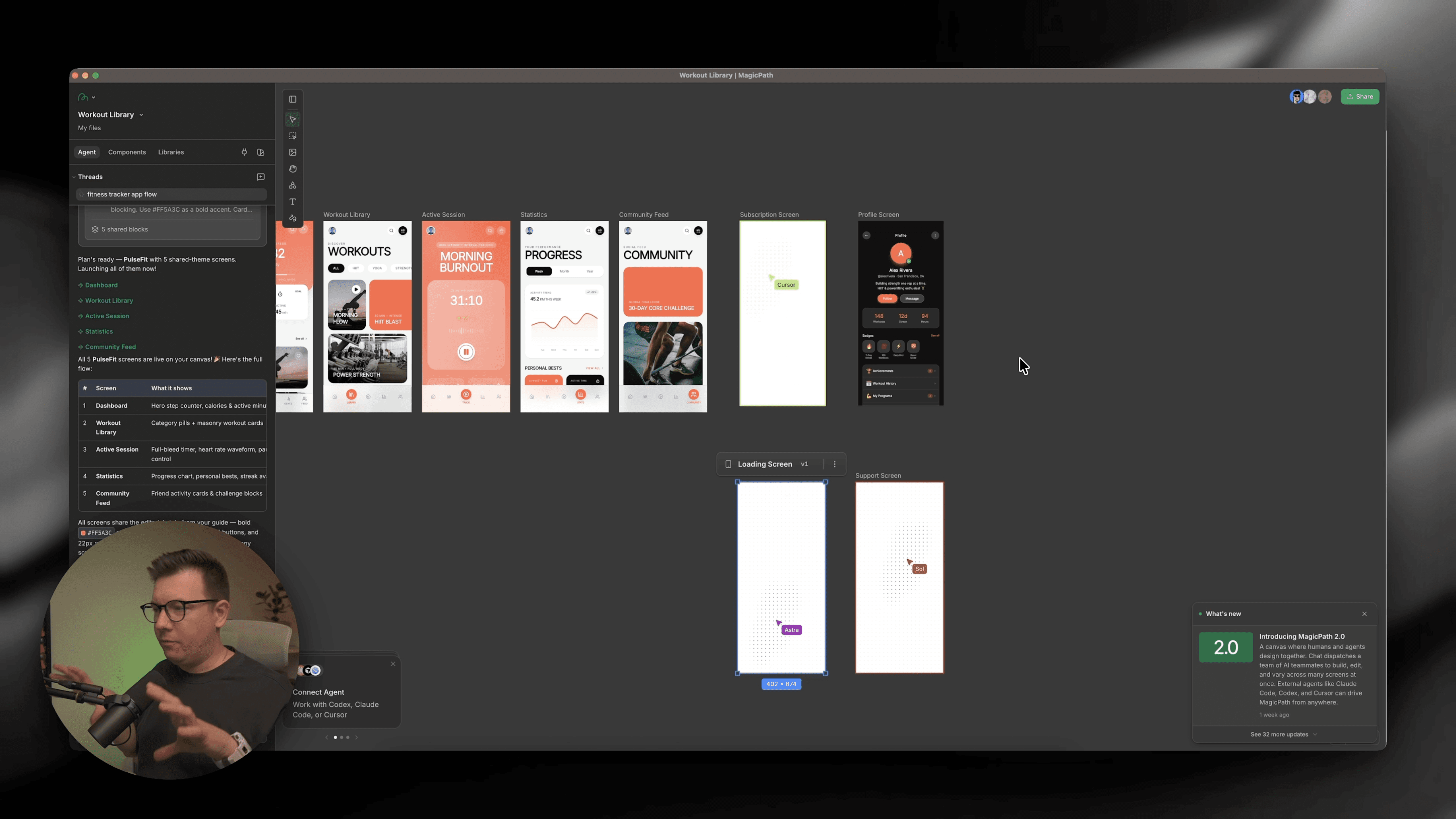
Here's where MagicPath 2.0 really earns its hype. When you switch to Agent Mode and run a prompt, you don't just get one AI quietly generating your design in the background. You get multiple named agents — Cairo, Astra, and others — each working on different screens simultaneously, visible right there on the canvas.
I tested this by importing a Design.md file (a simple markdown doc describing my app's colors, typography, and overall vibe) and running a single prompt: "Create a fitness tracker app. Show the flow of five key screens."
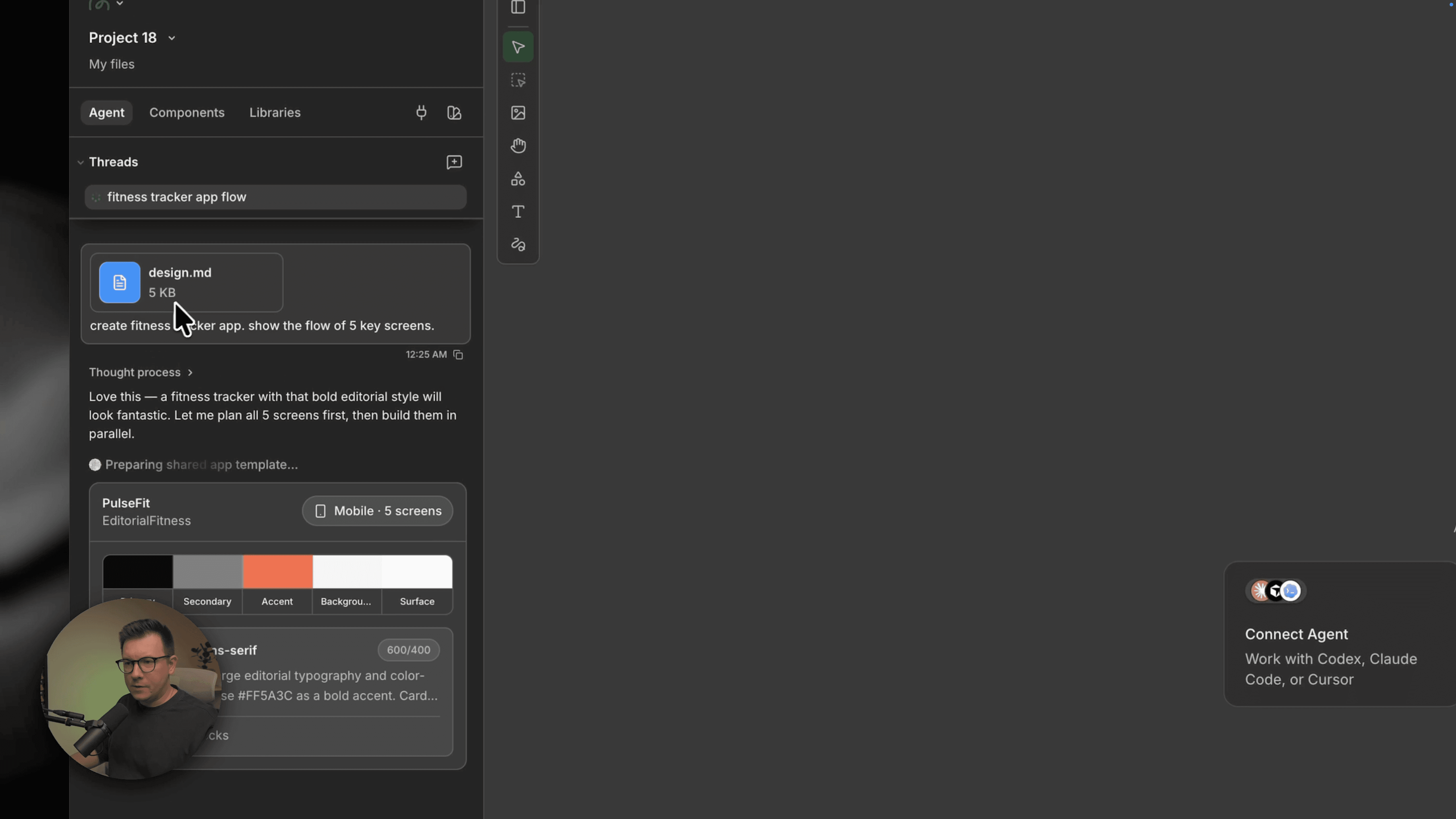
Within seconds, the agents kicked in. I could literally watch them work — each one tackling a different screen, some faster than others (Cairo was the quickest, Astra took a bit longer 😅). And the result wasn't a static mockup. It was a live, interactive app — I could click through the navigation, tap between screens, and see it functioning like the real thing.
That's not nothing. That's a working prototype generated by AI agents in real time, designed to spec from a markdown file.
This is the "hiring a team of designers who all work at the same time" moment. And it's genuinely exciting.
Real-Time Collaboration: Designers + Agents, Together
One of the most underrated additions in MagicPath 2.0 is real-time collaboration. You can share a project link with other designers and invite them as editors or viewers — just like Figma.
The twist? Those human collaborators can work alongside the agents. So you could have an AI agent designing a new screen while your teammate is refining another one in the same file, at the same time. This kind of human-agent teamwork is genuinely new territory, and MagicPath is one of the first tools to actually implement it in a useful way.
Visual Editing That Feels Like Figma
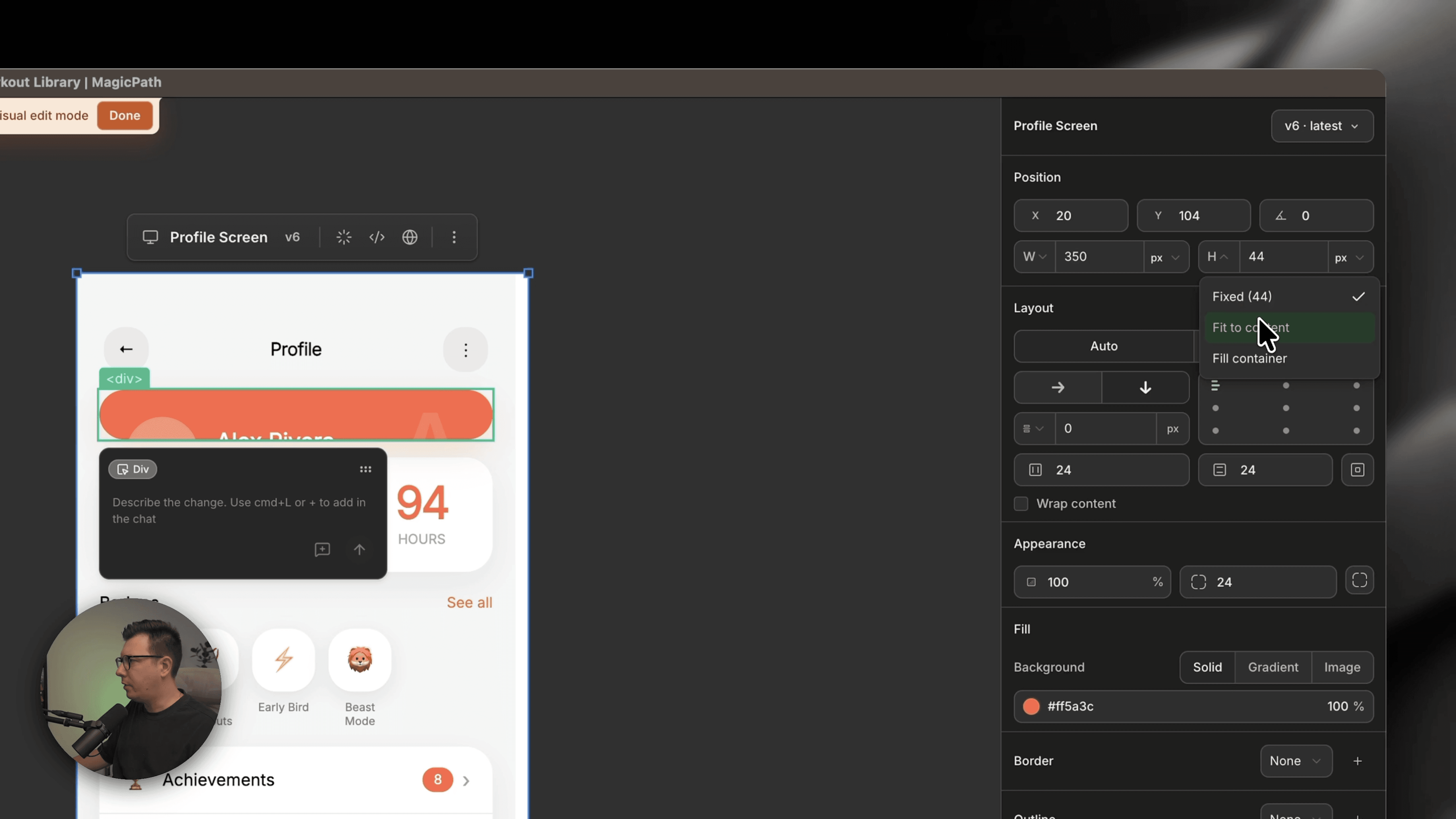
Once your agents have generated the initial designs, you're not locked in. MagicPath 2.0 has a Visual Editor mode that works a lot like Figma's layer panel and properties panel.
You can click on any element, inspect its properties, and make changes. But here's a detail I really liked: if you select an H1 element and change its font size, you can apply that change to all H1s across every screen at once. One click, consistent typography update across the whole app. That's the kind of workflow efficiency that saves real time.
You also have proper layout controls — auto layout, fit content, vertical alignment — the same concepts Figma designers are already familiar with. So the learning curve is low if you're coming from Figma.
And when you're done editing, you can export the full codebase, or send specific screens directly to an external agent like Cursor or Claude Code for further development.
Connect External Agents Directly to Your MagicPath Canvas
This is the feature that made me stop and say "okay, this is the future." 👀
MagicPath 2.0 lets you connect external AI agents — like Cursor or Claude Code — directly to your canvas. You copy a simple setup command, paste it into your agent of choice, and after a quick authorization, your external agent can create and edit designs inside MagicPath.
I ran both Claude Code and Cursor simultaneously, gave each a different screen to build (a loading screen and a support screen), and watched them work inside the same MagicPath canvas — alongside MagicPath's own internal agents. Four agents working in one project at the same time.
Yes, it's as chaotic and exciting as it sounds. 🚀
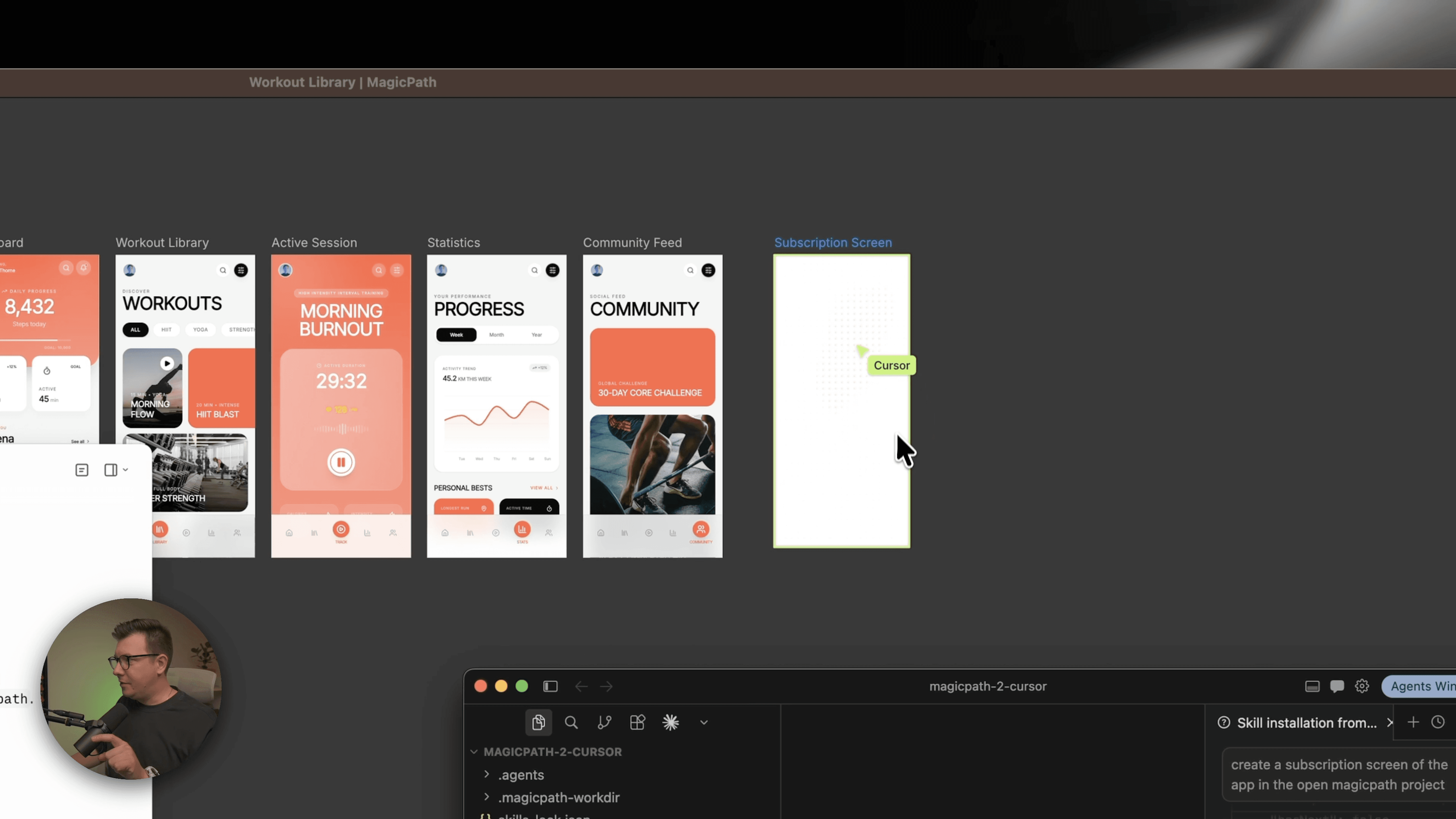
One thing worth noting: when you use external agents, they're not consuming MagicPath tokens. You're only using the compute from your external tools (Cursor subscription, Claude Code credits, etc.). So in terms of MagicPath usage, connecting external agents is essentially free.
The results weren't perfect out of the gate — Claude Code produced something a bit generic because I forgot to include my Design.md file, and Cursor's output used glass morphism that didn't quite match the rest of the app. But once I passed the design file to both agents and asked them to update the UI accordingly, the results snapped into consistency. Colors matched, typography aligned, and the overall look came together nicely.
Practical Tips for Getting the Most Out of MagicPath 2.0
A few things I learned from testing this update that will save you time:
1. Always use a Design.md file. This single habit makes everything better. Describe your brand colors (with hex values), your typography scale, spacing, and any UI patterns you want the agents to follow. The difference in output quality is significant.
2. Use threads for parallel tasks. Don't just run one prompt at a time. Set up multiple threads for different parts of your app and let agents handle them simultaneously.
3. Mix internal and external agents intentionally. Use MagicPath's internal agents for initial generation (they know the canvas natively), and bring in Claude Code or Cursor for screens that need more nuanced logic or specific component behavior.
4. Fix layout issues with Visual Editor first. When agent-generated screens have spacing or overflow issues, it's often faster to fix them in Visual Editor (auto layout, fit content) than to re-prompt the agent from scratch.
5. Preview in browser early. MagicPath generates live apps, not static images. Preview in the browser often to catch interaction issues before they compound.
Why This Matters for Designers
Here's the bigger picture: MagicPath 2.0 isn't just adding features. It's proposing a new model for how design work happens.
Instead of one designer, one tool, one screen at a time — you get a canvas where multiple agents handle multiple screens in parallel, human collaborators can jump in alongside them, and external tools connect directly into the workflow. The designer's role shifts: less time pushing pixels, more time directing agents, reviewing outputs, and making high-level decisions.
That's a real change in how the design process works. And honestly, for freelancers and small studios, this kind of leverage is a competitive advantage.
Is everything perfect? No. Agent outputs still need review and refinement. Sometimes they miss the design brief if you haven't been specific enough. But the direction is clear, and MagicPath is moving fast.
Wrapping Up: MagicPath 2.0 AI Agents Are Worth Your Attention
MagicPath 2.0 brings multi-agent design collaboration to the table in a way that feels genuinely new. The standalone Mac app, real-time agent visualization, Figma-like visual editing, live collaboration, and external agent integration all add up to something worth exploring — especially if you're a designer who wants to stay ahead of how AI is reshaping the workflow.
My suggestion: grab the app, set up a simple Design.md, and run the fitness tracker prompt I described above. Watch the agents work. It'll click immediately.
👉 Watch my full walkthrough video to see every feature in action
And if you're not subscribed to my newsletter yet — it's where I share the best AI design tool updates before they hit everyone else's feed. 🙏
FAQs
What is MagicPath 2.0?
How does MagicPath's multi-agent design work?
Can I connect Claude Code or Cursor to MagicPath?
Does using external agents in MagicPath cost extra tokens?
How is MagicPath 2.0 different from Figma?
See more from me in Google Search
Add sergeichyrkov.com as a preferred source to get my tutorials and articles highlighted in Top Stories and AI Overviews.