I have set up a team of 18 bots to help me run my studio. Each one has a different job. Some work on development, others on design or social media, and I have a bot helping with events too.
I believe this is a super good time to start a solo agency, especially if you already have project management experience. A lot of my work with this team is explaining what I want and checking what comes back.
So this is how my Grok Bot AI team is organized, with examples from the projects I actually work on.
What the bots can do
Grok Bot can use connected apps and a computer to carry out tasks. I can ask a bot to open a page or inspect a design file, rather than copy everything into a chat myself.
The bots share one persistent computer, with a separate desktop for each bot. They do not each have a separate machine.
For me, the useful part is being able to ask for work while I am away from my laptop. I can check a Figma file or request a report through the team from my phone.
Step 1: Connect the tools you work in
I started with the apps my studio already uses. In Connected apps, my setup includes:
Notion for tasks and information from the chats.
GitHub and Cursor for repositories and coding.
Figma for design work.
Framer through MCP for my websites.
Gmail, Google Drive, Mobbin, and X for other parts of the workflow.
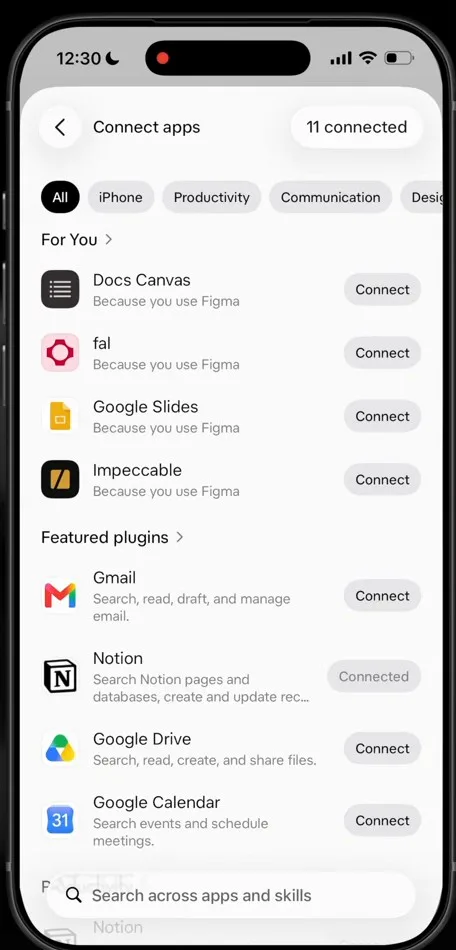
Connected apps in Grok Bot on my phone. Notion is connected, and Gmail, Google Drive and the rest are one tap away.
Notion is very important here. It is where the work stays after a conversation ends. Samantha set up my Grok Team HQ with a content calendar and a team task board.
The task board has table and board views. I can see the backlog, what is in progress, and what is waiting for my review. My personal website and Monlio app both have work there.
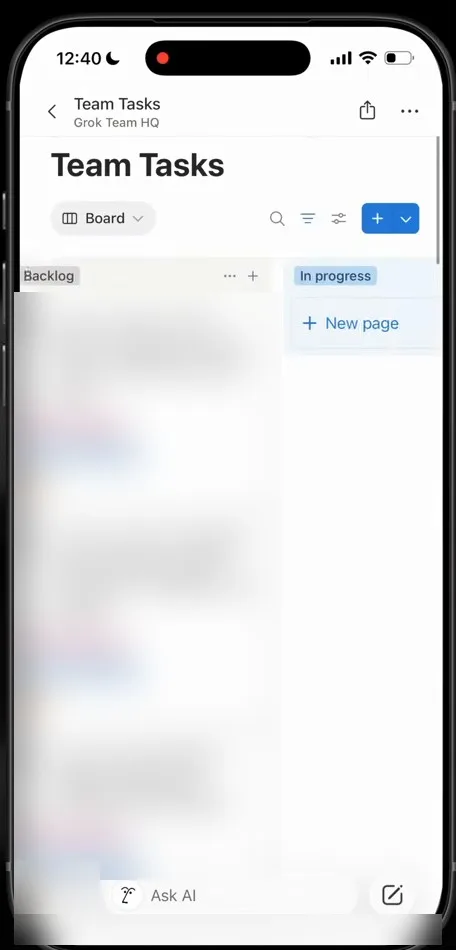
The Team Tasks board in my Grok Team HQ, in board view. Card details are blurred.
Step 2: Give your Chief of Staff a clear job
Samantha is my Chief of Staff. I use her as the primary bot and ask her to handle the overall team setup. That leadership is the role I gave her, not something the primary setting decides by itself.
For example, I wanted a specialist for my Framer projects. I asked Samantha to create the bot, have it report to Steve, and add it to the development group.
She set it up and messaged Steve. The new specialist appeared in the group and found my personal and studio websites through the Framer connection I already had.
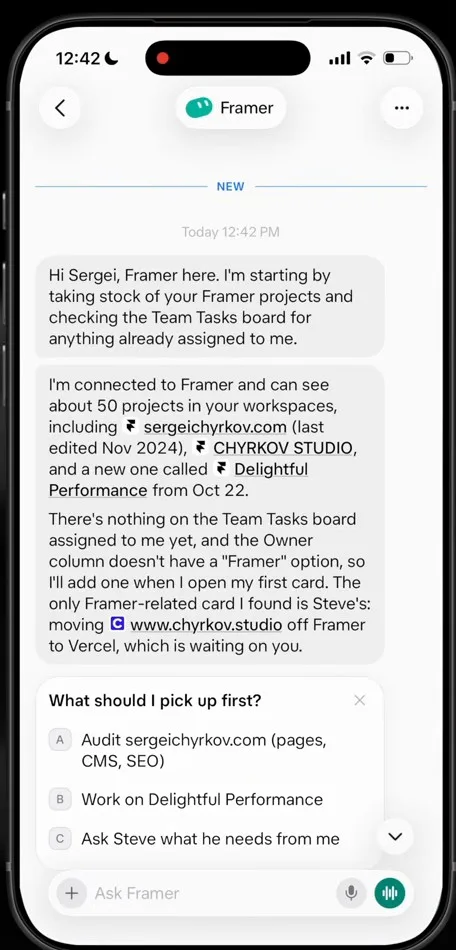
The new Framer bot checks the task board and finds my websites through the Framer connection.
That example includes the reporting relationship. I told Samantha who the new bot should report to, instead of leaving another separate chat for me to manage.
Step 3: Organize the work into departments
My setup has development, studio, and social and personal branding groups. Within development, Steve handles the top-level requests and works with specialists for QA, front end, WordPress, iOS, and back end.
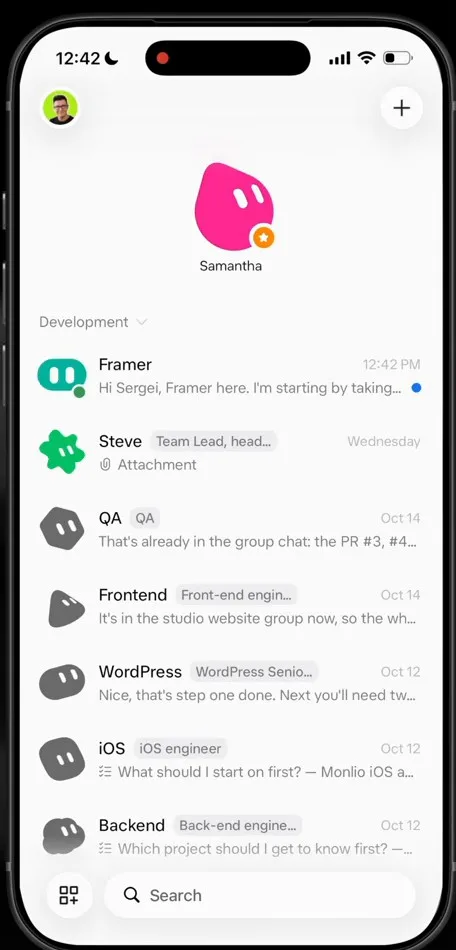
My Development group in Grok Bot: Steve, QA, Frontend, WordPress, iOS, Backend, and the new Framer bot on top.
Steve and the development workflow
I sent Steve a screenshot of a broken shortcut in Monlio, my iOS money-tracking app. He discussed the issue with me and added it to the task list.
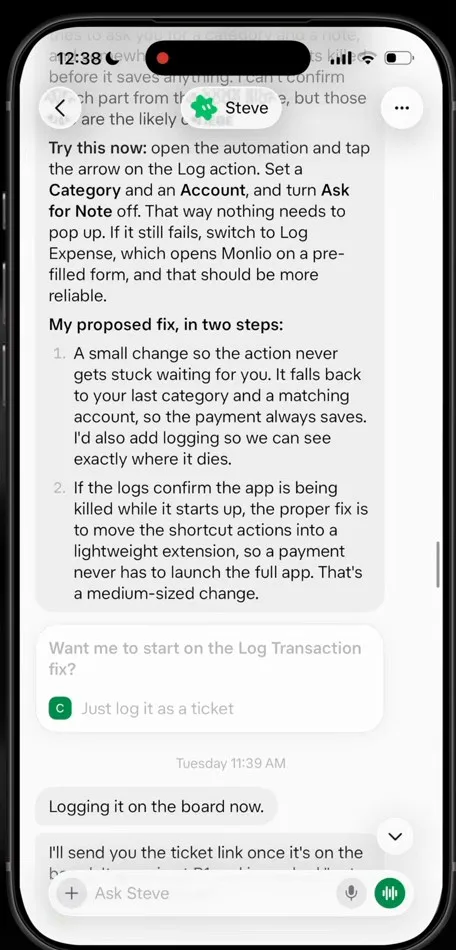
Steve suggests a fix for the Monlio shortcut bug, then logs it on the board instead of building it right away.
He did not immediately implement it. Later, I told him to implement the tasks. The team made the updates, asked QA to check the fixes, and opened a pull request. I could review it in GitHub or open it in Cursor before merging.
That distinction matters when looking at the board. Logging a bug and fixing it are different stages, and I want to see which one has happened.
Leonardo and Figma
Leonardo is my creative director. I tested him on YouTube thumbnails, and he created a Figma project with auto layout and editable layers.
I also asked him to inspect the variables and components in my Monlio file. He checked the file without changing it, explained what he found, and offered next steps.
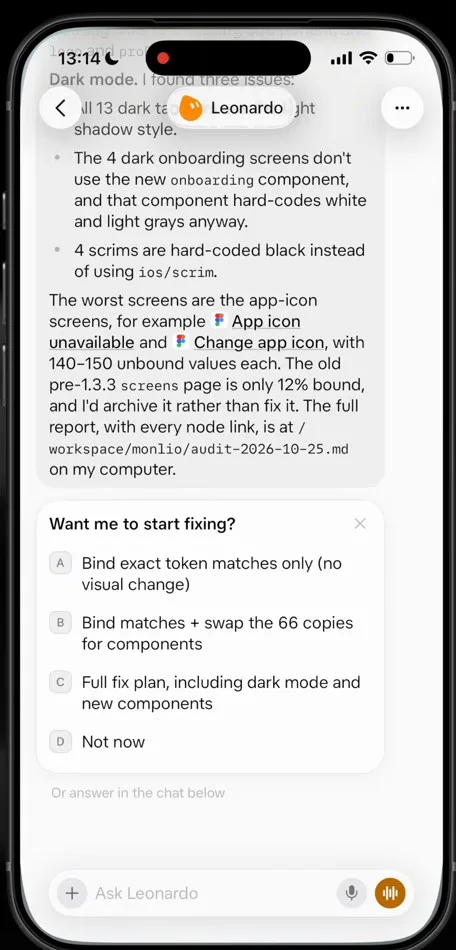
Leonardo's audit of my Monlio Figma file, with next steps I can pick from.
I can ask him to put that audit into Notion or turn the follow-ups into tasks. Then I can work on them myself later or ask Leonardo to help with the fixes.
Jessica and event planning
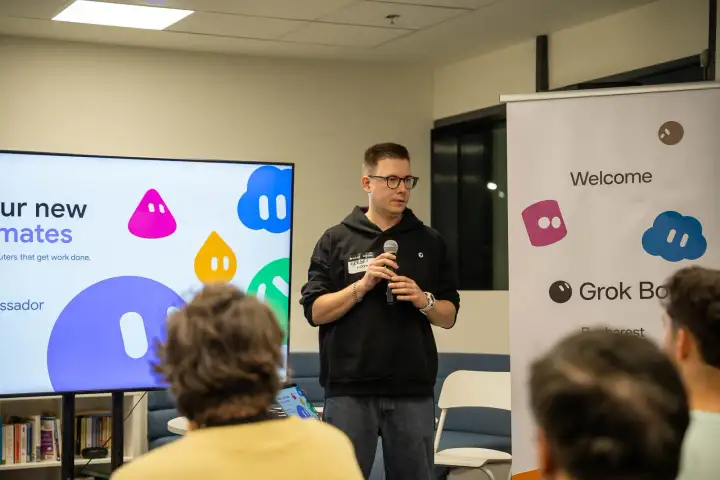
Jessica helped with the Grok Bot meetup. She researched sticker printers and prepared event guest messages and a follow-up schedule using Luma.
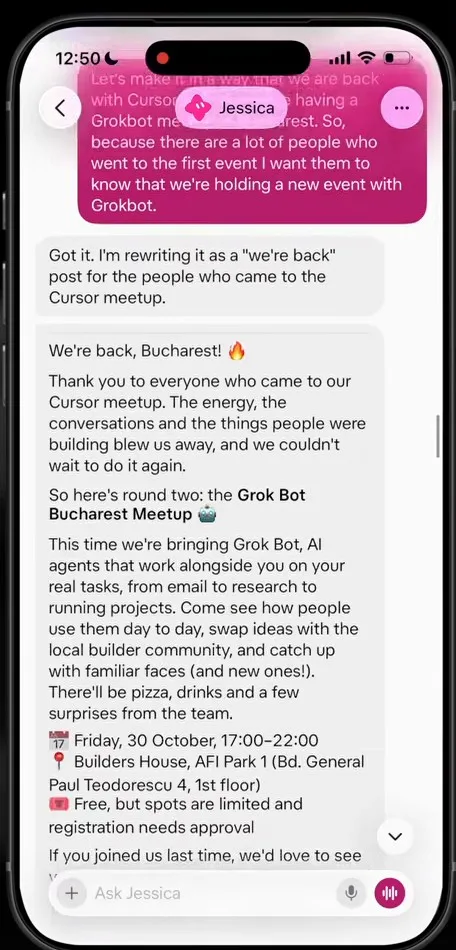
Jessica drafts a “we're back” message for the people who came to the last meetup.
The recording also shows supplier email exchanges from the Grok Bot mailbox. That is an example of a particular task, not permission for a bot to send anything it wants. Sending an email needs my approval for the recipient and message.
I wrote about the event separately in the Bucharest meetup recap.
Dobby and one-off tasks
Dobby handles jobs that do not belong to a project. I needed individual shareable links for images in a Dropbox folder.
My particular attempt with Claude did not complete that job. Dobby opened the folder, created the links, and returned a Markdown file and a CSV. That is about this Dropbox attempt, not a general limitation of every Claude setup.
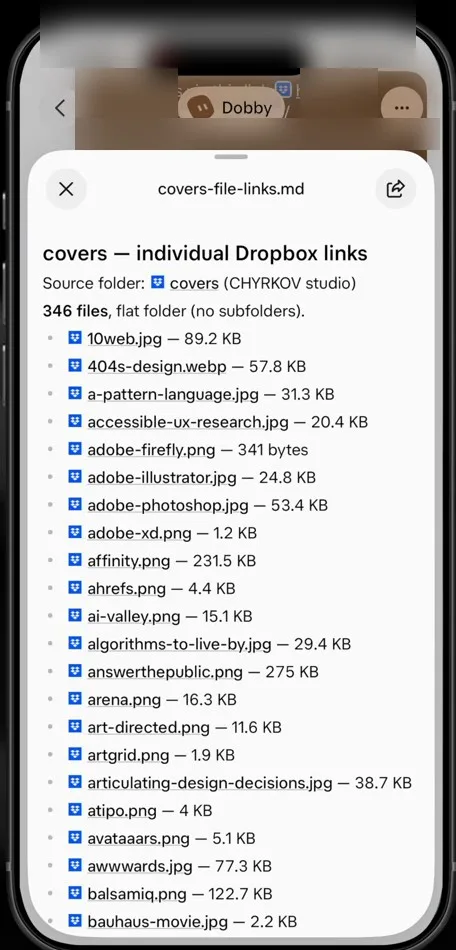
Dobby's Markdown file with an individual Dropbox link for every image in the folder (the folder link is blurred).
Step 4: Use routines and voice away from your desk
My audience bot prepares reports and updates a dashboard every Monday, with a monthly report too. I also have a weekly follower pace check.
I paused the daily engagement report because it used credits. So having a routine does not mean I need to keep running it forever.
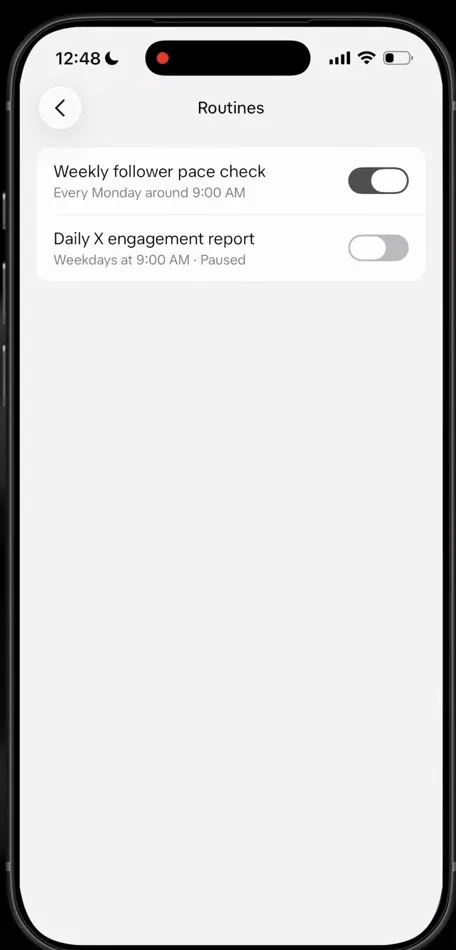
My X routines: the weekly follower pace check is on, the daily engagement report is paused.
Voice mode is useful while I am walking. I can ask for an X performance follow-up and wait for the report without opening my computer. The same team and connected tools are available through that conversation.
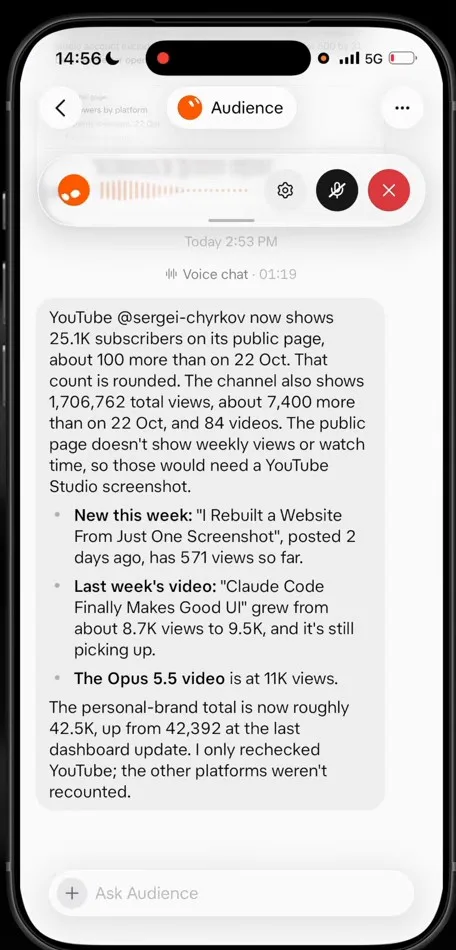
Voice chat with my audience bot. The report comes back in the same conversation.
My setup checklist
This is the workflow I would use as a reference:
Connect the apps that hold your actual work.
Give the Chief of Staff responsibility for team setup.
Specify who each specialist reports to.
Keep tasks and review stages visible in Notion.
Give the team a concrete task, such as a bug report or design audit.
Check the result before moving on to implementation or publishing.
Review which recurring reports are useful and pause the ones you do not need.
For the bot instructions and setup details, get The AI Team Blueprint. It is free.
You can see the examples in I Created an AI Team That Works While I Sleep. For more of my AI and design workflows, join the newsletter. If you want help with your own project, I also offer 1:1 sessions.