Introduction
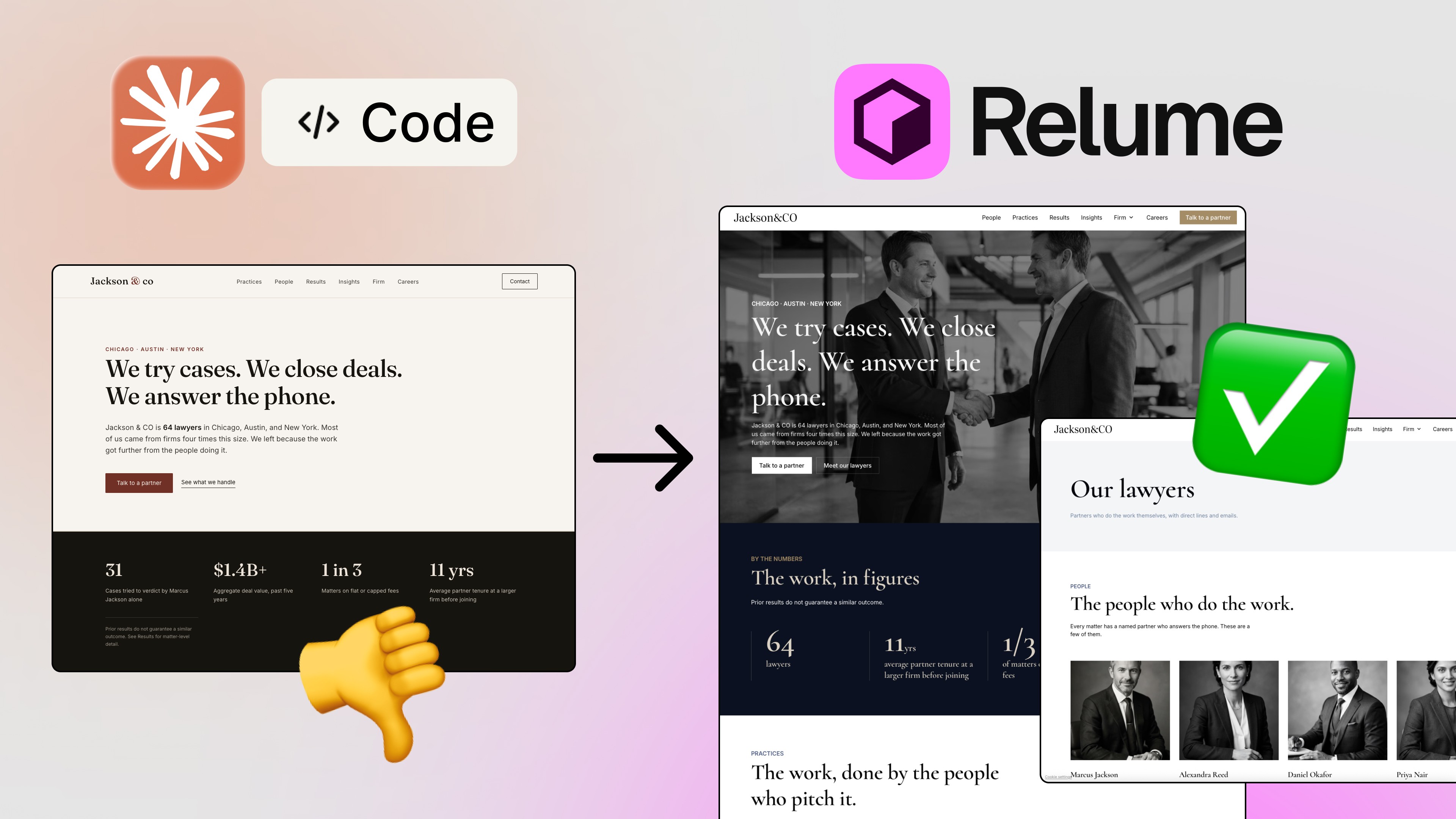
If you’ve ever pasted a screenshot into Claude and typed “build this,” you already know the feeling. The first result looks close. Then you put it side by side with the original and the cracks show up: the spacing is off, the font is wrong, and that pricing section you were counting on just isn’t there. 😅
I wanted to know if this is actually fixable, or if screenshot to code with Claude is just a fun demo that falls apart on real work. So I set up a proper test: three pages, the same rules for every round, and a scoreboard I kept by eye. One of those pages broke Claude in a way almost nobody talks about. And one round went to the plain screenshot, which I didn’t expect.
Let me walk you through what happened, and what I’d actually do on a real project.
📌 Prefer to watch?
The rules of the test
A fair fight needs fair rules, so here’s the setup:
Everything happened inside the Claude app.
Every page got two separate chats. Chat one received only the screenshot. Chat two received the same screenshot plus an HTML file.
Same model (Claude Sonnet 5.5), same short prompt, and a fresh chat every time. The prompt basically said: rebuild it, match it, don’t make stuff up.
Web search was off, so Claude couldn’t cheat by looking at the real website.
I compared each result next to the original and scored it by eye: sections, spacing, text, fonts, colors, all of it.
Here’s the exact prompt both chats got:
Rebuild this page as a single HTML artifact. Match the layout, spacing, font sizes and colors as closely as you can. Keep every section, in order. Don't invent content. Don't search or browse the web. Use only what I attached.
And chat two got one extra line at the end:
Use the attached HTML file as the source of truth for layout, spacing, text and section order. The screenshot is just a visual reference.

The same short prompt in a fresh Claude chat, on Sonnet 5.5
One important note. YouTube, Stripe, and the Mobbin screens are only test pages here. Everyone knows them, so it’s easy to see whether a rebuild is accurate. Please don’t use this approach to copy someone else’s product and ship it as your own. That’s plagiarism. 🙏
What is the “blueprint method”?
The idea is simple. Claude is great at writing code, but it’s not great at measuring and scanning images. So I stopped asking it to do the measuring.
Instead, I used Image to Design to turn the screenshot into a real HTML file. Not a picture stuck inside an image tag, but an actual layout with real text, real colors, and exact measurements. Think of that file as the blueprint. Claude then becomes the builder: I hand it the screenshot plus the file with one extra line in the prompt, “use this file as the source of truth.”
Blueprint draws, Claude builds. That’s the whole trick.

The blueprint method: Image to Design measures, the HTML file is the blueprint, Claude builds
Round 1: A YouTube homepage (the easy one)
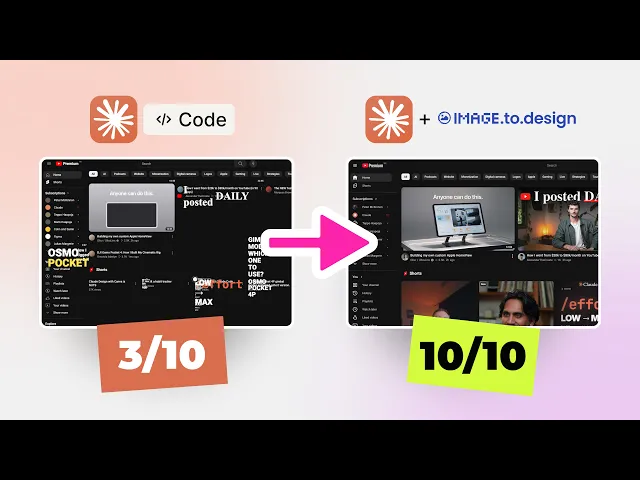
I started with a plain screenshot of the YouTube homepage from my monitor: a sidebar and a grid of videos. I honestly expected Claude to win this one.
Claude on its own got the grid and the sidebar, and the card gaps were okay. But the overall layout felt like a guess, and every thumbnail was an empty placeholder box.

Round 1, screenshot only: the grid and sidebar are there, but every thumbnail is empty
With the blueprint, the difference was obvious right away. The thumbnails were real images cut out of the screenshot, the titles were the real ones, and the grid, gaps, and sidebar all matched. It was even responsive.

Image to Design’s output, with real thumbnails cut out of the screenshot

Round 1 side by side: screenshot only vs blueprint
Round 1 goes to the blueprint, though I’ll admit it was the easy round. This is also where I tried the fast mode of Image to Design, which read the page correctly but wasn’t something I’d work with. The quality mode took about 10 minutes for this page, so keep that in mind.

Image to Design: picking Quality mode for the YouTube screenshot
Round 2: A 35,825-pixel Stripe homepage (where Claude breaks)
This was the round I was most curious about. I took one screenshot of the whole Stripe homepage, top to bottom. It’s 35,825 pixels tall.

The full Stripe screenshot: 6116 × 35825 pixels
Here’s the part almost nobody knows. According to Anthropic’s help page, images can be up to 8,000 pixels on each side, and this one is far beyond that. Anthropic’s developer docs also say Claude 4.7 and later models shrink big images to 2,576 pixels on the long side before reading them (other models go down to 1,568 pixels). That’s written for developers, so I can’t say exactly what the app does. But if it works the same way, a page this tall gets squeezed into a thin little strip, and the small text turns to mush. 🤯
My own rough math: 35,825 divided by 2,576 means the page shrinks about 14 times on both sides, so a 14px line of text ends up about 1px tall. That’s not small text anymore, that’s no text.

What you send vs what the model may actually read
The result matched that theory. A lot of information was missing, the layout was messed up, entire sections were gone, and the headings and typography were way off from the original.

Round 2, screenshot only: whole sections missing, layout and type off
Image to Design says it handles screenshots up to 100,000 pixels tall, so it reads the full page without cropping. This conversion took about 20 minutes in quality mode. After that, Claude wasn’t squinting at a squashed picture anymore. It was reading real text, every heading and every section, in order. I gave it a 9 out of 10, and with one more prompt it became a fully responsive landing page matching the screenshot.

Round 2 side by side: screenshot only vs blueprint
Round 2 goes to the blueprint, by a mile. A quick fairness note: other AI models handle big images differently, and some keep more detail. I only tested Sonnet 5.5, because I believe that’s what most people use. You can absolutely try Fable 5 or Opus 5.5 on your own pages.
Round 3: A dense Mobbin screen (the surprise)
For the last round I grabbed a dense screenshot from Mobbin’s library: tiny text, a table, charts, and tons of icons. (If you haven’t used Mobbin with AI yet, here’s how I use Mobbin with Claude and Cursor.)

The dense dashboard screen from Mobbin used in Round 3
To my surprise, Claude did really well here. It was the best screenshot-only result of the whole test. The blueprint version was better overall, with real text and a layout that matched almost perfectly, but the icons were way off, so it wasn’t as perfect as I’d hoped. After a bit of extra prompting to make it responsive and dynamic, it looked like something you could actually ship once you restyle it with your own brand colors.

Round 3, blueprint version: real text and layout, but the icons are off
So this round was closer than the others, and the plain screenshot held up better than I expected.
The final scoreboard
By my own by-eye scoring:
Screenshots only: about 30 out of 90
Blueprint method: about 80 out of 90

Final score: screenshot only 30/90 vs blueprint 80/90
The biggest gap was the Stripe homepage, which was simply unacceptable from Claude alone. The cost of the blueprint approach is mostly waiting: roughly 10 to 20 minutes per conversion.
These are my personal scores from three pages, not a lab benchmark, so treat them as a directional result. Still, the pattern is clear. Short pages are mostly fine with a plain screenshot. Long pages are not, and it’s not really Claude’s fault. It comes down to how much of the picture it actually gets to see.
When to use a screenshot-to-code workflow
Here’s how I’d use it in real life:
You found a layout you love. Maybe it’s on Mobbin or Pinterest, and all you have is a screenshot. Rebuild it, then swap in your design system, fonts, and colors until it’s yours. Treat it as a starting point, not something to ship as is. If you want Claude to help with that “make it yours” step, my post on the Claude Code design skill is a good next read.
You want to learn the structure. Sometimes I just want to see how a good page is built: the section order and the hierarchy. You’re taking the structure, not the look. (I wrote more about learning from real references in What Happens When You Give AI Real Design References.)
You lost your website’s code. If all you have are screenshots from the old days, you can rebuild the site and put it back online.
You’re moving off a no-code platform. This is the one that made me record the video. My own website wouldn’t export one-to-one from its no-code platform. Pasting full-page screenshots into Claude and Cursor didn’t work. With the blueprint method it came out almost pixel perfect, and now my site runs on code I actually own. If you’re heading the same way, I wrote about the bigger picture in How to Build a SaaS Product With AI.
When I wouldn’t bother
Small, simple sections. Round 1 showed Claude can handle those on its own.
You already have the code. Just pass the code to the AI.
Hover states and animations. The tool only sees flat pictures, so there’s no way to extract motion from a screenshot.
Actionable tips you can try today
Check the height of your screenshot first. If it’s very tall, assume Claude will lose detail, and consider the blueprint approach.
Tell Claude not to invent things. A line like “don’t make stuff up” in the prompt keeps it honest.
Give it a source of truth. When you have a structured file, say so explicitly: “use this file as the source of truth.”
Fix the design second. Get an accurate rebuild first, then redesign with your own brand.
Iterate for responsiveness. One extra prompt turned my static rebuilds into responsive pages.
Try It Yourself
Here’s the whole workflow in five steps:
Take your screenshot. For a long page, in Chrome: DevTools → Command menu → “Capture full size screenshot”, at a normal laptop width. Blur anything personal.
Drop it into Image to Design and run it (Quality mode is what I used). Your first conversion is free.
Download the ZIP, unzip it, and grab `index.html`.
Open a new chat in Claude, attach the screenshot plus `index.html`, and paste the prompt above with the “source of truth” line.
Put the result next to the original, then prompt for responsiveness and your own fonts and colors.
Image to Design runs in the browser and is included in the DivRiots ONE subscription. There’s also a Figma plugin if you’d rather get layers, and an API if you want to run a whole batch of screenshots.
📌 Get the free workbook with all the prompts and the scorecard: The Blueprint Method workbook
For more workflows like this, I keep practical breakdowns on Learn and the tools I actually use on Resources.
Final thoughts
So, can Claude rebuild a whole page from a screenshot? Short pages, mostly yes. Long pages, no. The blueprint method fixes that by giving Claude exact structure to build from, so it can do what it’s best at: writing code.
If you want to see every comparison side by side, watch the full video. And if you want more tutorials on AI workflows and design tools, subscribe to my newsletter. I send the practical stuff straight to your inbox. 🚀
FAQs
Can Claude convert a screenshot to code?
Why does Claude miss sections on a long screenshot?
What is the blueprint method?
Can I move my website from a no-code platform to code with this?
Does a screenshot capture hover states and animations?
See more from me in Google Search
Add sergeichyrkov.com as a preferred source to get my tutorials and articles highlighted in Top Stories and AI Overviews.