If you've been paying attention to how people search online lately, you've probably noticed something is shifting. Google is still king, but AI tools like ChatGPT, Claude, and Perplexity are becoming the new front door for information. People are asking questions and getting direct answers — no clicking required.
That's where AEO (Answer Engine Optimization) comes in. And if you've never heard of it before, don't worry — most web designers and site owners haven't either. But it's becoming just as important as traditional SEO, and the window to get ahead is still open.
In this post, I'm going to show you how a single Claude AI prompt can analyze your entire website and generate a full AEO and SEO report — complete with structured data code you can literally copy and paste. No agency. No expensive tools. Just you, Claude, and your website URL. Let's get into it. 🚀
What Is AEO and Why Should You Care Right Now?
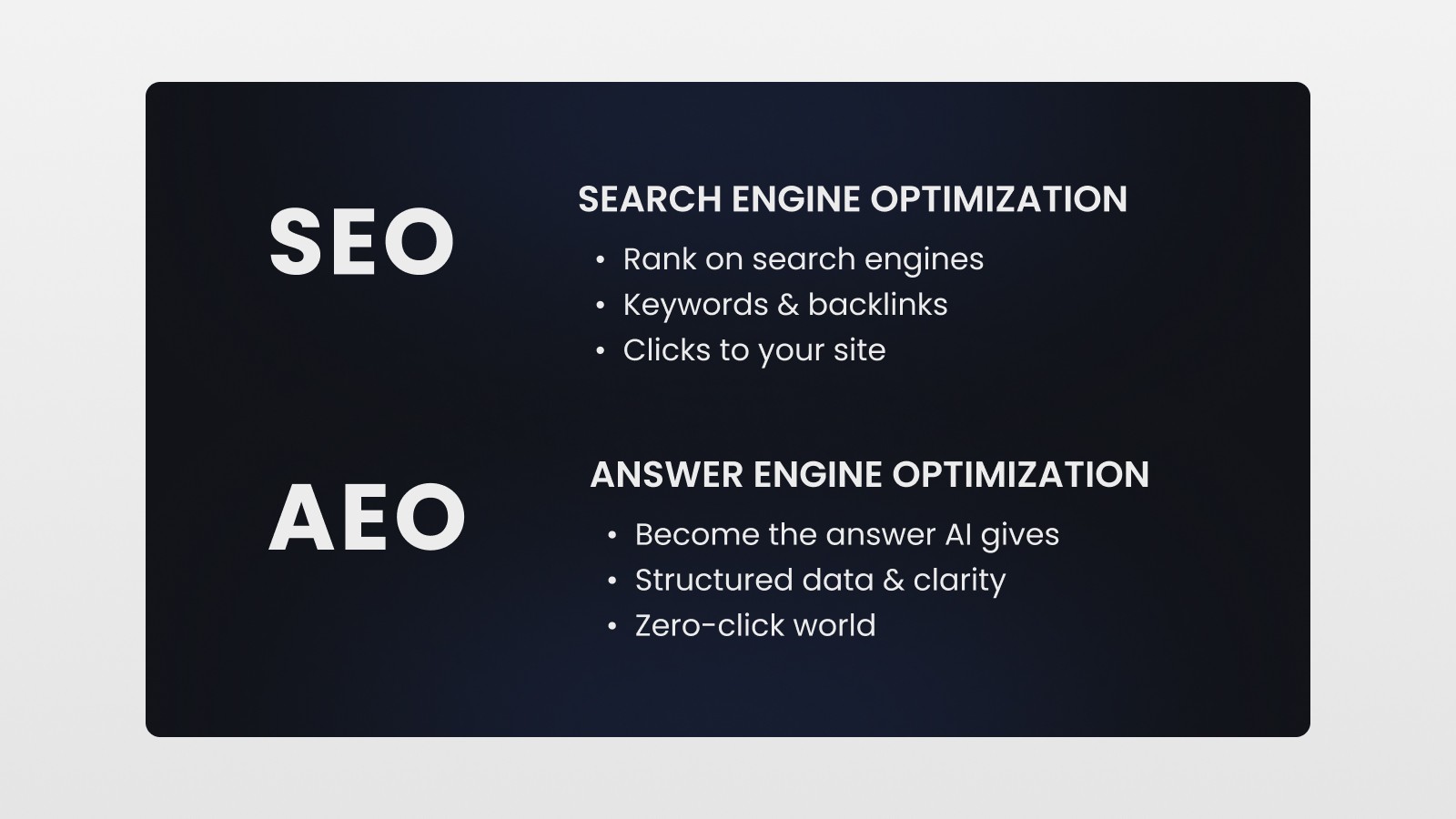
SEO (Search Engine Optimization) is something most of you already know — it's about ranking on Google. You optimize your titles, headings, meta descriptions, site speed, and all that good stuff so Google shows your site to the right people.
AEO, or Answer Engine Optimization, is the newer cousin. It's about making sure that when someone asks ChatGPT, Claude, or Perplexity a question, your website gets picked as the authoritative answer. These AI tools don't just rank links — they cite sources. And for that to happen, your website needs to be structured in a way that AI agents can read, understand, and trust.
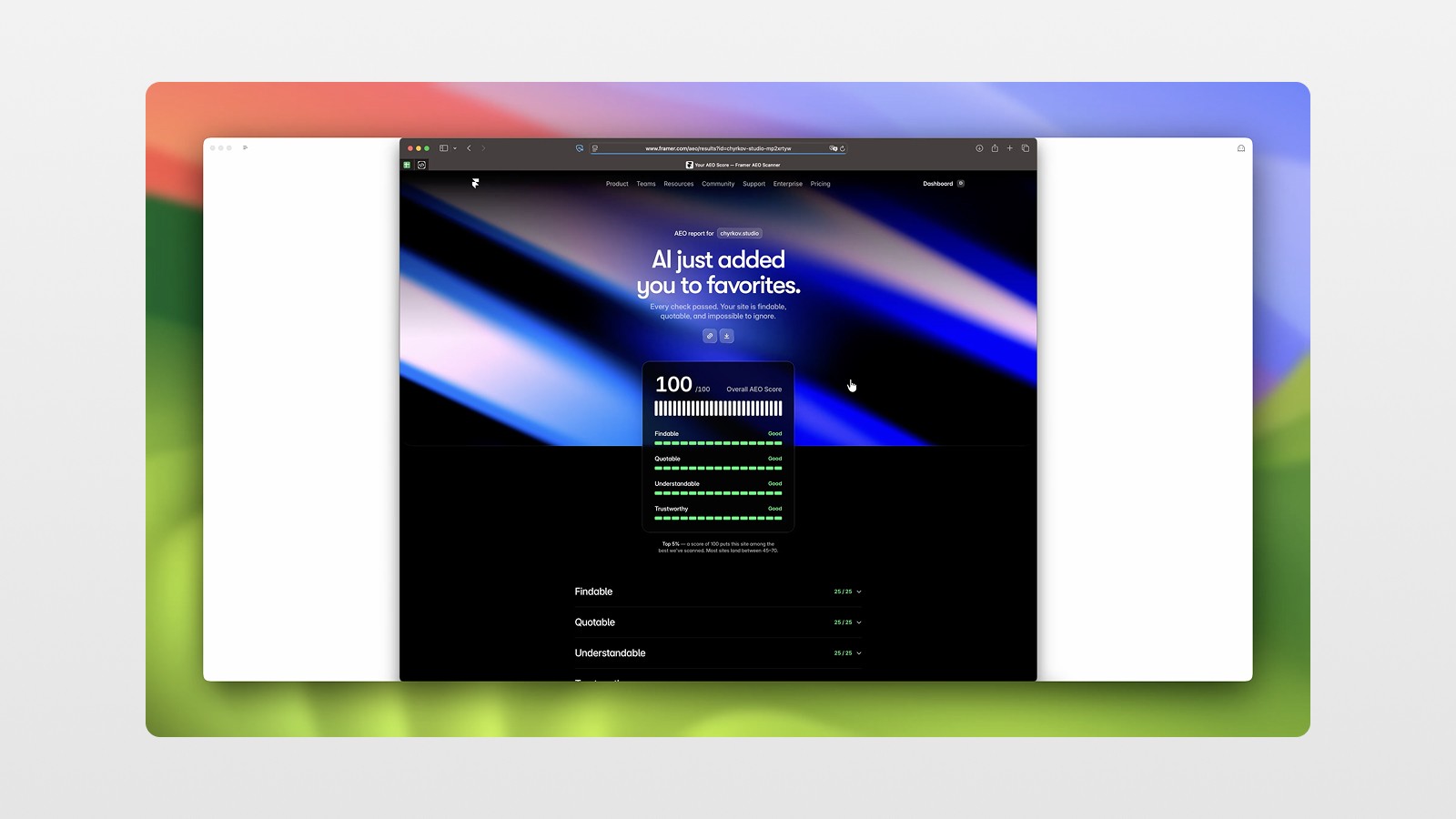
Framer recently launched a free AEO checker at framer.com/aeo, and it genuinely blew up on X. Designers and marketers were sharing it everywhere because it was the first accessible tool to put a score on this stuff. You can get up to 100 out of 100 — and yes, if your Framer site is set up correctly, it's very achievable.
But here's the thing: Framer's checker tells you your score. It does not tell you how to fix anything. That gap is exactly what this Claude prompt solves. 😅
The Prompt That Builds a Full Website Audit Report
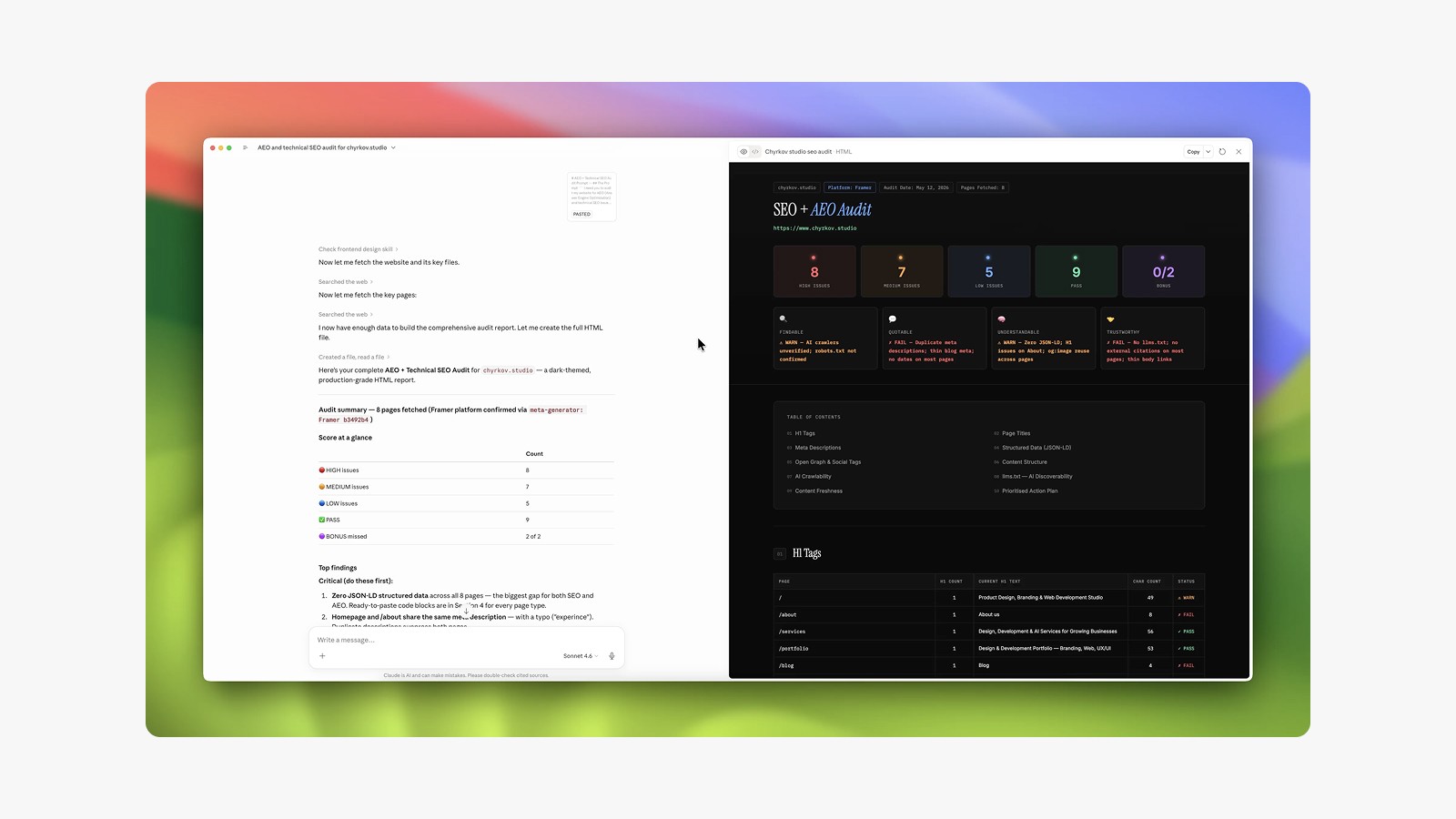
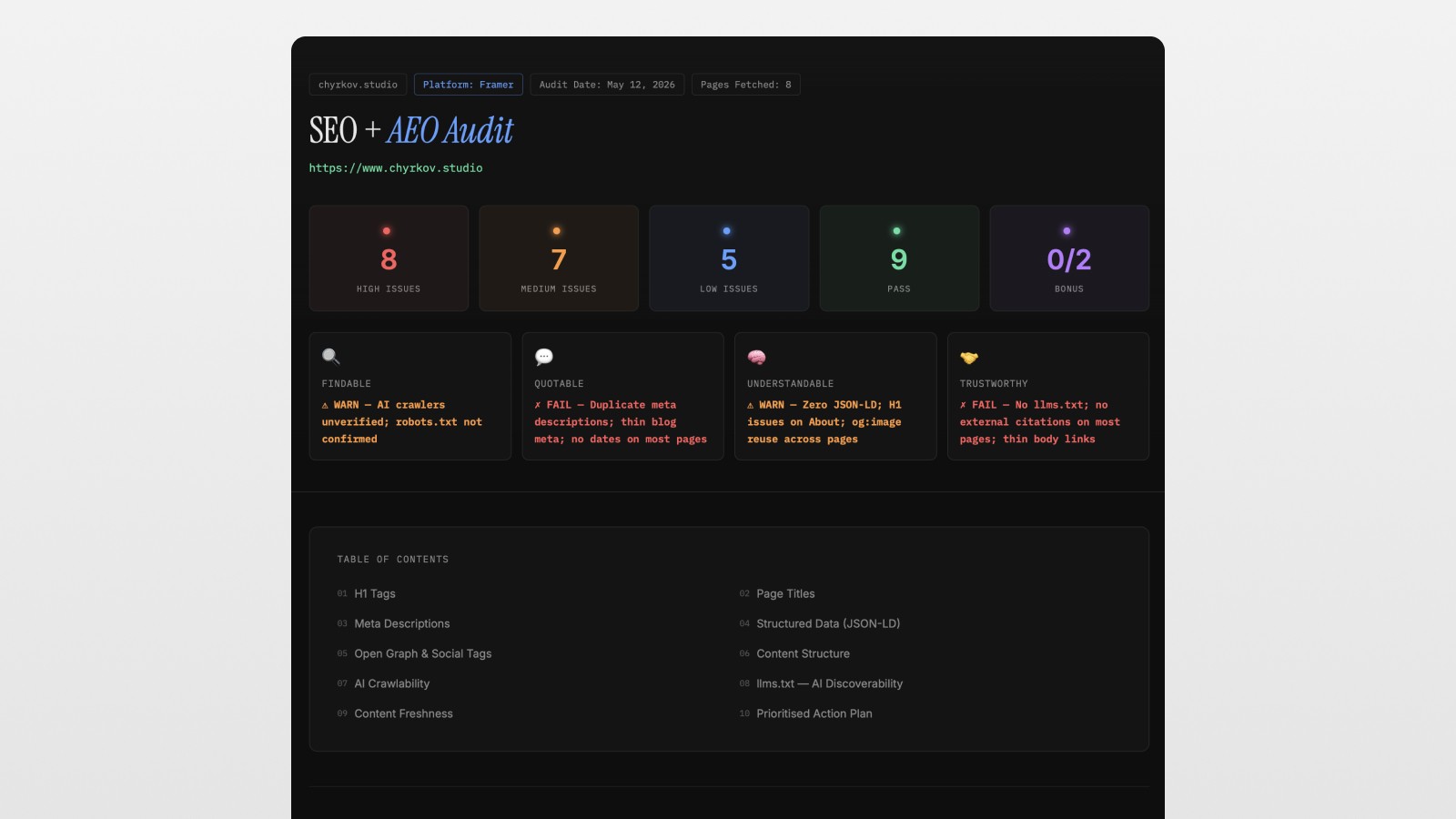
The prompt I built does something pretty powerful. You paste in your website URL, run it in Claude, and it generates an interactive HTML web page — like a mini landing page — with your full AEO and SEO audit results. It doesn't just grade you. It tells you:
What's broken
Why it matters
What to do about it
And in many cases, gives you the exact code to fix it
Here's what it analyzes, section by section.
1. Headings & H1/H2 Structure
The prompt fetches your sitemap, identifies all your key pages, and checks every H1 and H2 heading across your site. It flags missing headings, duplicate H1s, vague titles — all the stuff that silently tanks your search visibility. You get a clear table showing which pages pass, which have warnings, and which have outright issues.
2. Meta Titles and Descriptions
This one is classic SEO, but the prompt goes beyond just checking if they exist. It checks length (meta descriptions over 160 characters get flagged), flags typos (yes, it found one in the demo 😬), and gives you rewritten suggestions that are more SEO and AEO friendly.
3. Structured Data (JSON-LD) — The Big One 🤯
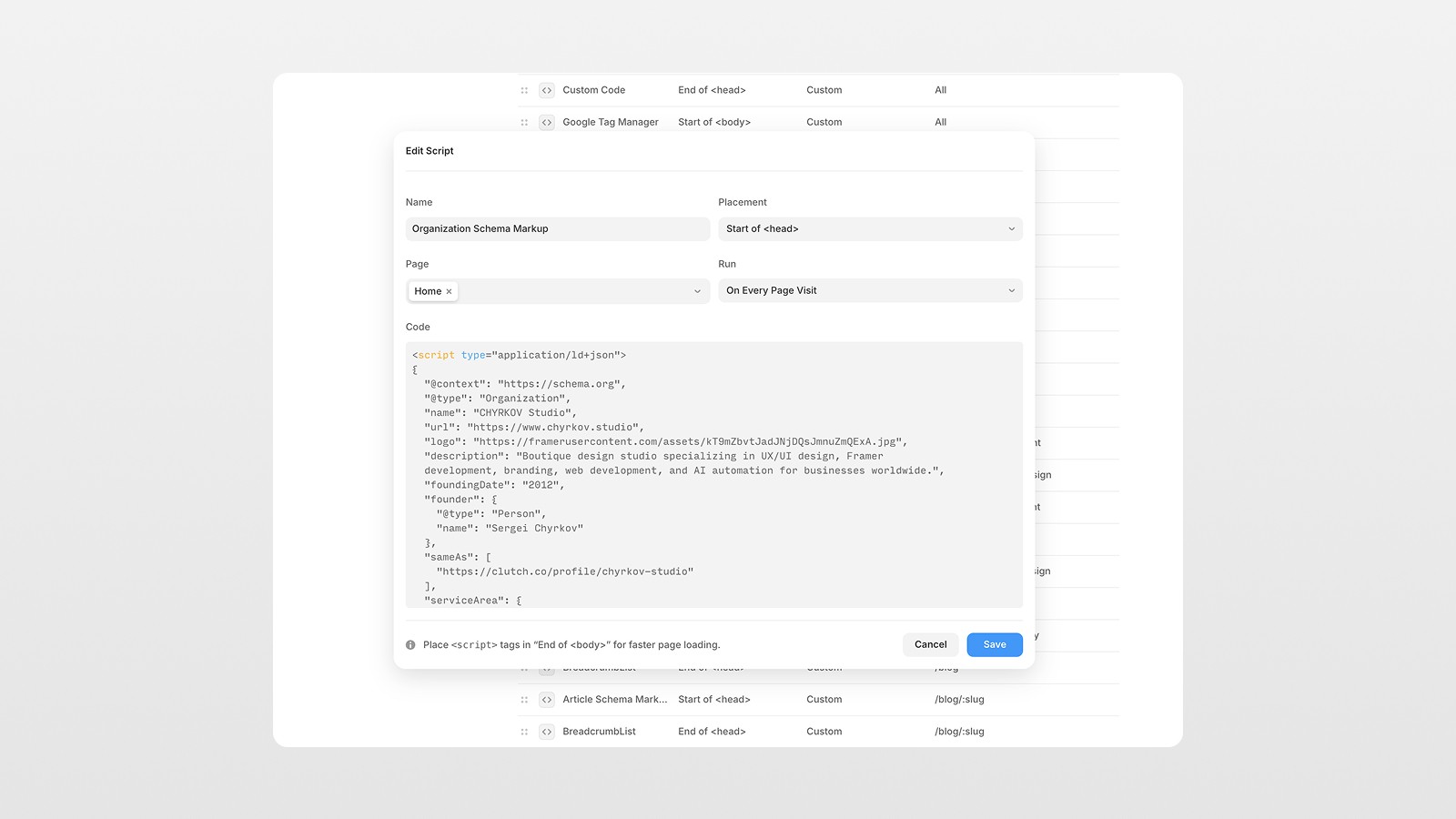
This is where most websites fall flat, and where this prompt really shines. Structured data is the schema markup that lives in your site's <head> — it's how AI agents and search engines understand what your business is, who it's for, and what you offer.
For businesses, you need Organization schema. For personal brands, you need Person schema. Getting this right manually is genuinely tedious — you have to write JSON code, validate it, and inject it into your site's header.
The prompt generates ready-to-use JSON-LD structured data code specific to your website. You literally copy it and paste it into your site. For Framer, that means going to Settings → Code → Start of Head. For WordPress, you can drop it in your theme's header or use a plugin. For Webflow, there are custom code embed options.
No more guessing. No more broken JSON. Just working code. 🙏
4. Open Graph & Social Tags
When someone shares your page on LinkedIn, Twitter/X, or in a Slack message, what does the preview look like? Open Graph tags control that. The prompt checks whether your OG title, OG description, and OG image are all present and correct across your key pages.
5. Internal Linking & Broken Links
It maps your site structure and checks for broken internal links or orphaned pages that aren't being linked to. This matters both for SEO (Google needs to be able to crawl everything) and for user experience.
6. AI Crawlability Checks
This section is specifically about making sure AI tools can actually access and read your website. It checks:
HTTPS: Is your site served over a secure connection? ✅
robots.txt: Are you accidentally blocking AI bots?
Sitemap: Does it exist and is it properly formatted?
Canonical tags: Are you avoiding duplicate content issues?
llms.txt: This one is new and important.
What Is llms.txt and Why You Need It
This is probably the most forward-looking thing in the entire prompt. llms.txt is a new file format specifically designed for AI agents. Think of it as a sitemap, but instead of just listing URLs, it also explains what your website is about — your description, key pages, and what an AI should know before quoting you.
You create a plain text file, save it as llms.txt, and upload it to the root folder of your website. In Framer, you do this via the Files section in your project settings.
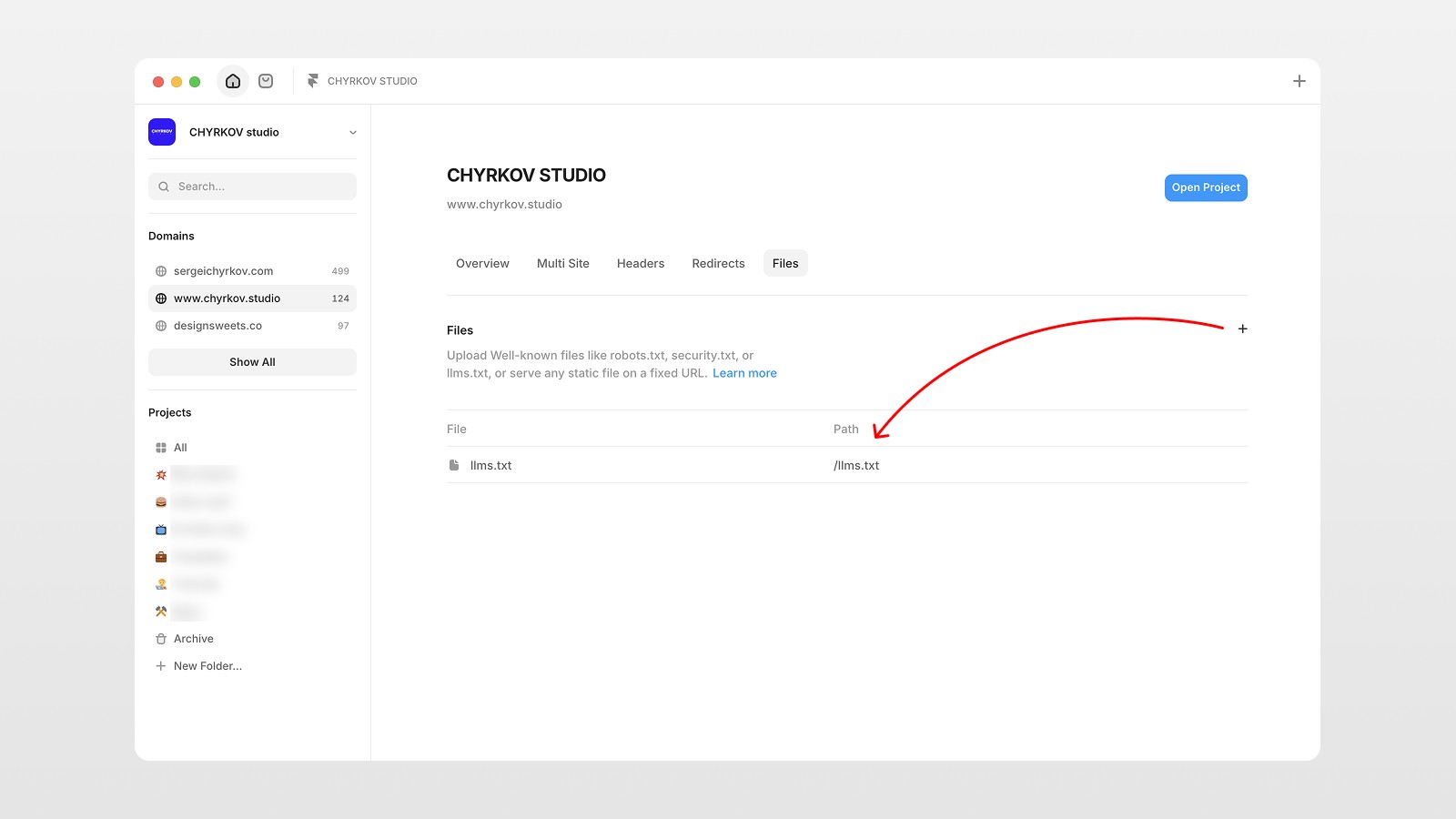
If you don't have one yet, the prompt will generate the content for you. You just copy it, create the file, and you're done. It's one of those small things that could make a big difference as AI search continues to grow.
How to Use the Prompt: Step by Step
Using this is genuinely simple. Here's all you need to do:
Copy the prompt (grab it from the link)
Paste your website URL into the designated field in the prompt
Open Claude (claude.ai) and start a new chat
Paste the full prompt and hit send
Wait a moment — Claude will fetch your sitemap, analyze your pages, and build the full report
Open the HTML output in your browser to see the full interactive audit
That's it. No API key required. No account setup. Just Claude doing the heavy lifting.
The report will show you your high-priority issues, medium issues, and low-priority improvements — all with specific recommendations and, where relevant, copy-paste code. You can even ask Claude to re-run it on additional pages if your site is large.
Works for Any Platform — Not Just Framer
One thing I want to emphasize: this prompt works for any website. Framer, Webflow, WordPress, custom-coded sites — it doesn't matter. The audit logic is based on what's publicly accessible, so as long as your site is live, it can be analyzed.
For WordPress users, implementing structured data is easiest with Yoast SEO. For Webflow, you'll use custom code embeds in the page settings. For Framer, it's the code injection in Settings. The prompt generates the right code either way — you just need to know where to paste it.
Practical Tips to Improve Your AEO and SEO Score
Here's a quick checklist of actionable things to do right now, based on what the audit commonly surfaces:
👉 Check every H1 — each page should have exactly one, and it should clearly describe what the page is about
👉 Keep meta descriptions under 160 characters — and make sure they include your main keyword
👉 Add structured data — use the JSON-LD code the prompt generates and paste it into your site's header
👉 Create an llms.txt file — future-proof your site for AI search tools
👉 Fix Open Graph tags — your OG title, description, and image should exist on every key page
👉 Check robots.txt — make sure you're not accidentally blocking AI crawlers
👉 Add a sitemap — if you're on Framer or Webflow, this is automatic; on WordPress, use Yoast
Conclusion: AEO and SEO Are Now Both Non-Negotiable
The way people find information is changing faster than most of us realize. Google isn't going away, but AI-powered search is growing rapidly — and the websites that show up as cited sources in ChatGPT or Perplexity answers are going to have a massive visibility advantage.
AEO and SEO optimization used to require hours of manual work, expensive audits, or hiring an agency. This Claude prompt compresses that into minutes. You get a real analysis, real recommendations, and real code — not just a score.
If you want to see exactly how it works in action, watch the full tutorial video. And if you want more tips on Figma, Framer, AI tools, and running a design studio, subscribe to the channel — I drop new content every week. 👀
FAQs
What is AEO (Answer Engine Optimization)?
How is AEO different from SEO?
What is llms.txt and do I need it?
Does this Claude prompt work for WordPress and Webflow?
What is structured data (JSON-LD) and why does it matter for AI search?
See more from me in Google Search
Add sergeichyrkov.com as a preferred source to get my tutorials and articles highlighted in Top Stories and AI Overviews.