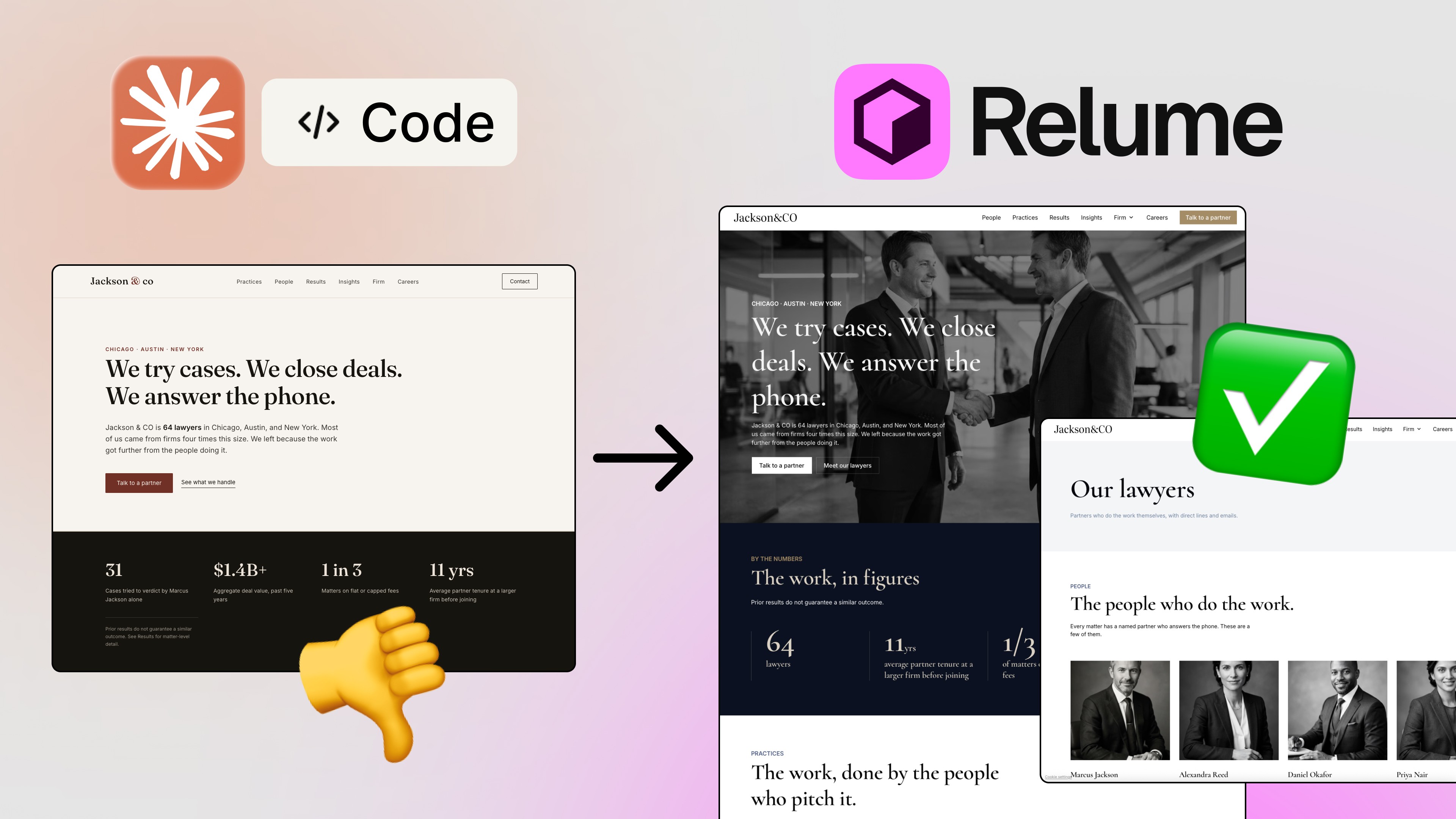
If you've been in the design world for more than five minutes, you know the drill. Designer makes something beautiful in Figma. Developer translates it into code. Something gets lost in translation. Everyone sighs. Repeat.
We've gotten pretty good at sending designs from Figma to code. Tools like Figma's Dev Mode, various plugins, and now AI-assisted coding have made that pipeline smoother than ever. But here's what nobody was really talking about — what if you could go the other direction? What if you could take existing code, generate a design from it in Figma, tweak it, and then push those changes back to the codebase automatically — pixel perfect?
That's exactly what the new Claude Code + Figma MCP integration makes possible. And honestly? It might be one of the most exciting things to happen to the design-to-code workflow in years. 🤯
What Is Claude Code (and Why Should Designers Care)?
Claude Code is Anthropic's agentic coding tool that runs directly from your terminal or inside editors like Cursor. Think of it as an AI coding assistant that doesn't just answer questions — it actually does things. It writes files, creates projects, reads your codebase, and now, with the right setup, it can talk directly to Figma.
I know, I know — "terminal" is a scary word for designers. I'll be the first to admit it: I used to hate the terminal. It felt like something only developers needed to know. But times are changing fast, and understanding the basics of how it works is becoming genuinely useful, even if you're primarily a visual person. 😅
The good news? You don't have to be a developer to set this up. The steps are straightforward, and I'll walk you through all of them.
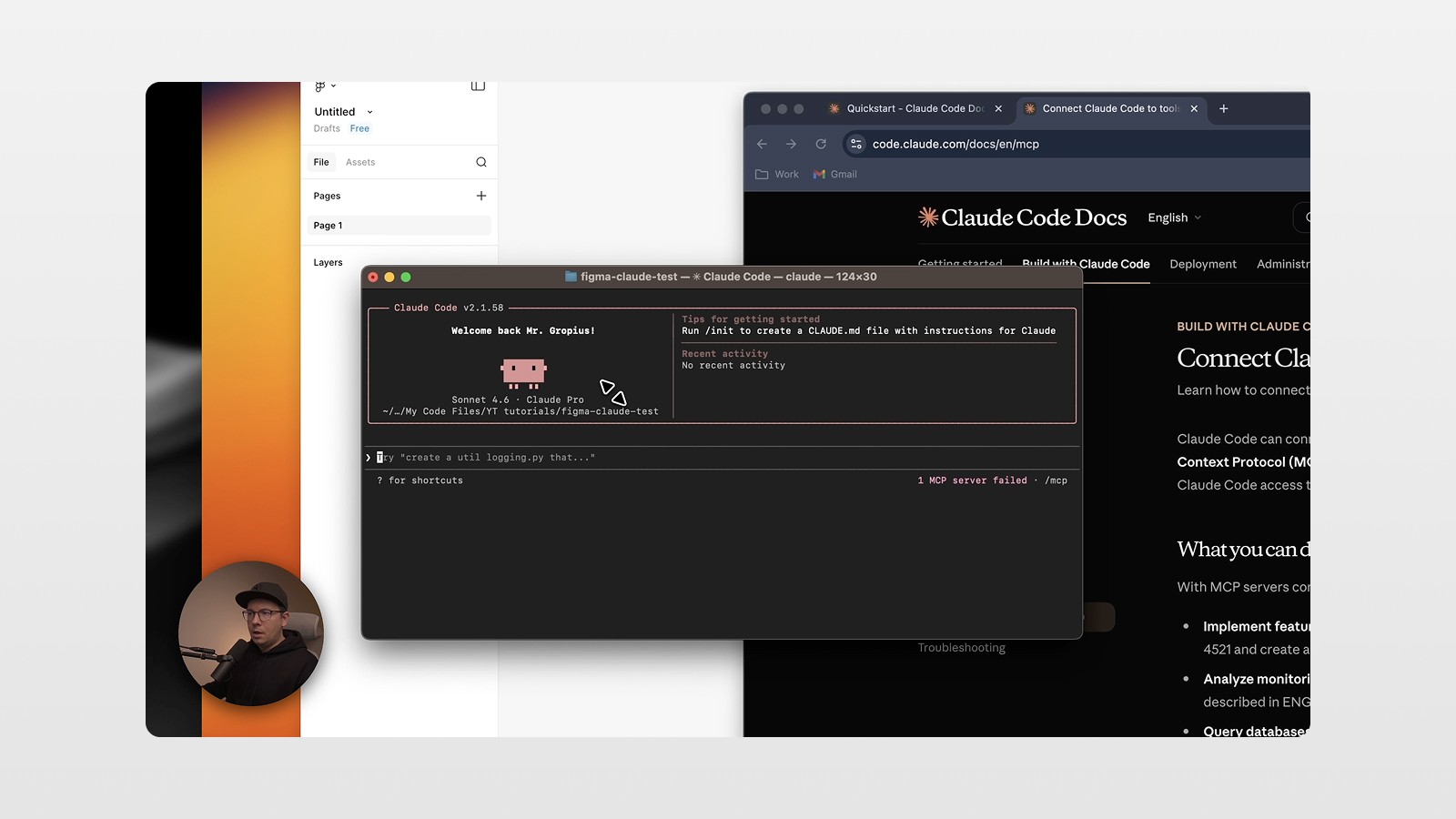
The New Workflow: From Code → Figma → Back to Code
Here's what makes this integration genuinely different from anything we've had before. The workflow looks like this:
Generate UI from a prompt in the terminal — You type something like "Build a dashboard for home electricity monitoring" and Claude Code creates real, working HTML/CSS code.
Push that design to Figma — Using the Figma MCP (Model Context Protocol) server, you send the generated UI directly into a Figma file.
Edit in Figma like you normally would — Change colors, adjust typography, tweak spacing. This is your design environment, so use it.
Sync the changes back to the code — Share the Figma link back with Claude Code, and it reads the updated design and rewrites the code to match. Automatically.
This is a completely new loop. It's not just design-to-code anymore — it's code-to-design-to-code. A full circle. 🚀
Become the Designer Who Can Ship High-End Sites Fast — and Keep 100% of the Revenue 😎
Stop waiting on developers. Start shipping complete websites — and keep all the revenue that comes with it.

How to Set Up Claude Code: Step by Step
Let's get practical. Here's how to get this workflow running on your machine.
Step 1: Install Claude Code via Terminal
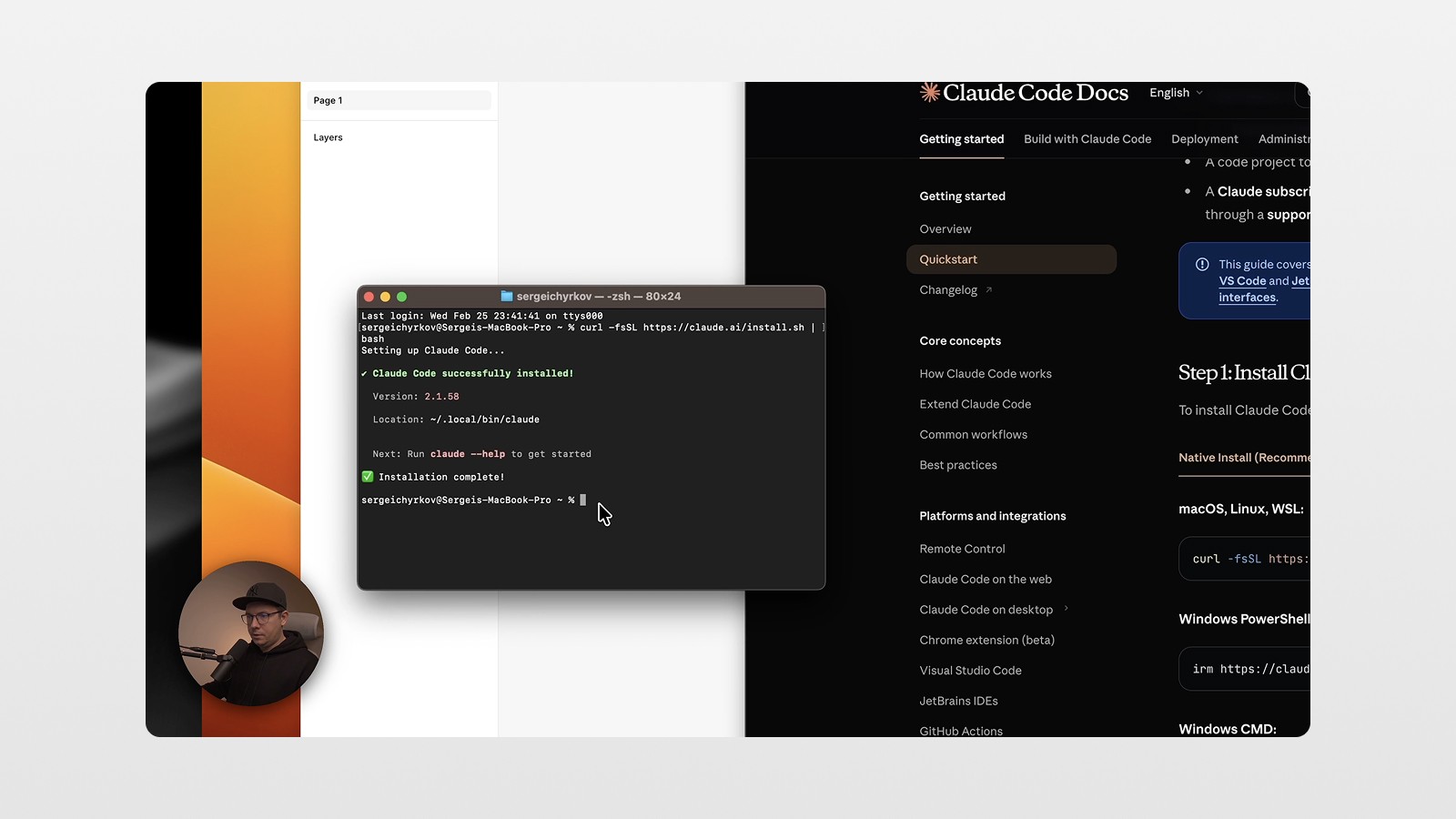
Head over to code.claude.com/docs/en/quickstart and grab the installation command from the quickstart docs. If you're on Mac, open Terminal (hit F4 or search for it in Spotlight), paste the command curl -fsSL https://claude.ai/install.sh | bash, and hit enter. Claude Code will install in a minute or two.
Once installed, type claude in the terminal to launch it. You'll be prompted to log in to your Anthropic account and authorize access. Done — Claude Code is live on your machine.
Step 2: Open Your Project Folder
This is the same mental model as Cursor or VS Code — Claude Code needs to know which project you're working in. Navigate to your project folder. On Mac, you can right-click the folder and open it in Terminal directly. Once you're inside the folder, type claude again to launch it from that context.
Step 3: Connect the Figma MCP Server
This is where the magic happens. Head to the Claude Code docs code.claude.com/docs/en/mcp and find the MCP section — there's a single command you need to copy claude mcp add --transport http figma-remote-mcp https://mcp.figma.com/mcp and paste into your terminal. Run it, approve the connection, and restart Claude Code. That's it. Your Claude Code instance is now connected to Figma's MCP server.
Step 4: Install the Figma Plugin
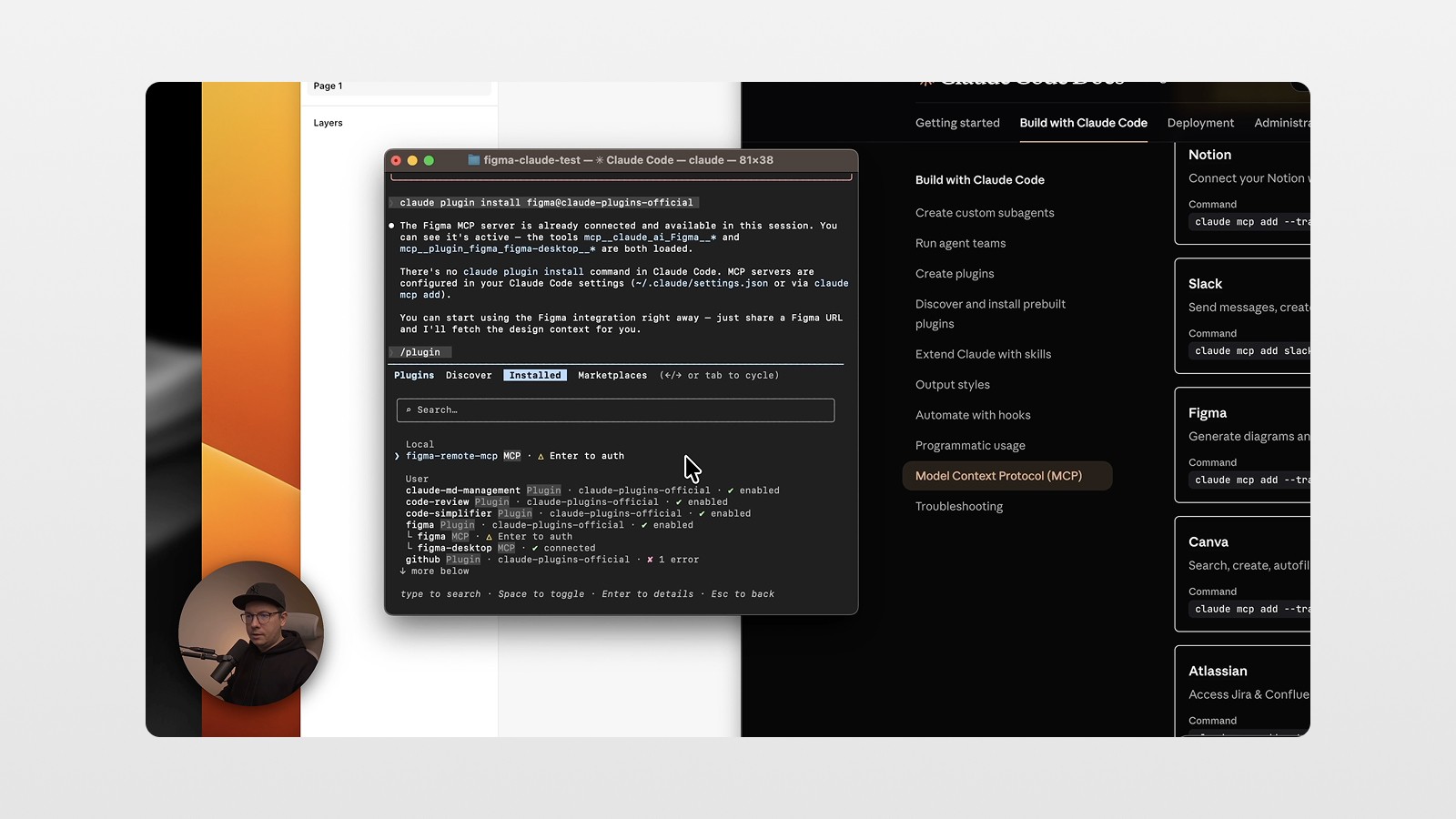
There's one more piece: a Figma plugin that handles the communication between Figma and your local Claude Code setup. Run the plugin install command in the terminal (it looks something like claude plugin install figma@claude-plugins-official — grab the exact command from the docs). Once it's installed, type /plugin in Claude Code, navigate to the installed plugins, find "Figma Remote MCP," and authenticate your Figma account. You'll see a browser window pop up asking for permission. Allow it, and you're connected. 🎉
Generating UI and Sending It to Figma
Here's where it gets fun. Once everything is connected, you can start prompting right from the terminal. Something as simple as:
"Build a dashboard for home electricity monitoring."
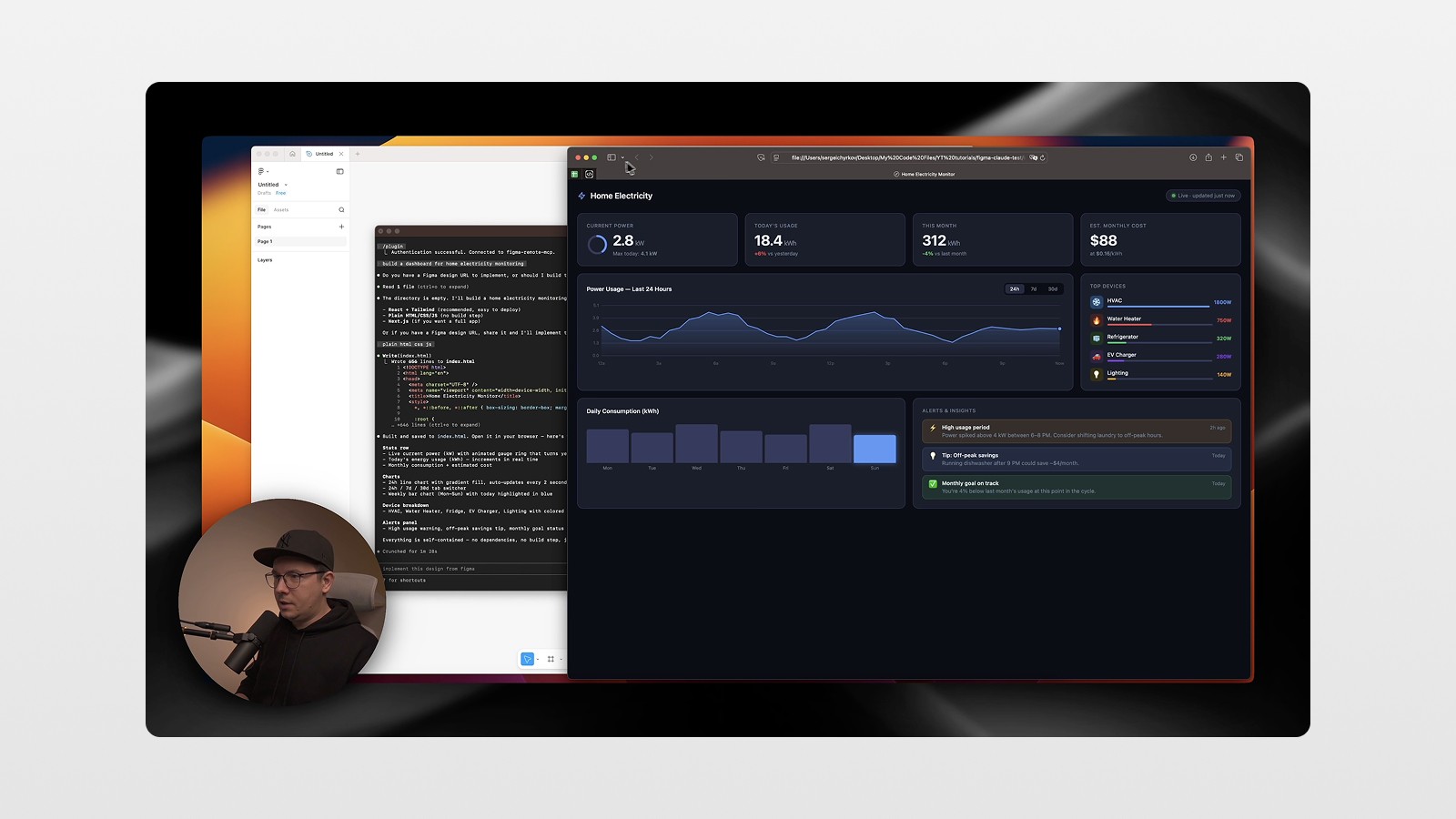
Claude Code will generate working HTML code — a real, live, responsive webpage. It's not a mockup. It's actual code you can open in a browser right now.
From there, you open your Figma file, copy the link, paste it into Claude Code, and tell it to push the design into Figma. In seconds, you'll see your generated UI appear as frames inside your Figma file. From plain text prompt to Figma design in under a minute. 👀
Editing in Figma and Syncing Back to Code
Now here's the part that really changes the game for designers. You're in Figma — your home turf. You can adjust colors, swap out backgrounds, modify component styles, change anything you want. You're not writing code. You're designing.
Once you're happy with the changes, copy the link to your Figma frame, go back to Claude Code, and prompt something like: "Update the design from this Figma file." Claude Code reads the Figma file, finds the differences between the current code and the updated design, and rewrites the code to match.
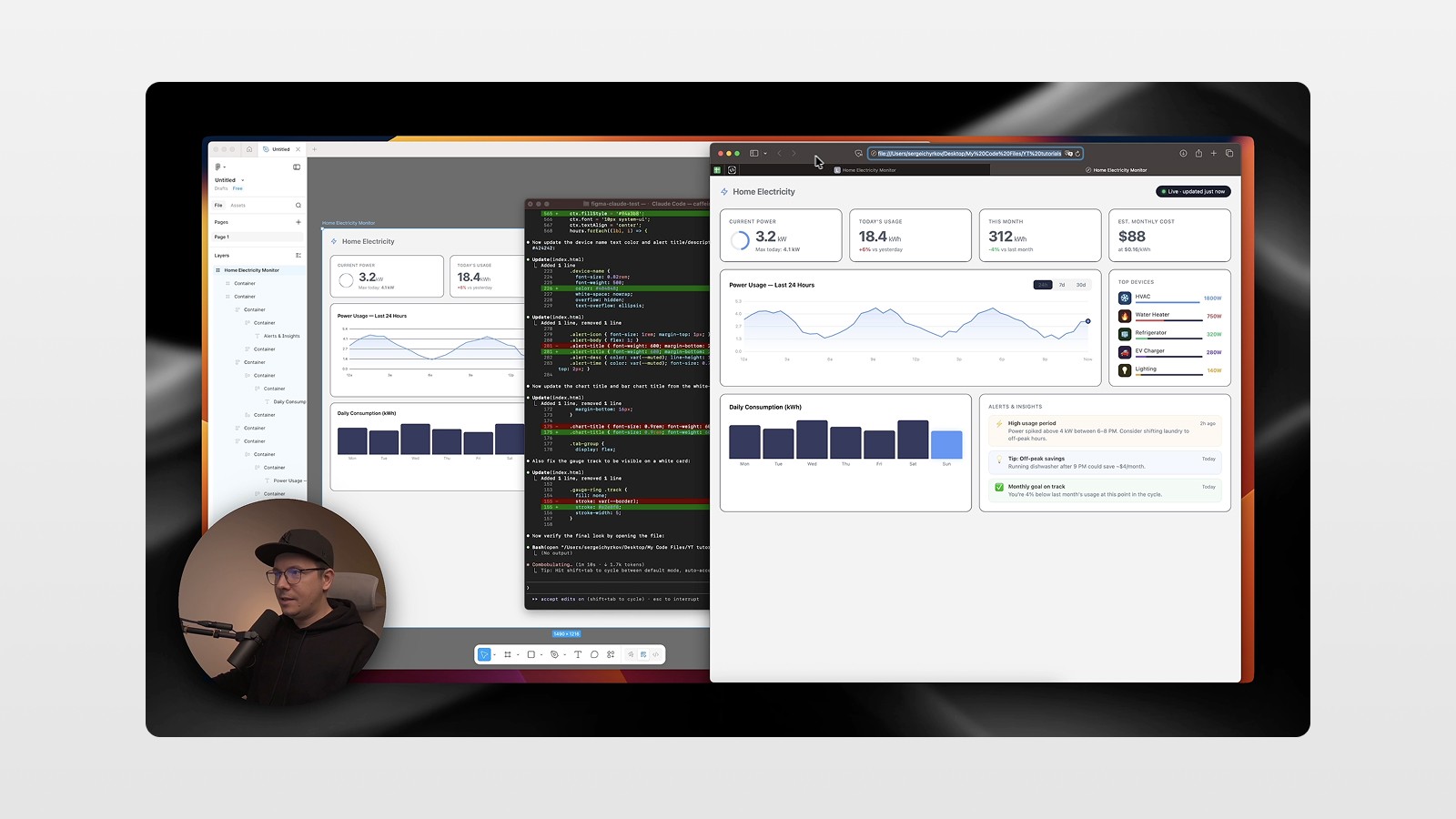
It tells you exactly what changed. You hit yes. Your index.html (or whatever file you're working with) is updated — pixel perfect — to match what you designed in Figma.
This is the handoff moment that used to require hours of back-and-forth between designers and developers, now handled in about 30 seconds. 🙏
Terminal vs. Claude App: Which Should You Use?
There are actually a few ways to run Claude Code, and they're worth knowing about.
Terminal is the most powerful and flexible option. It's what we've been walking through above. It's also the most "developer-y" approach — great for pro users and people comfortable with command-line tools.
Cursor (VS Code extension) — If you already use Cursor as your code editor, you can install Claude Code as an extension from the marketplace. It runs right inside Cursor, which means you get a visual editor experience alongside the AI coding capabilities. Just note: Claude Code is a separate product from Cursor, so the billing is separate too.
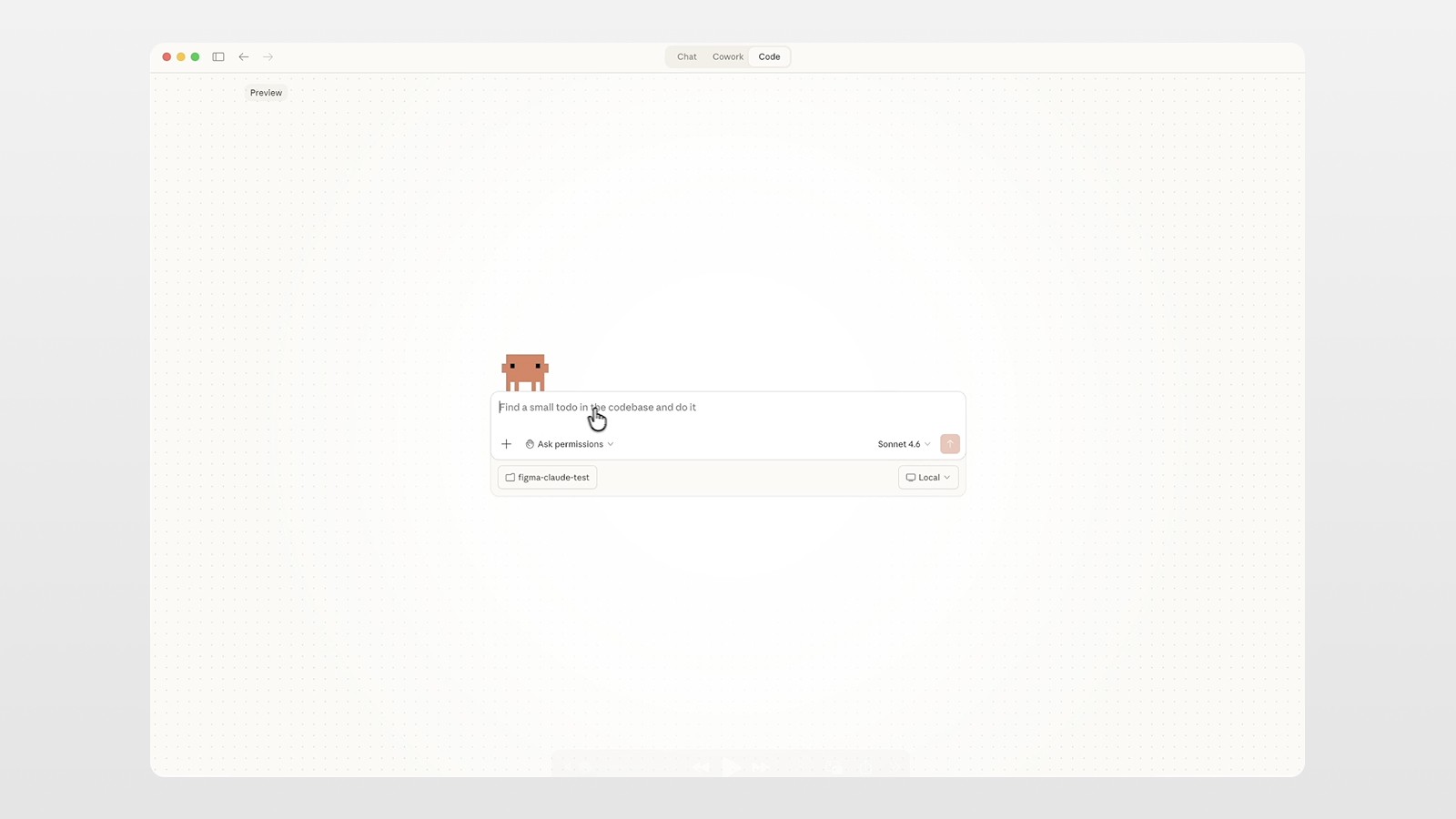
The Claude App (desktop) — This is the most visual and beginner-friendly option. You get a chat window, you can connect it to your project folder, and there's a "Code" mode that gives you the same agentic capabilities without ever opening a terminal. If the terminal makes you nervous, start here.
Personally? I prefer the app for its visual interface — it just feels nicer to use. But the terminal is faster and more powerful once you get comfortable with it. Try both and see what clicks for you. 😎
Why This Actually Matters for Designers and Developers
Let's zoom out for a second. Why is this a big deal?
For most teams, the design-to-development handoff is the bottleneck. Designs get interpreted differently. CSS values get approximated. Colors drift. Spacing gets eyeballed. And every round of feedback means another cycle of changes on both sides.
This workflow doesn't eliminate collaboration — it transforms it. Designers can work directly with code-generated mockups in their native tool (Figma). Developers get code that actually matches the design. And the loop between the two is automatic, fast, and precise.
It's also a new kind of creative workflow for solo designers and solopreneurs. You don't need a developer to prototype something and get it into Figma for client feedback. You can go from idea → working code → Figma design in minutes. That's a superpower. 📌
Actionable Tips to Get Started Today
Start with the Claude desktop app if you're new to all of this. You get the full workflow without touching the terminal. Install it, connect your folder, and start experimenting.
Use simple prompts first. A single-sentence prompt like "Build a landing page for a design studio" is enough to get working output. You don't need to write a specification document.
Keep a Figma file ready. Have an empty file (or a designated sandbox file) open before you start. That way you can paste the link immediately when Claude asks where to send the designs.
Experiment with design edits in Figma. Change colors, try different backgrounds, swap layout styles. The sync back to code handles the translation — your job is just to make it look good.
Learn the /plugin command. It's how you manage your MCP connections directly from Claude Code. Get comfortable with it early.
Conclusion: The Future of Design-to-Code Is a Two-Way Street
The Claude Code + Figma MCP integration isn't just a cool trick — it's a genuine shift in how the design and development workflow can operate. For the first time, the feedback loop between visual design and production code is fast, automatic, and accessible to designers without deep coding knowledge.
Whether you use it to prototype faster, collaborate more efficiently with developers, or just explore new ways of building UIs, this workflow is worth learning. We're in early days, but what's already possible is genuinely exciting.
Watch the full tutorial to see the entire setup and live demo in action — and if you want more tips on Figma, AI tools, and vibe coding, subscribe to the newsletter. We cover this stuff every week. 🤗
FAQs
What is Claude Code and how is it different from Claude AI?
What is Figma MCP and how does it work with Claude Code?
Do I need to know how to code to use Claude Code with Figma?
Can Claude Code push updates from Figma back to my production codebase?
Is Claude Code free to use?
See more from me in Google Search
Add sergeichyrkov.com as a preferred source to get my tutorials and articles highlighted in Top Stories and AI Overviews.