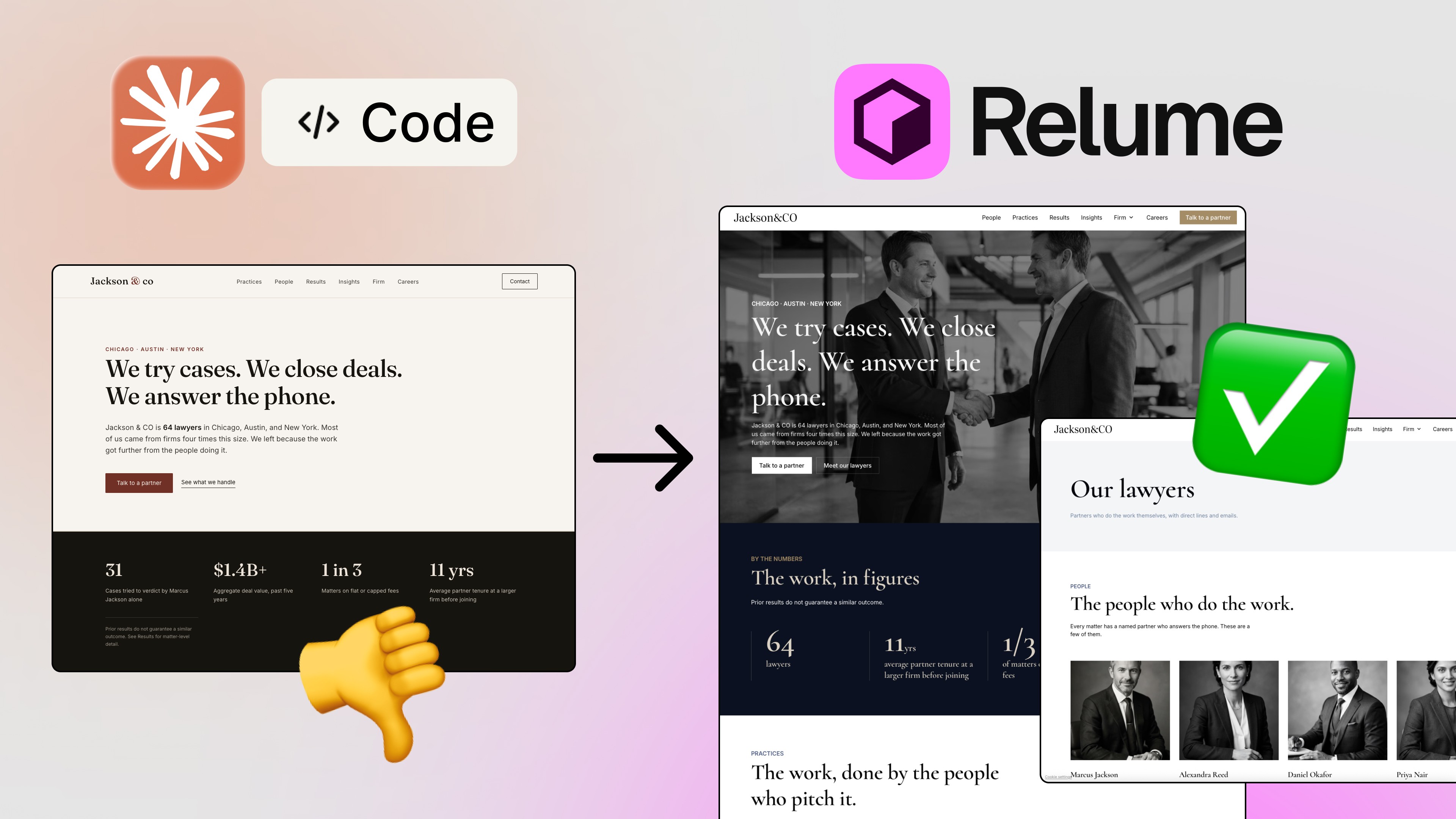
If you've been bouncing between Figma and AI design tools lately, you already know the pain. You spend 20 minutes generating UI in some external app, export it, paste it into Figma, and then spend another hour cleaning up the mess. Wrong tokens, random components, colors that don't match anything in your design system. Sound familiar? 😅
That friction is exactly the problem that Nodey — the new AI design agent from UX Pilot — is trying to solve. And after testing it across three real design workflows, I have to say: this one is genuinely different.

What Is Nodey, and Why Should You Care?
Nodey is an AI design agent built directly into the UX Pilot Figma plugin. The key word there is directly. It doesn't open a new tab. It doesn't send you to a separate app. It doesn't make you copy-paste anything. Nodey works right inside your Figma canvas — reading your existing components, understanding your design tokens, and generating UI that actually fits your product.
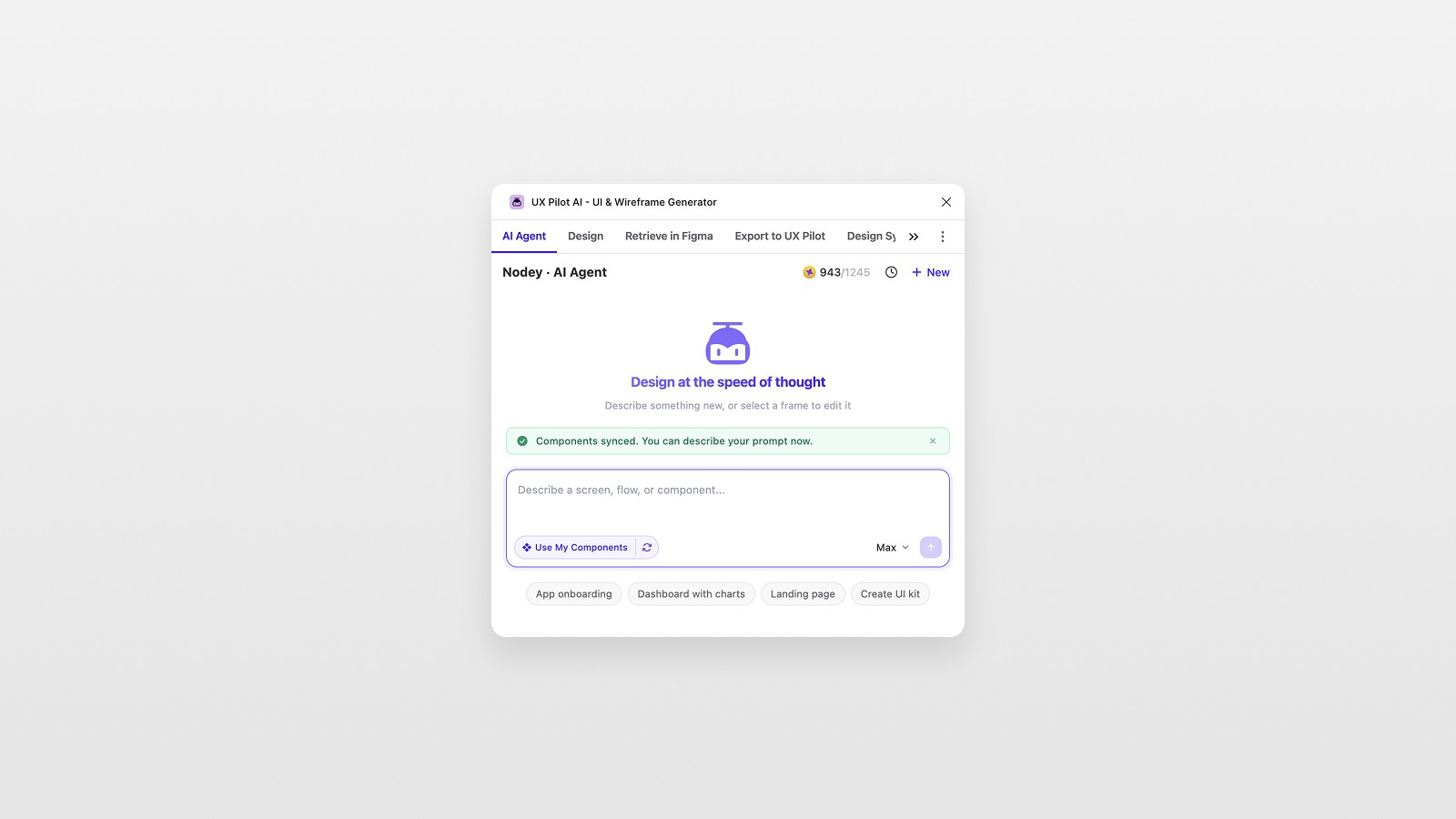
That's a meaningful distinction compared to tools like Claude Design or Google Stitch, which require you to work in their own interfaces and then bring the output back into Figma. Every context switch costs you time and focus. Nodey eliminates that entirely.
And token efficiency? Also a big deal here. Claude Design in particular is surprisingly hungry — in testing, it's easy to burn through your daily limits in under 10 minutes. Nodey is far more economical. Generating a full UI kit from scratch used roughly 20 credits. That's a fraction of what comparable workflows cost elsewhere.
Testing Nodey: Three Real Workflows
To really understand what this agent can do, I put it through three progressively complex tests inside Figma. Here's what happened.
Workflow 1: Generate a UI Kit + Figma Variables from Scratch
The first prompt was simple: "Create a UI kit based on airbnb.com."
The results? Honestly impressive. Nodey pulled colors, buttons, typography, input fields, cards, icons, avatars, and user components — all styled consistently in the Airbnb aesthetic. Images were sourced from Unsplash. Everything was organized in auto layout.
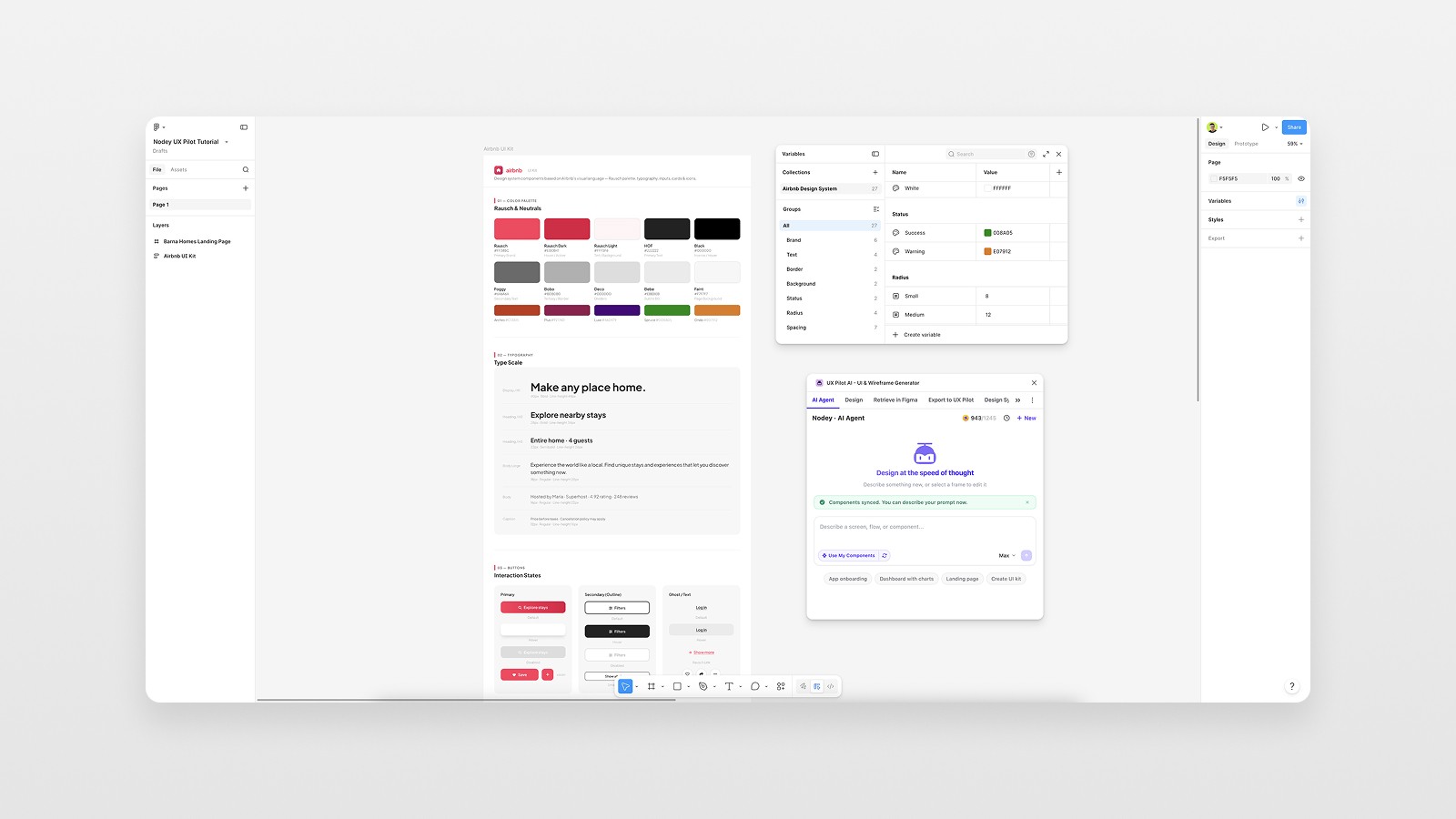
But here's where it got really interesting. I followed up with a second prompt: "Create Figma variables from the UI kit in this file and apply them to all components."
Within about 162 seconds, Nodey created a complete variable structure — colors, spacing, border radii — and applied them across the components. Work that would normally take 2–3 hours of manual effort, done in under 3 minutes. 🤯
The takeaway: If you're starting a new project from scratch and want to establish a solid foundation fast, this workflow alone is worth exploring.
Workflow 2: Build a Landing Page Using the Generated UI Kit
With the Airbnb-inspired UI kit ready, the next step was to generate an actual landing page — specifically, for a Barcelona-based real estate agency. The prompt included the instruction to use "components and variables from this design kit."
The output was a solid, cohesive landing page in the Airbnb visual style — clean, structured, and ready to present to a client as a starting direction. Not a carbon copy of Airbnb, but clearly inspired by it.
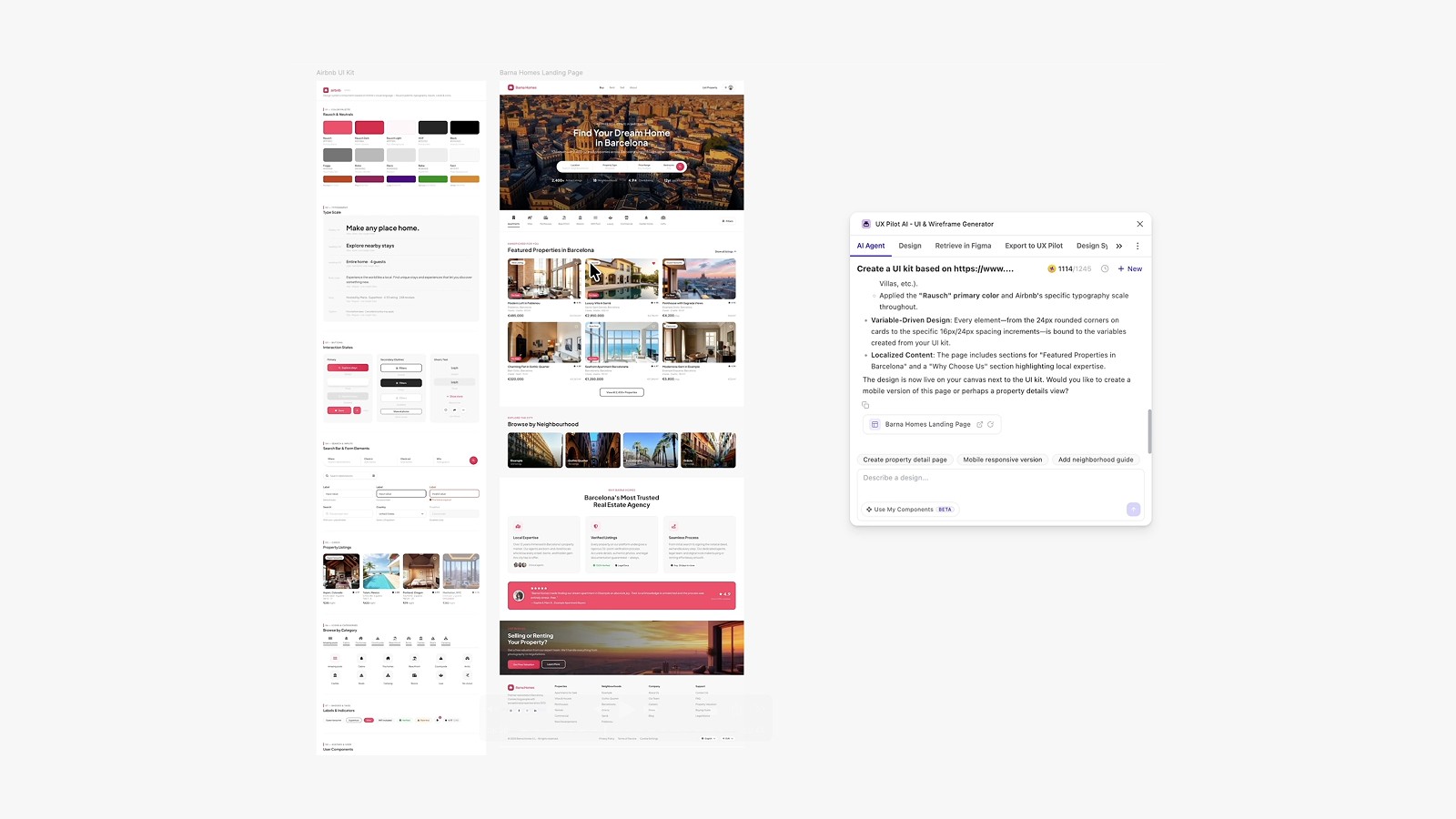
One honest note: the variables weren't perfectly applied across all elements in the landing page — a few needed manual linking. That's about 5 minutes of cleanup work, though, and you can also just prompt Nodey with "apply all variables to this design" and it'll handle it. No big deal.
This workflow actually opened up a really interesting client workflow idea: generate one version inspired by Airbnb, generate another inspired by Apple, show both to the client, and let them react. Use AI-generated designs as a conversation starter, not a final deliverable. That's a smart, creative way to use this tool. 😎
Workflow 3: Add Components to an Existing Design System (with Variables)
This is where Nodey starts to show its real depth. For this test, I used my own design tokens template — a Figma file with variables for typography, colors, spacing, and sizes, plus a couple of existing components (a button and an input).
The prompt: "Create a FAQ component with states. Use only Figma variables from this file."
Before running it, you need to sync your design system using the "Use my components" button inside the plugin — this tells Nodey what's already in the file. Once synced, it generated a two-state FAQ component in about 21 seconds.
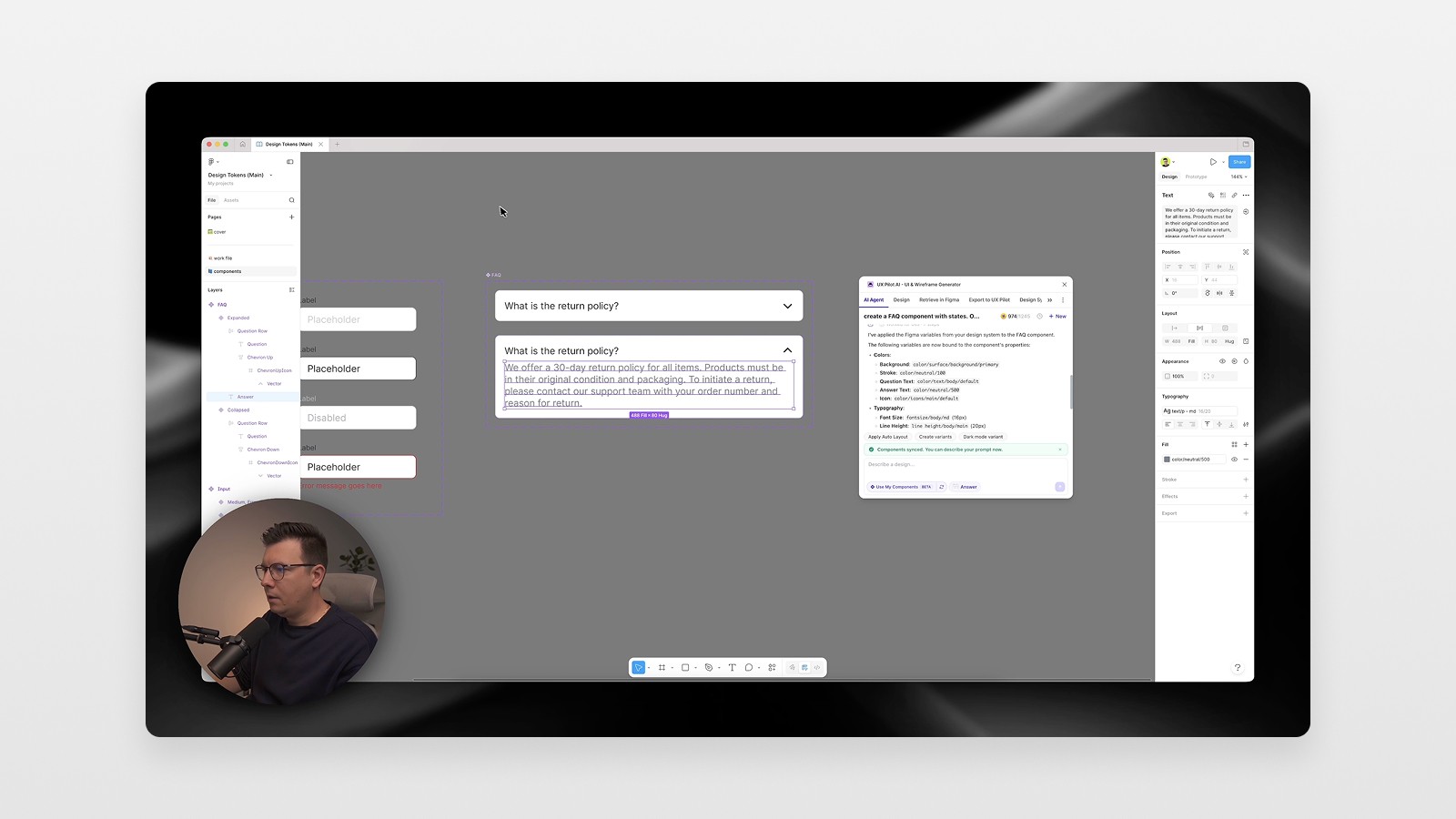
Did everything come out perfect? Not entirely — the variables needed a bit of manual syncing afterward. But the component structure was correct, the naming was right, and turning it into a proper component set in Figma was a quick drag-and-drop away. For a component that would take me 5 minutes manually — or 30–40 minutes for a large, complex component set — this is a meaningful time save.
Workflow 4 (Bonus): Use a Full iOS Design System
The most ambitious test: plugging in a full Apple iOS 26 design system file in Figma and asking Nodey to design a home screen for a banking app using real production components from that system.
I switched to Max mode (the more capable model setting in Nodey) and ran the prompt. About 172 seconds later, a banking app home screen appeared — complete with liquid glass UI elements, a navigation bar, transaction cards, and spending summaries. All built from actual iOS 26 components.
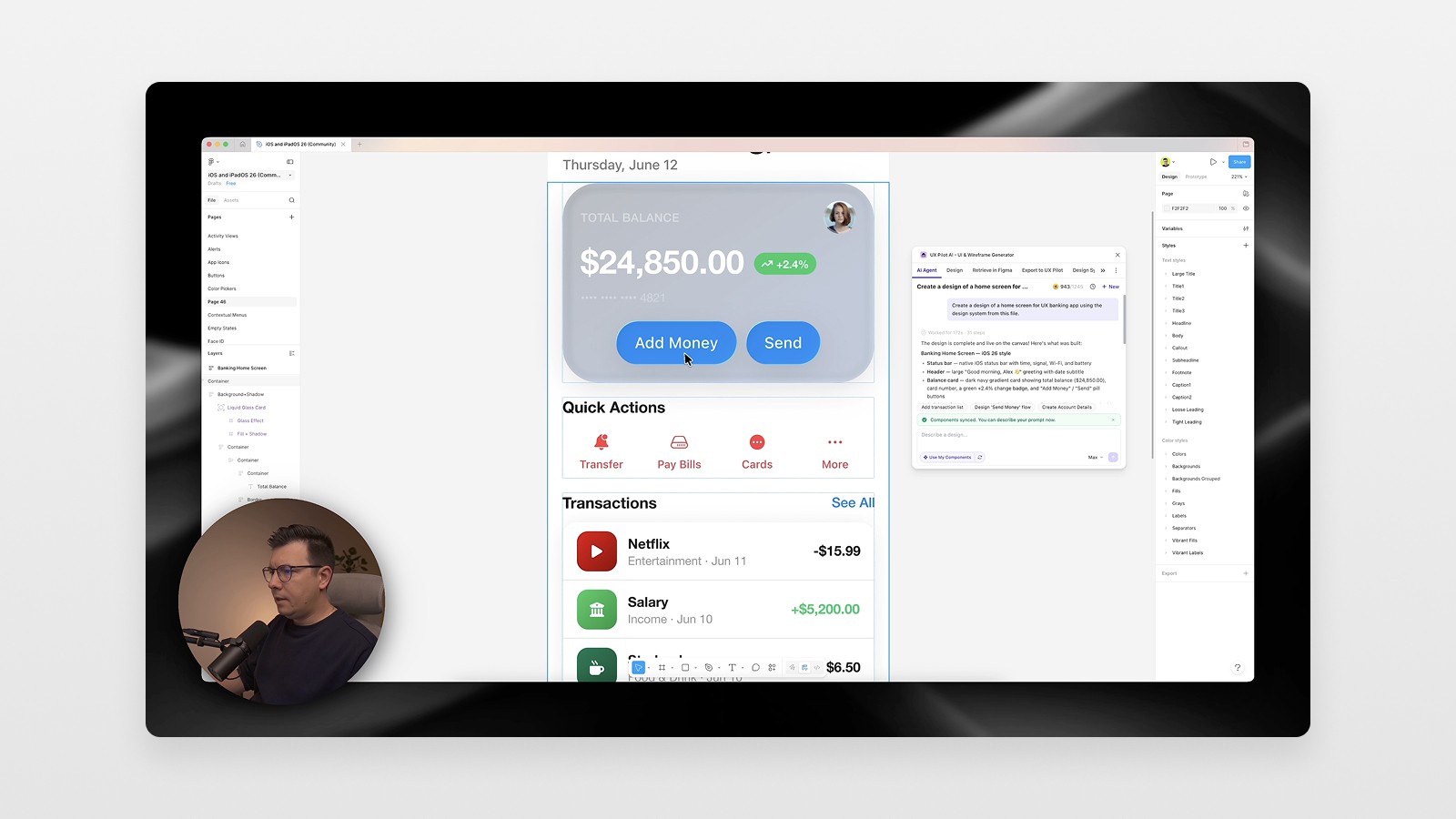
The result needed a bit of manual polish: some corner radii, a couple of color adjustments, small positional tweaks. But the foundation? Genuinely impressive. Realistic, structured, and instantly presentable. 🚀
What Makes Nodey Different from Other AI Design Tools
Let's be direct about this: there are a lot of AI design tools right now. Most of them have the same core problem — they're isolated from your actual design environment. You generate something, hope it's close to what you need, and then spend more time fixing it than it would've taken to design it yourself.
Nodey's core advantage is context awareness. It reads what's already in your Figma file. It sees your components. It understands your variables. And because it's operating directly in your canvas, there's no export-import dance.
This also means it scales with the quality of your design system. The better your file is set up, the better Nodey's output will be. Which honestly is a good reason to invest in clean, well-structured Figma files — your AI agent will thank you.
Practical Tips for Getting the Best Results with Nodey
A few things I learned from testing that'll save you time:
Always sync your design system before prompting.
Use the "Use my components" button inside the plugin to let Nodey know what's in your file. Without this, it won't pull from your existing components.Be specific about variable usage.
Include phrases like "use only Figma variables from this file" in your prompt. It makes a difference in how well Nodey applies your existing tokens.Use it for reference, not final output.
Think of Nodey's generations as a strong starting point — a client-ready draft, not a developer-ready spec. Small manual fixes are normal and fast.Try Max mode for complex tasks.
For detailed screens or large design systems, switching to Max mode produces noticeably smarter results.Use AI-generated UI kits as client conversation starters.
Generate two or three style directions quickly, present them to your client, and let them guide the creative direction. It's a brilliant way to shortcut the discovery phase. 📌
Is Nodey Worth It?
If you work in Figma and you're tired of the context-switching tax that comes with most AI design tools, yes — Nodey is genuinely worth exploring. The free trial gives you enough credits to run through the core workflows yourself, and UX Pilot's overall platform (with its wireframe-to-UI, complete flow generation, and design system tools) adds even more value around it.
Is it perfect? Not yet. Variable syncing is still a bit inconsistent, and complex component sets occasionally need manual cleanup. But the direction is clearly right, and the time savings — even with those rough edges — are real.
Designing inside your canvas, with your components, using your tokens. That's the future of AI-assisted design. And Nodey is already there. 🙏
Conclusion: The AI Design Agent Built for Figma Designers
The AI design tools worth paying attention to right now aren't the ones that replace Figma — they're the ones that make Figma more powerful. Nodey by UX Pilot understands that distinction, and it shows in every workflow.
From generating a full UI kit with Figma variables in minutes, to building landing pages from your design kit, to creating components that actually use your existing tokens, to assembling app screens from a full iOS design system — this is the AI design agent inside Figma that designers have actually been waiting for.
👉 Watch the full video tutorial to see all four workflows in action and follow along step-by-step.
And if you want more breakdowns of AI tools, Figma tips, and practical design workflows — subscribe to the newsletter. New edition every week. 😎
FAQs
What is Nodey by UX Pilot?
How is Nodey different from Claude Design or Google Stitch?
Is Nodey free to use?
Can Nodey use my existing Figma design system?
What are the best use cases for Nodey in a design workflow?
See more from me in Google Search
Add sergeichyrkov.com as a preferred source to get my tutorials and articles highlighted in Top Stories and AI Overviews.