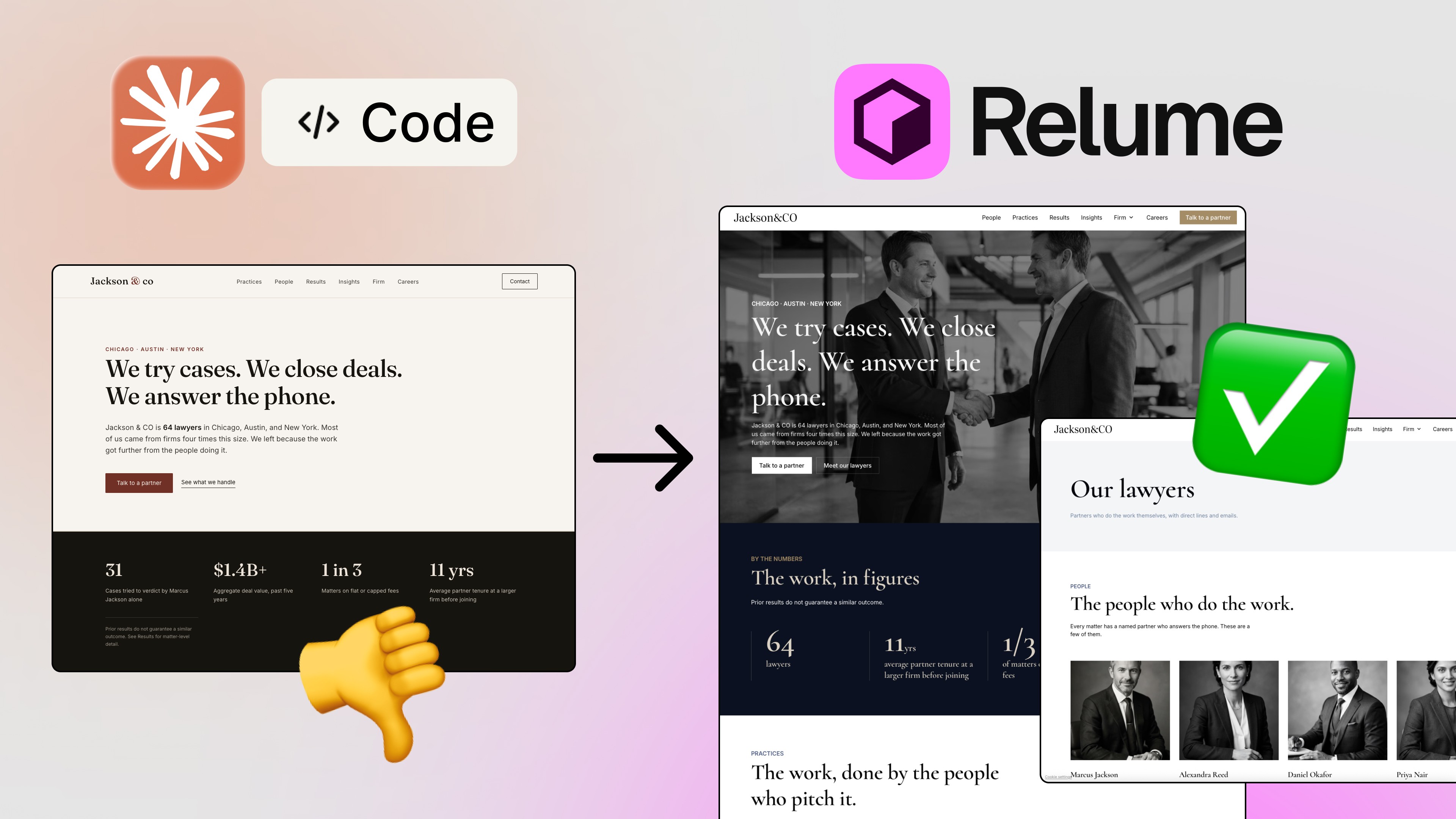
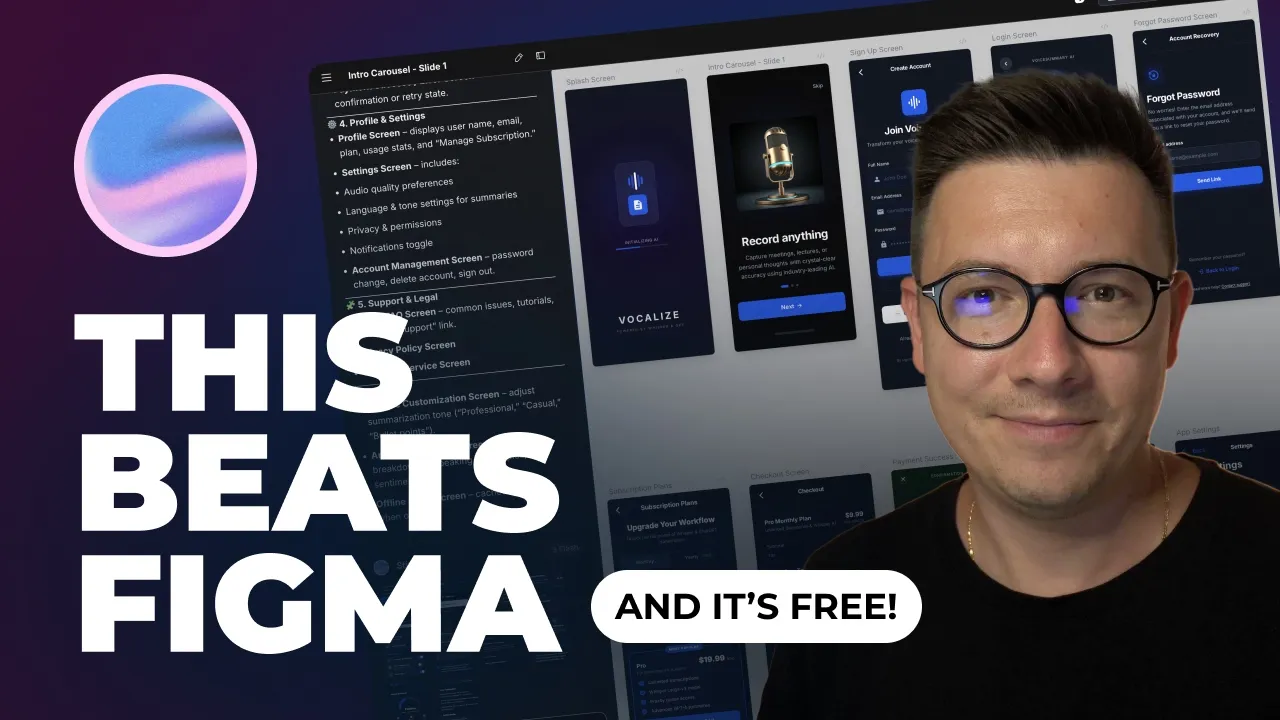
If you've ever tried to get Figma Make to generate production-ready UI and walked away a little disappointed, you're not alone. The results look decent in demos, but the moment you dig into the actual structure — missing auto layouts, messy frames, unpredictable inconsistencies — you start to wonder if AI-generated UI is actually worth the hype.
I wondered the same thing. So I went looking for something better. And what I found was Google Stitch — a quiet, free experimental tool sitting on labs.google that nobody's really talking about yet. Spoiler: it kind of blew my mind. 🤯
In this post, I'll walk you through the entire workflow I used to go from a raw app idea → AI-generated screens → Figma export → real working code → live app preview in a simulator. All in under 20 minutes.
What Is Google Stitch?
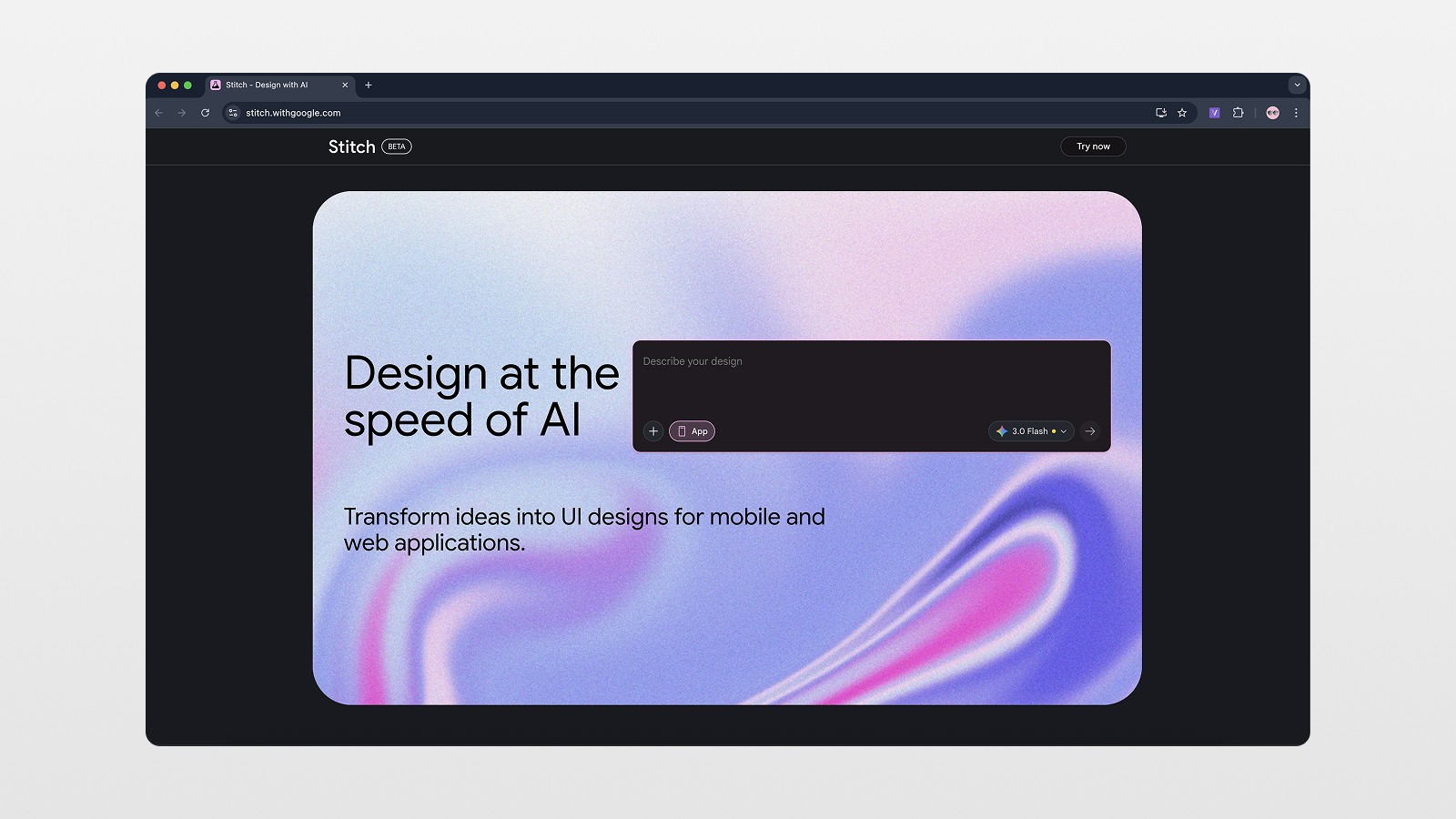
Google Stitch (available at stitchwith.google.com) is a free experimental AI design tool from Google Labs. It lets you generate full app interfaces or website designs from a text prompt. You log in with your Google account, paste a description of what you want to build, and Stitch generates multiple screens — consistently styled, with real design thinking baked in.
You can choose between different models (Flash 3, Flash 3 Pro), build mobile apps or websites, upload reference files, or even feed it a website URL for inspiration. The output lands on an infinite canvas — think Figma's canvas vibe — where you can browse, preview, and manage all your generated screens.
And the exports? Figma or code. That's where things get really interesting for designers and developers building MVPs. 👀
Step 1: Start with ChatGPT (Yes, Really)
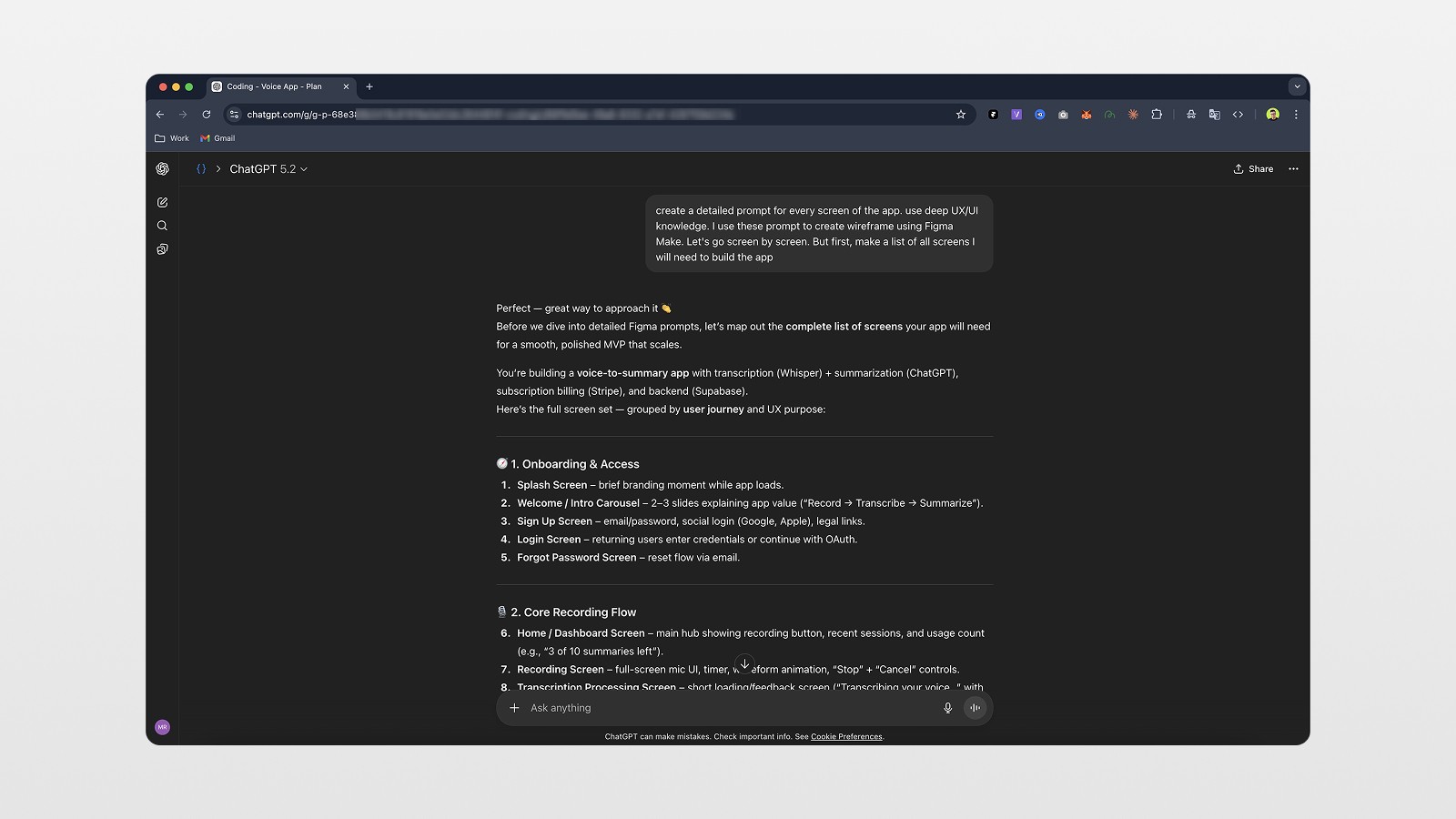
Before touching Stitch, I spent a few minutes in ChatGPT planning the app I wanted to build. The concept: a voice-to-summary app that uses OpenAI's Whisper for transcription, ChatGPT for summarization, Stripe for subscriptions, and Supabase for the backend.
I asked ChatGPT to map out all the screens I'd need — and it organized everything into logical sections: onboarding, core recording flow, subscription & payments, profile & settings, support, and a handful of optional screens.
This is the step most people skip, and it makes a huge difference. Instead of jumping into Stitch with a vague prompt, you arrive with a clear, structured list of what you need. That clarity translates directly into better AI output.
Step 2: Generate Your UI in Google Stitch
Here's where the magic happens — and where Google Stitch really separates itself from other AI UI tools.
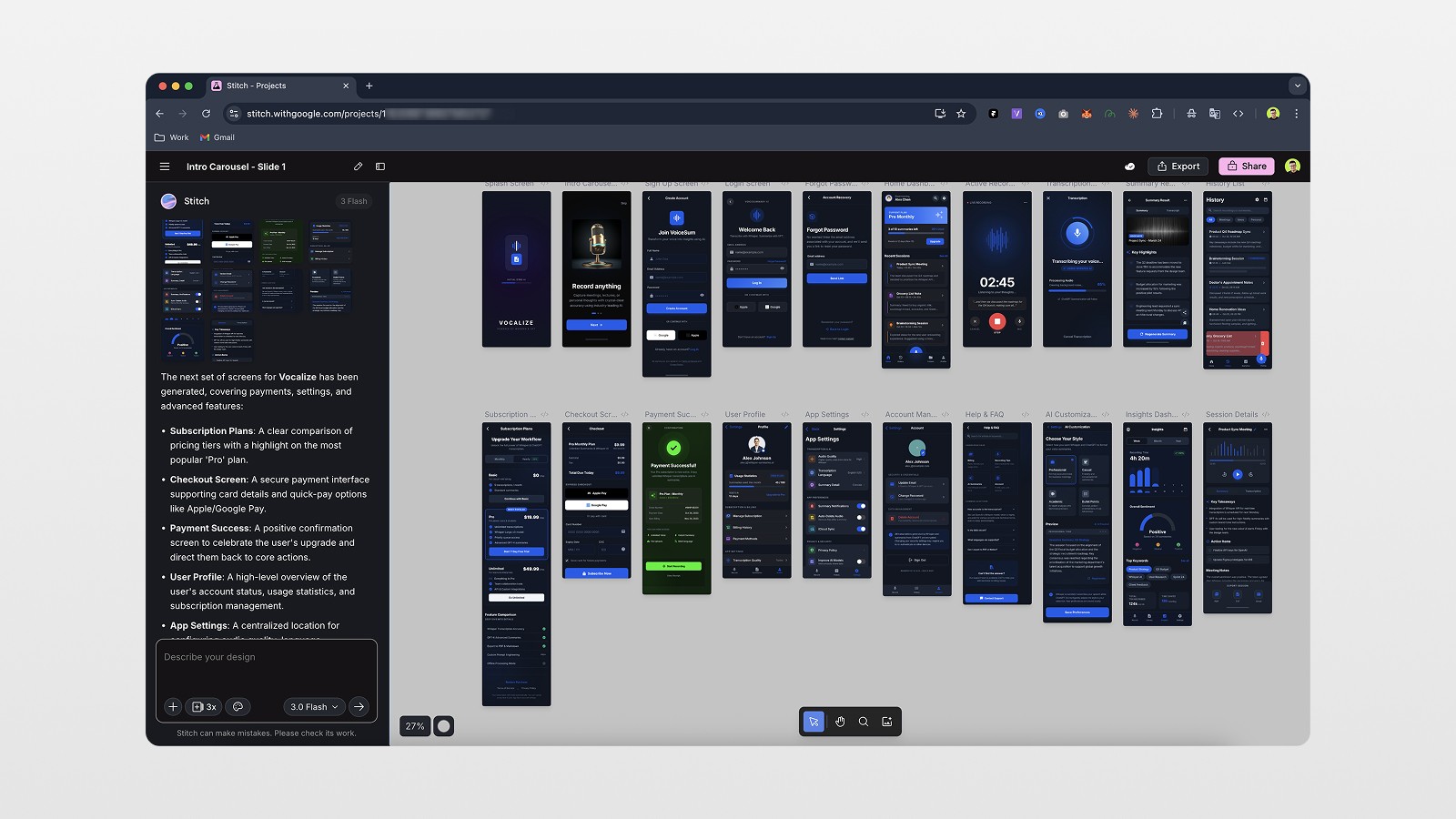
I copied just the first two sections from my ChatGPT screen plan (onboarding + core recording flow) and pasted it directly into Stitch as my first prompt. One prompt. That's it.
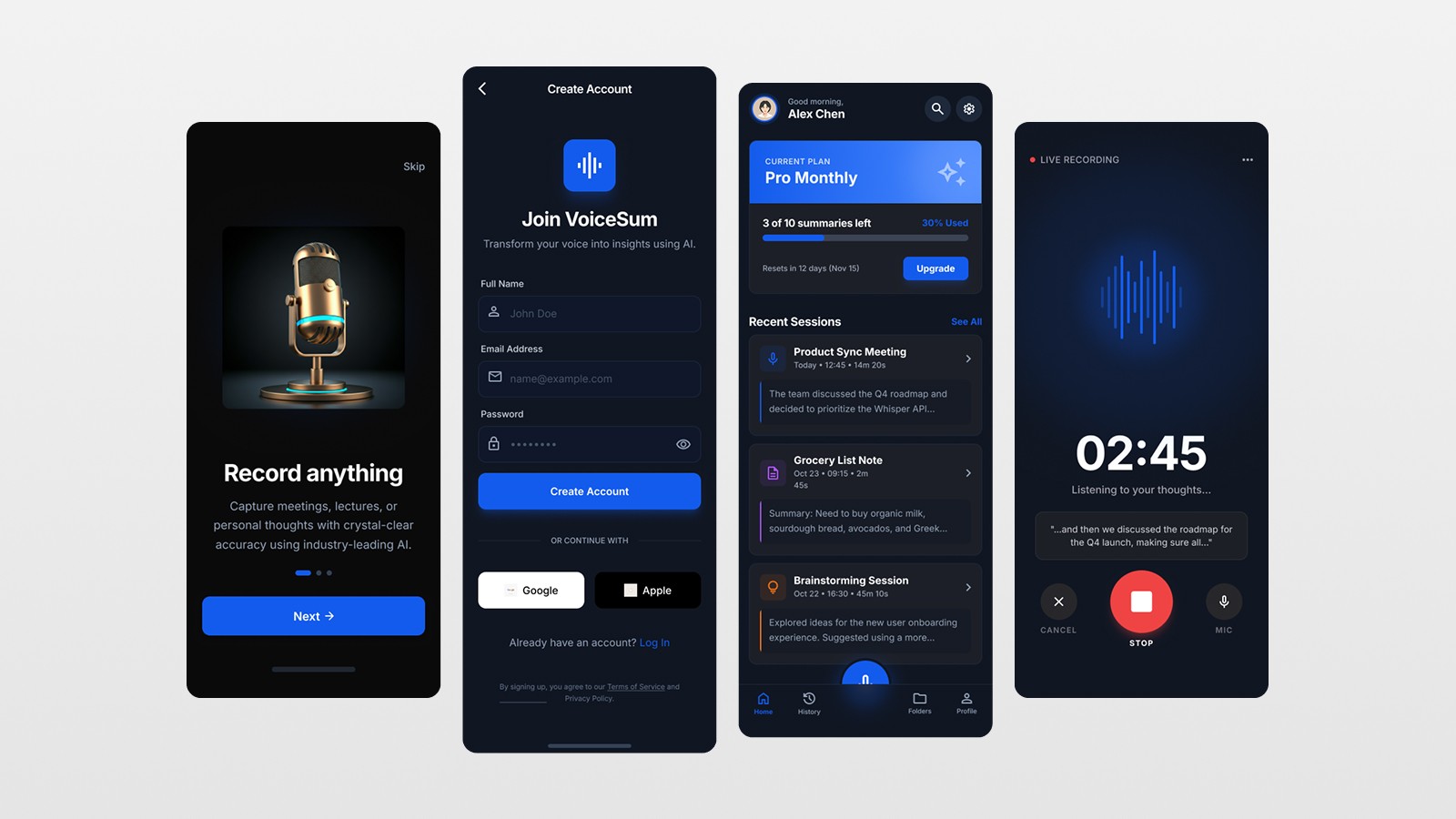
What came back? Nearly 10 screens. With consistent typography, gradients, icons, interaction states (including a delete state — that's a detail most tools miss), and a visual style that actually looks modern and polished. Not generic. Not clipart-level. Real design quality. 😎
A few things that genuinely impressed me:
Consistent design language across prompts. I ran a second prompt for sections 3–5 of my screen plan — different screens, separate generation — and Stitch matched the style from the first batch perfectly. Same colors, same typography, same vibe. I never told it what style to use. It just... figured it out.
Interactive preview. You can open any screen in a browser preview that feels like a Figma prototype. Toggles work. Hover states appear. There are even subtle animations. It's not fully interactive (no navigation between screens), but it's enough to get a real sense of the design.
Infinite canvas + cloud saving. All your screens live on an editable canvas. You can move them, rate them (good/bad result), create variations, or add to chat for further edits. Everything saves to the cloud automatically.
Step 3: Export to Figma
This is where things shift from "impressive demo" to "actually useful in my workflow."
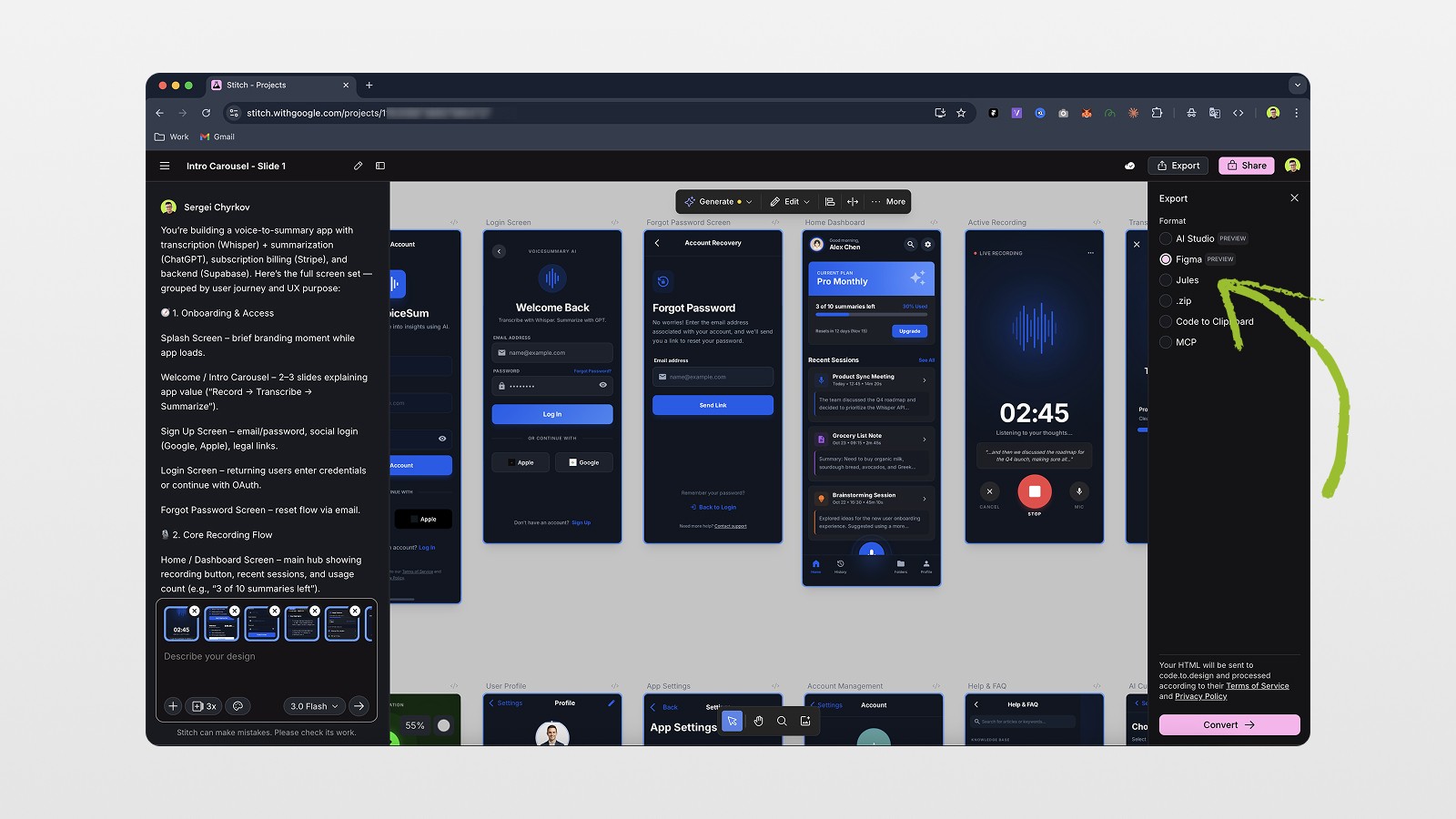
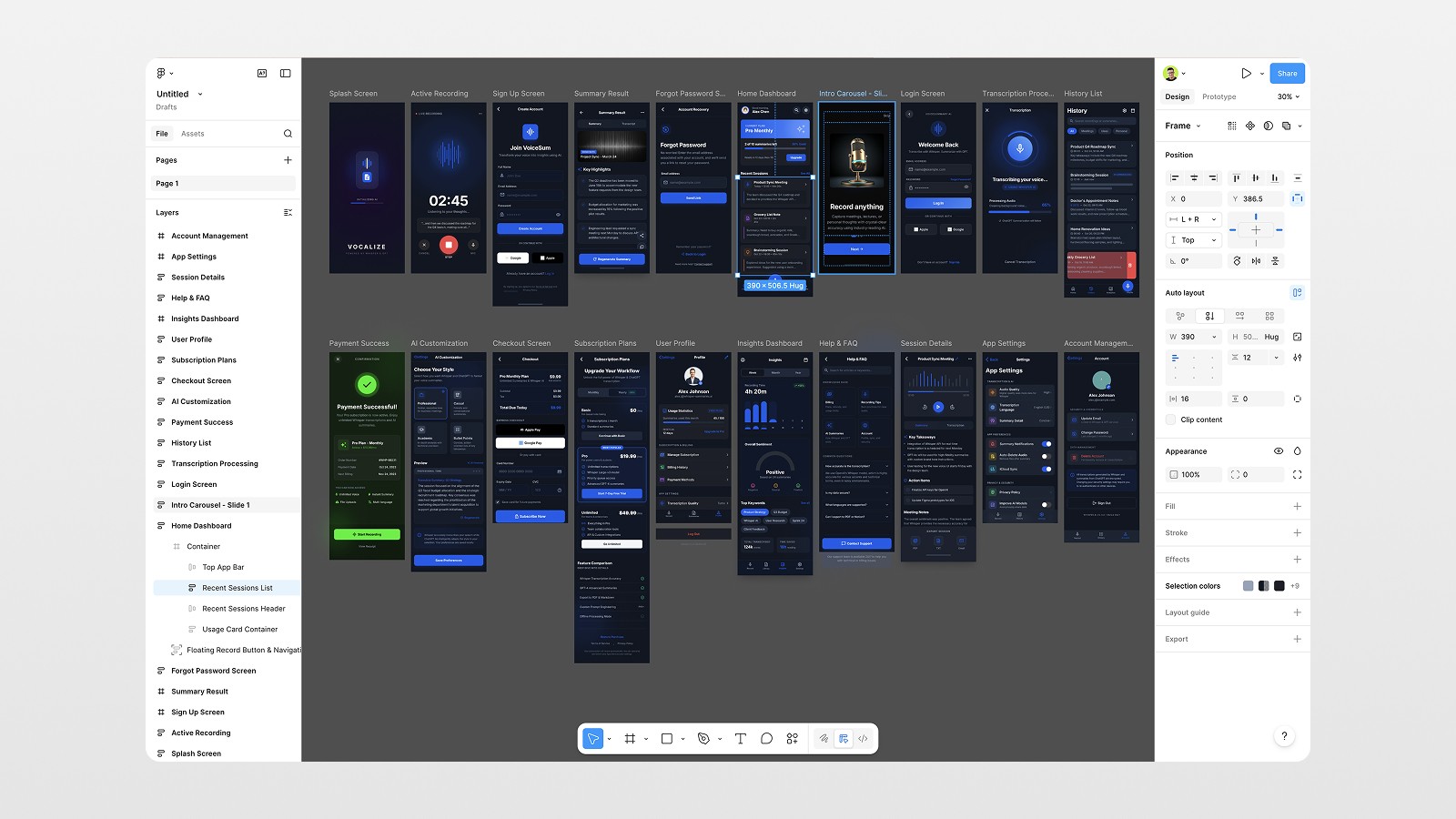
Select the screens you want (note: export is currently limited to 16 screens at a time), click Export → Figma → Convert. Stitch generates a Figma-compatible file that you can paste directly into any Figma project with Cmd+V.
The result? All your screens land in Figma, with auto layout applied to most elements, proper icon handling, gradients, and image placeholders. Is it perfect? Not quite — there are some frames where auto layout isn't applied, which you'd expect from any AI tool right now. But the overall structure is solid, and it takes maybe a few minutes to clean up the edge cases.
Compare that to Figma Make, where structural issues can be a real headache even inside the Figma ecosystem. Stitch's export quality genuinely surprised me.
From here, you treat these screens as your starting point. Update colors, swap in your brand fonts, refine the layout — and you've got a polished UI foundation in a fraction of the time it would take to start from scratch.
Step 4: Export to Code and Build a Working MVP
If you're not just designing but actually shipping, this is the step that makes Google Stitch genuinely powerful for MVP development.
After exporting to Figma, I went back and selected the first row of screens and chose Export → Code → Copy code to clipboard. What you get is plain HTML and CSS — a complete front-end file for all your screens.
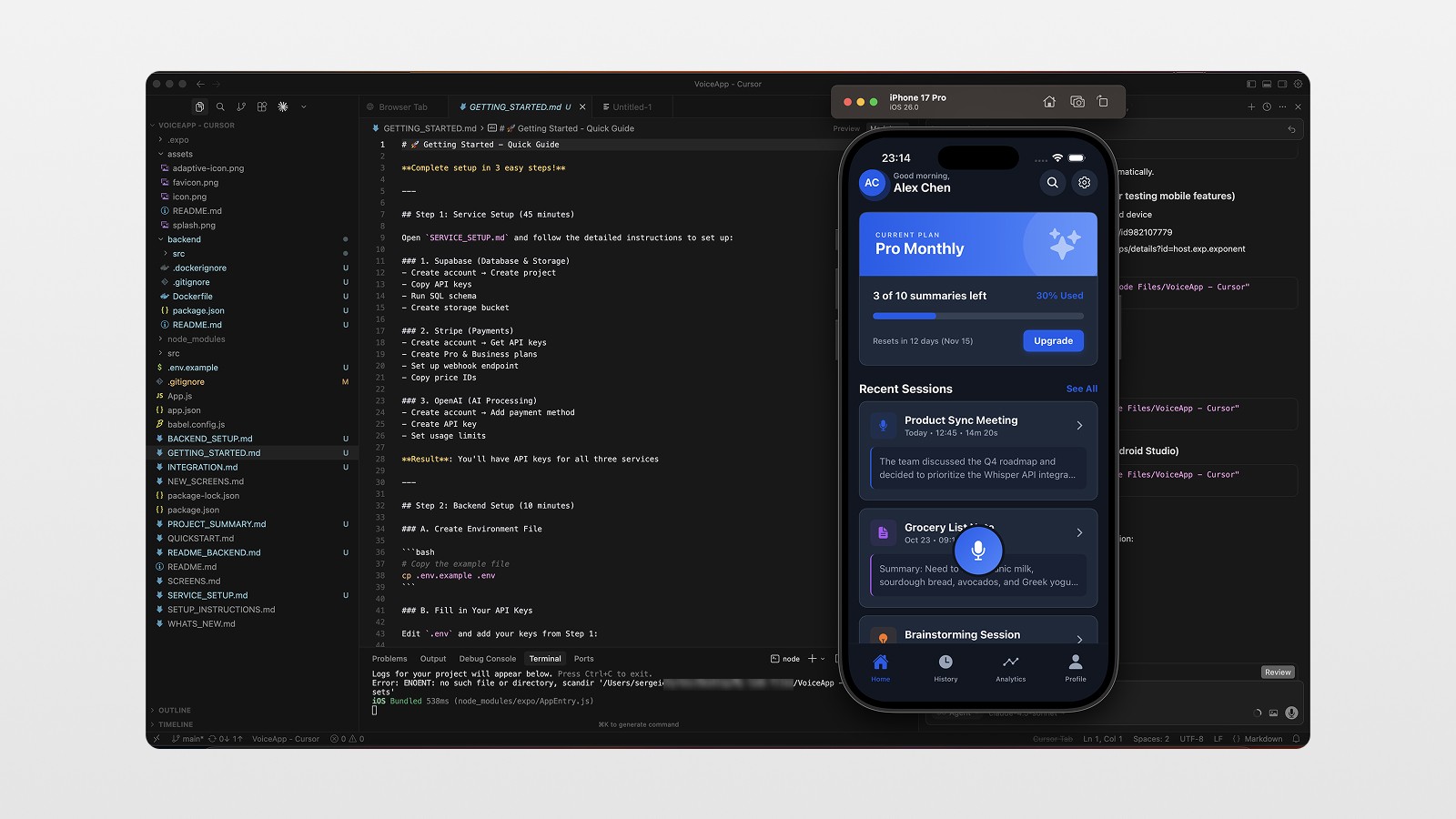
I took that code into Cursor (an AI-powered code editor) and gave it a simple prompt: build a working MVP prototype using React Native. No real functionality needed yet — just an interactive prototype.
A few minutes later, I had a fully functional front-end for all 10 screens. I ran the same process for the second batch of screens. Cursor generated:
The complete front-end UI for all screens
A prototype back-end structure (no real Stripe or Supabase yet, but the architecture is there)
A project README with setup documentation
Notes on how to connect the real services when it's time
The documentation Cursor generated from the Stitch code was genuinely useful — detailed enough that you could hand it off to a developer and have them build the real thing.
Step 5: Preview in iOS Simulator
The final test: does it actually run?
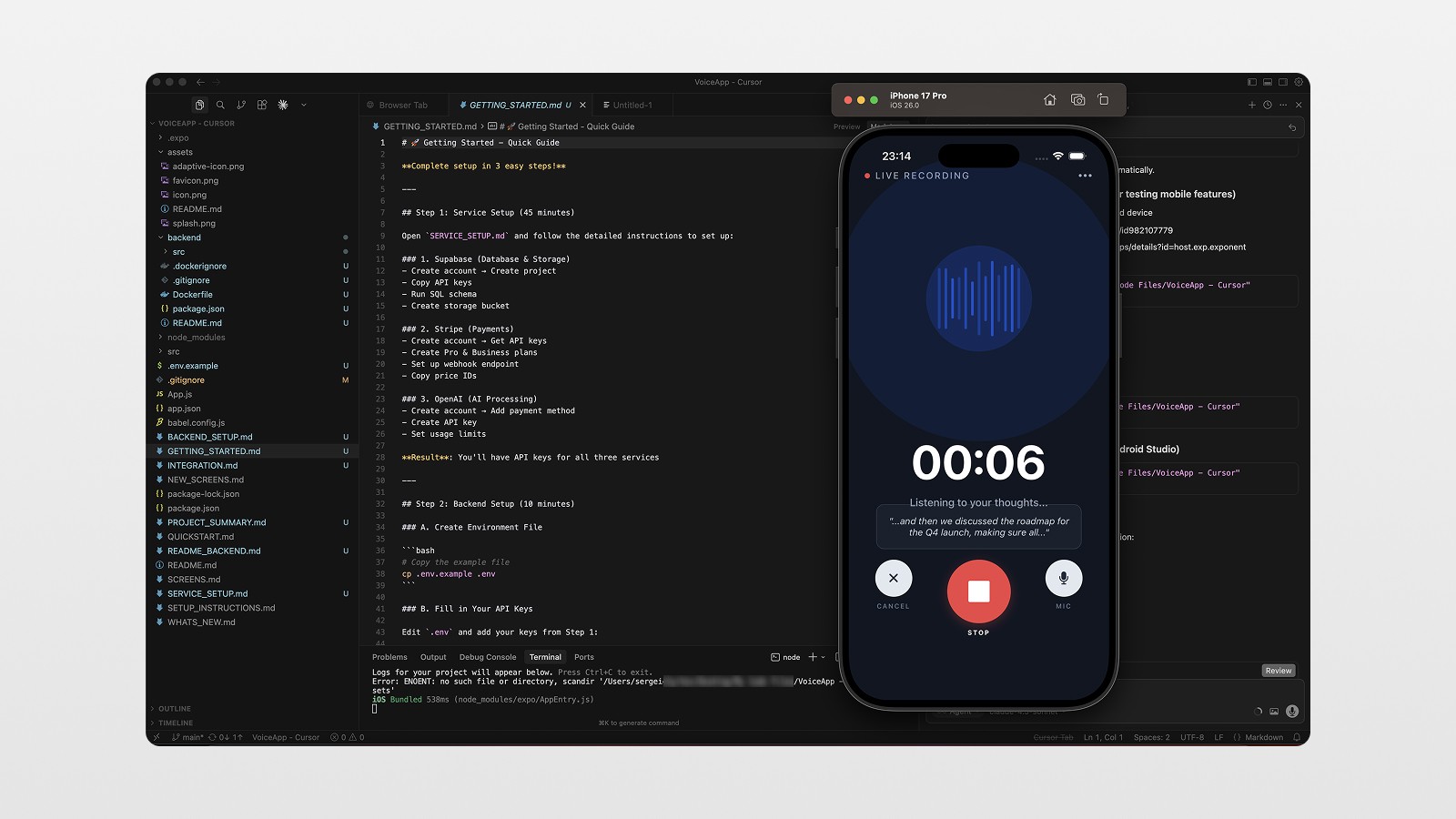
I launched the app using Expo in an Xcode iOS simulator for iPhone 17 Pro. The result was a fully working prototype with:
An animated loader and onboarding flow
Account creation screen
Recording screen with audio processing feedback
Transcript and summary views
Subscription plan selector
Support and profile screens
Is it production-ready? Not yet — the Stripe integration and real transcription aren't wired up. But as an MVP prototype to validate an idea, show a client, or demo to potential users? Absolutely. And it took less than 20 minutes from first prompt to live app preview. 🚀
Why This Workflow Actually Makes Sense
Here's the thing about AI tools for design: the mistake most people make is treating them as a replacement for thinking. They're not. The step that made this workflow click was the ChatGPT planning session at the beginning — spending five minutes mapping out the app logic before generating anything.
With that foundation, Stitch had enough context to generate coherent, consistent UI. Cursor had enough structure to build meaningful code. And the end result was actually useful, not just visually impressive.
Think of it as: ChatGPT for planning → Stitch for UI → Cursor for code → Expo for preview. Each tool does what it's good at. The workflow feels natural once you've done it once.
Actionable Tips for Getting the Best Results from Google Stitch
Start with a structured prompt. Use ChatGPT or any AI tool to break your app into screen categories first (onboarding, core flow, settings, etc.), then paste that structured list into Stitch. A vague prompt gets vague results.
Generate in batches. Stitch exports up to 16 screens at a time. Split your prompts into logical groups and keep them consistent so Stitch maintains the same visual style across all batches.
Rate your results inside Stitch. Use the thumbs up/down feature on each screen — it helps Stitch understand what's working so variations improve over time.
Use the Figma export as a starting point, not a finished product. Plan to spend 10–15 minutes cleaning up structure in Figma (fixing non-auto-layout frames, swapping placeholder images, adjusting colors). The bones are great — the finishing is on you.
Combine with Cursor for the fastest MVP path. Export the code from Stitch, drop it into Cursor, and prompt it to build a React Native or web prototype. You'll have something interactive and demo-ready incredibly fast.
Conclusion: Google Stitch Changes the AI UI Game
Google Stitch isn't perfect, but it's a genuinely impressive free tool that earns a place in any designer's or founder's workflow. The design quality is better than most AI UI tools I've tested, the Figma export actually works, and the code export opens a direct path to a working MVP.
For anyone building products, validating ideas, or just trying to move faster — this workflow is worth your time. Less than 20 minutes from idea to live prototype is not something to ignore. 📌
Watch the full video walkthrough for the step-by-step demo, and if you want more content like this on Figma, Framer, and AI tools for designers, subscribe to my newsletter below 👇
FAQs
What is Google Stitch and how does it work?
Is Google Stitch free to use?
How does Google Stitch compare to Figma Make?
Can Google Stitch export code for real app development?
How many screens can I export from Google Stitch at once?
See more from me in Google Search
Add sergeichyrkov.com as a preferred source to get my tutorials and articles highlighted in Top Stories and AI Overviews.