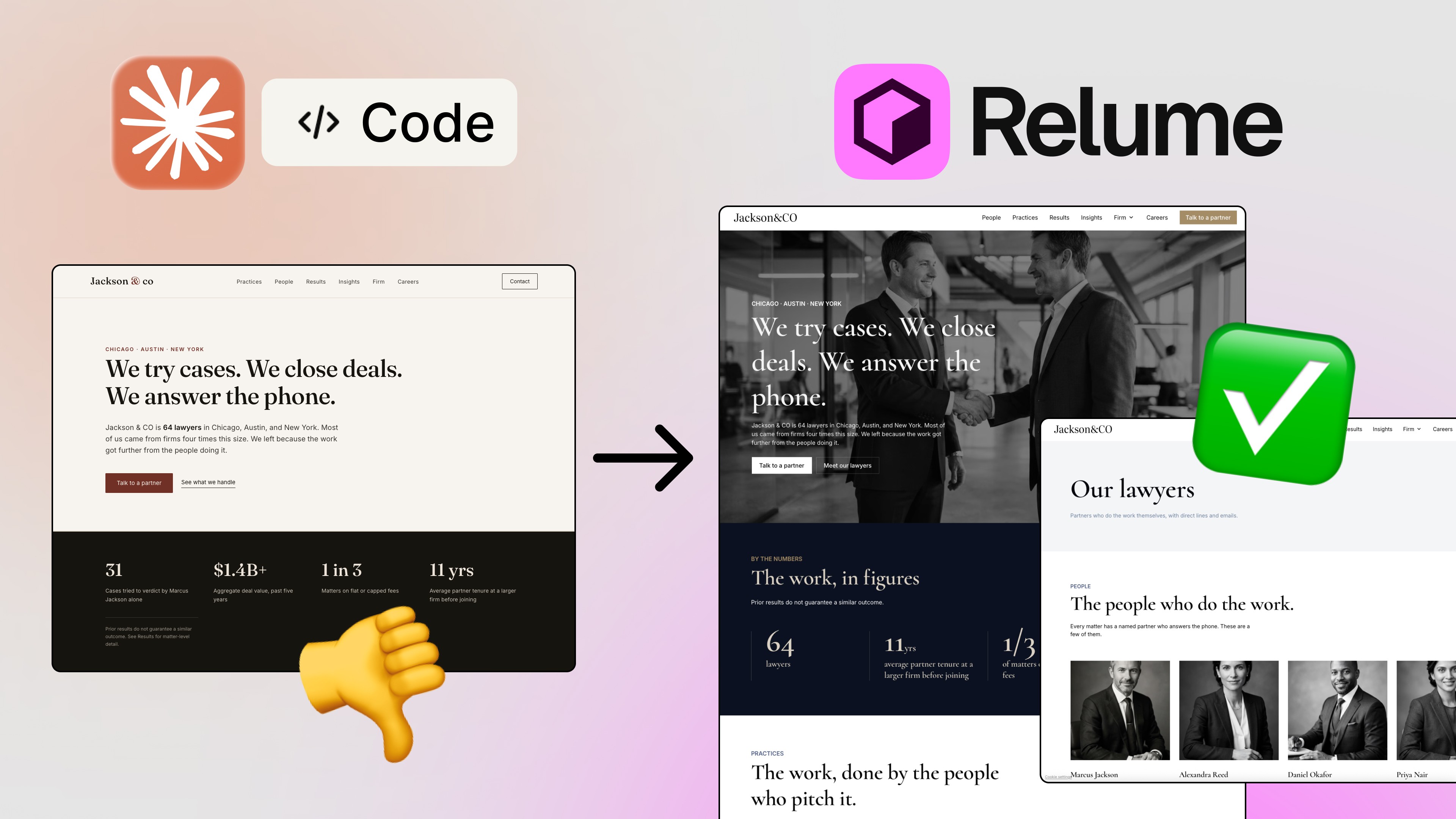
Creating a Functional Framer Calculator Using a Spreadsheet, ChatGPT, and Cursor
If you’ve ever tried creating a calculator or pricing tool inside Framer, you know how time-consuming and complex it can get — especially when the logic includes expenses, working hours, taxes, margins, and service-based pricing.
But what if you could turn any spreadsheet into a fully functional Framer component… without manually coding every formula?
In this guide, you’ll learn exactly how to:
Structure your calculator logic in a Google or Excel spreadsheet
Use ChatGPT to analyze your spreadsheet and extract the formulas
Generate a production-ready React component using Cursor
Import it into Framer and make it fully editable and dynamic
This workflow saves hours of manual development, avoids logic errors, and gives you a scalable system you can reuse for clients or internal projects.
Let’s dive in.

Step 1 — Start With a Fully Functional Spreadsheet
Every good calculator starts with a spreadsheet because spreadsheets force you to think through the exact logic and formulas.
In the video, the spreadsheet includes:
Monthly Expenses Section
A simple table where you list:
Recurring expenses
Notes
Auto-calculated monthly total
The spreadsheet uses basic SUM formulas to generate your total expenses — forming the foundation of the hourly rate calculation.
Working Time Section
This section calculates:
Days worked per week
Hours worked per day
Total weekly hours
Total monthly hours
These formulas form the “capacity” side of your hourly rate computation.
Base Hourly Rate
Once expenses and working hours are known, the spreadsheet calculates the minimum hourly rate required to cover costs.
Step 2 — Add Margin, Risk Buffer, and Taxes
To make the pricing realistic (and profitable), your spreadsheet includes:
Margin %
Risk buffer %
Income/corporate tax %
These values stack on top of the base hourly rate to produce the final “price per hour” you should charge clients.
This is crucial for:
profitability
sustainable business growth
not undercharging for your services
The spreadsheet uses layered formula logic — something that’s extremely helpful when generating code later.
Step 3 — Add Service-Based Pricing
The last section of your spreadsheet converts hours into service pricing.
Here you list:
Services (e.g., landing page, logo design)
Estimated hours
Auto-calculated service price
The spreadsheet multiplies hours × final hourly rate, giving you instant service pricing.
Step 4 — Export Your Spreadsheet and Feed It Into ChatGPT
After the spreadsheet is ready, export it to Excel. Then upload it to ChatGPT and ask it to:
“Analyze this spreadsheet and describe all formulas, calculations, and logic in detail.”
ChatGPT will:
Break down every section
Recreate formulas
Interpret the logic
Validate the structure
This ensures AI fully understands the calculator — which is essential for generating accurate code.
Step 5 — Ask ChatGPT to Generate a Detailed Prompt for Cursor
Instead of generating code directly in ChatGPT, you ask it to create a detailed technical prompt specifically for Cursor.
This prompt includes:
Component description
State variables
UI layout
All formulas rewritten in JavaScript
Add/remove row functionality
Currency options
Framer integration instructions
This becomes the blueprint used inside Cursor to build the final React component.
Step 6 — Use Cursor to Generate the Framer Code Component
Cursor is ideal for this workflow because it:
Handles long, complex files
Lets you preview and iteratively refine code
Allows incremental fixes instead of re-generating everything
Keeps project files organized locally
Inside Cursor, you:
Create a new project folder
Paste ChatGPT’s prompt
Add Framer component documentation
Run the agent in Claude Sonnet 4.5 for best results
Review and apply generated fixes
Cursor outputs a full React component that matches your spreadsheet logic exactly.
Step 7 — Import the Generated Component Into Framer
Inside Framer:
Go to Assets → Code
Create a new code file
Paste the generated component
Save
Framer automatically recognizes the component and makes it editable from the right-side sidebar.
Step 8 — Test Your Calculator in Framer
Once placed on your page, you can:
Add/remove expenses
Change working hours
Adjust margins and taxes
Modify service hours
Update currency
Change background color
Make the component responsive
All calculations update instantly — just like in your spreadsheet.
And since the logic is based on your formulas, the results are correct and reliable.
Why This Workflow Is So Powerful
1. You avoid manual coding errors
You don’t have to rewrite formulas by hand.
2. Spreadsheets become reusable logic frameworks
Build once → convert to component → reuse forever.
3. Perfect for client projects
Pricing calculators
ROI tools
Quote generators
Subscription estimators
Financial dashboards
4. You get clean, maintainable code
Cursor helps you evolve the component over time.
Conclusion
Turning a spreadsheet into a fully functional Framer calculator doesn’t require complex coding — just a smart setup and the right workflow.
With Google Sheets + ChatGPT + Cursor + Framer, you can create:
Pricing calculators
ROI tools
Estimators
Custom logic-based components
All in a fraction of the time it would normally take.
If you want to see the full demonstration step-by-step, make sure to watch the video on my channel — and subscribe for more tutorials like this.
FAQs
Can I use Excel instead of Google Sheets?
Do I need coding experience to build the calculator?
Can this workflow handle complex calculators?
Will the calculator be editable inside Framer?
Can I change the design and layout?
See more from me in Google Search
Add sergeichyrkov.com as a preferred source to get my tutorials and articles highlighted in Top Stories and AI Overviews.